 TextImageEdit
1 free credit on sign-upJPG, PNG or WebP up to 10 MBOne image per edit
TextImageEdit removes existing text from a finished image with AI. Upload a JPG, PNG or WebP, draw a box around the words and select Remove text. The area is rebuilt from the surrounding picture, with no replacement wording needed. Compare the result with the original and download it; one removal uses one credit.
Real text removal examples
These are real removals from our current model, not customer results. The product graphic is our own; the notepad photo is from Unsplash, and we added the handwriting so there was text to remove. Review your own result before you use it.
PRODUCT PHOTO · OFFER TEXT
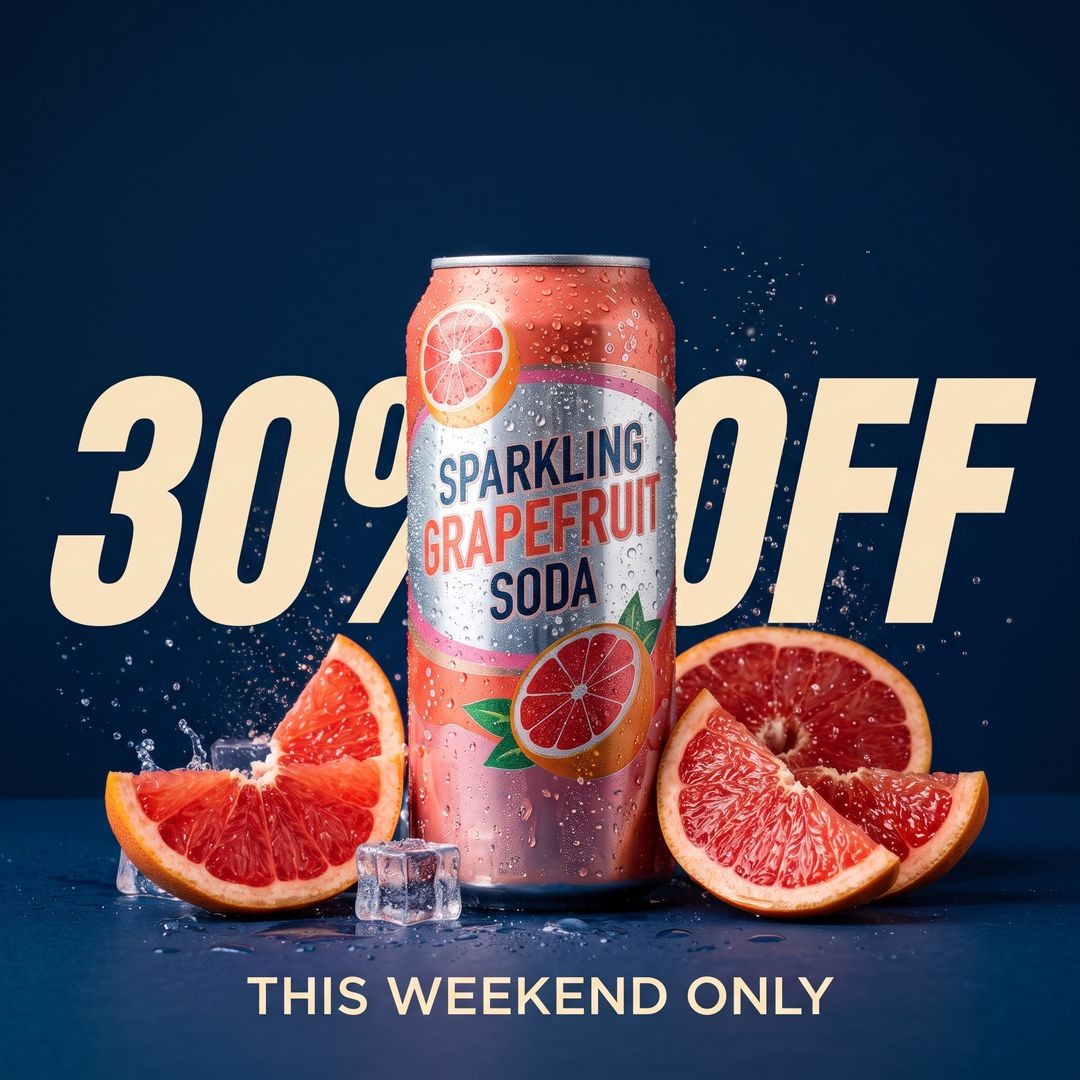
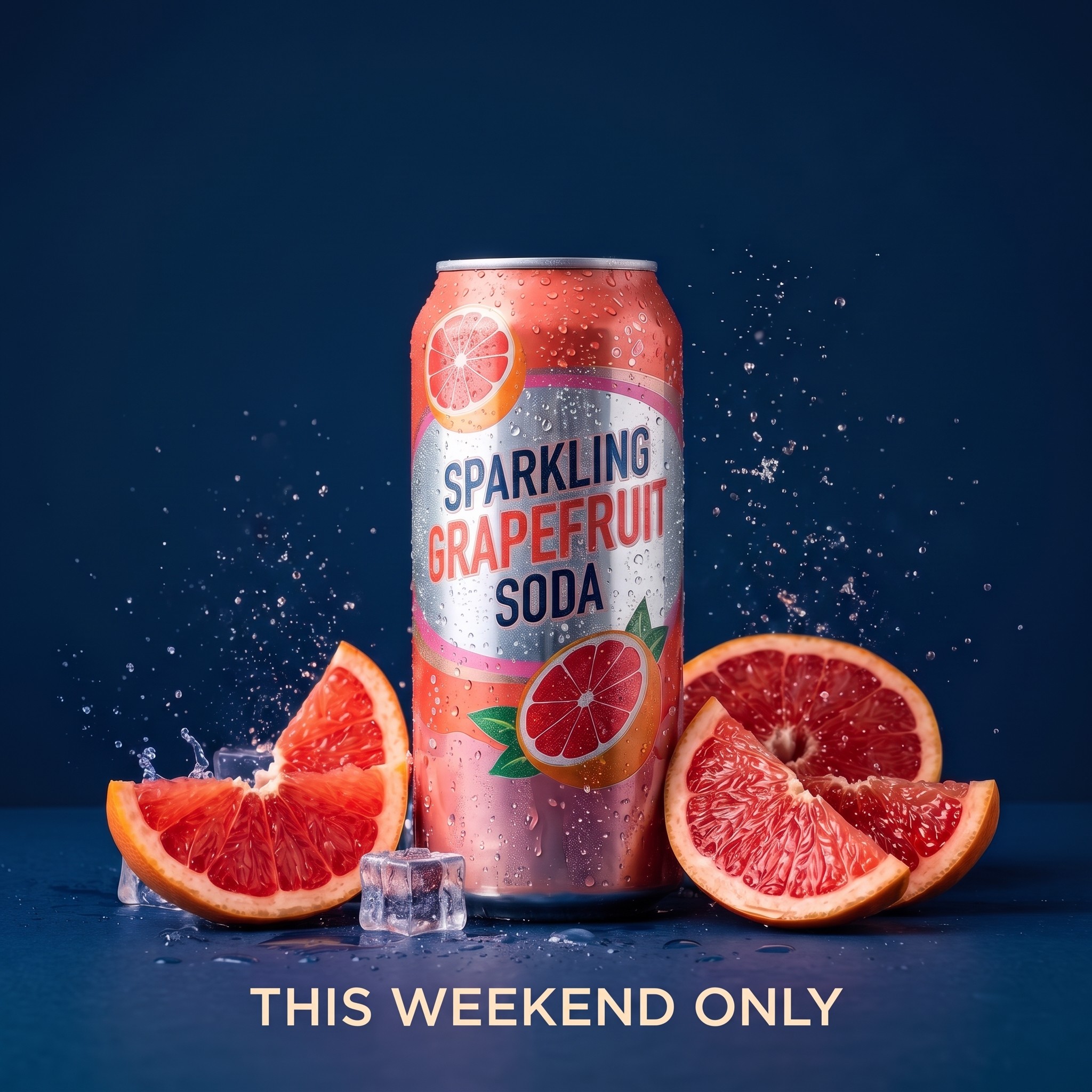
Remove a big sale headline from behind the product
30% OFF ran across the whole graphic, partly hidden behind the can. One box over the headline removed both halves and rebuilt the dark blue backdrop around the can. The can's own label sat inside the box and was kept, because it is part of the product, not the overlay. THIS WEEKEND ONLY was outside the box and stayed.
FLAT LAY · HANDWRITTEN NOTES
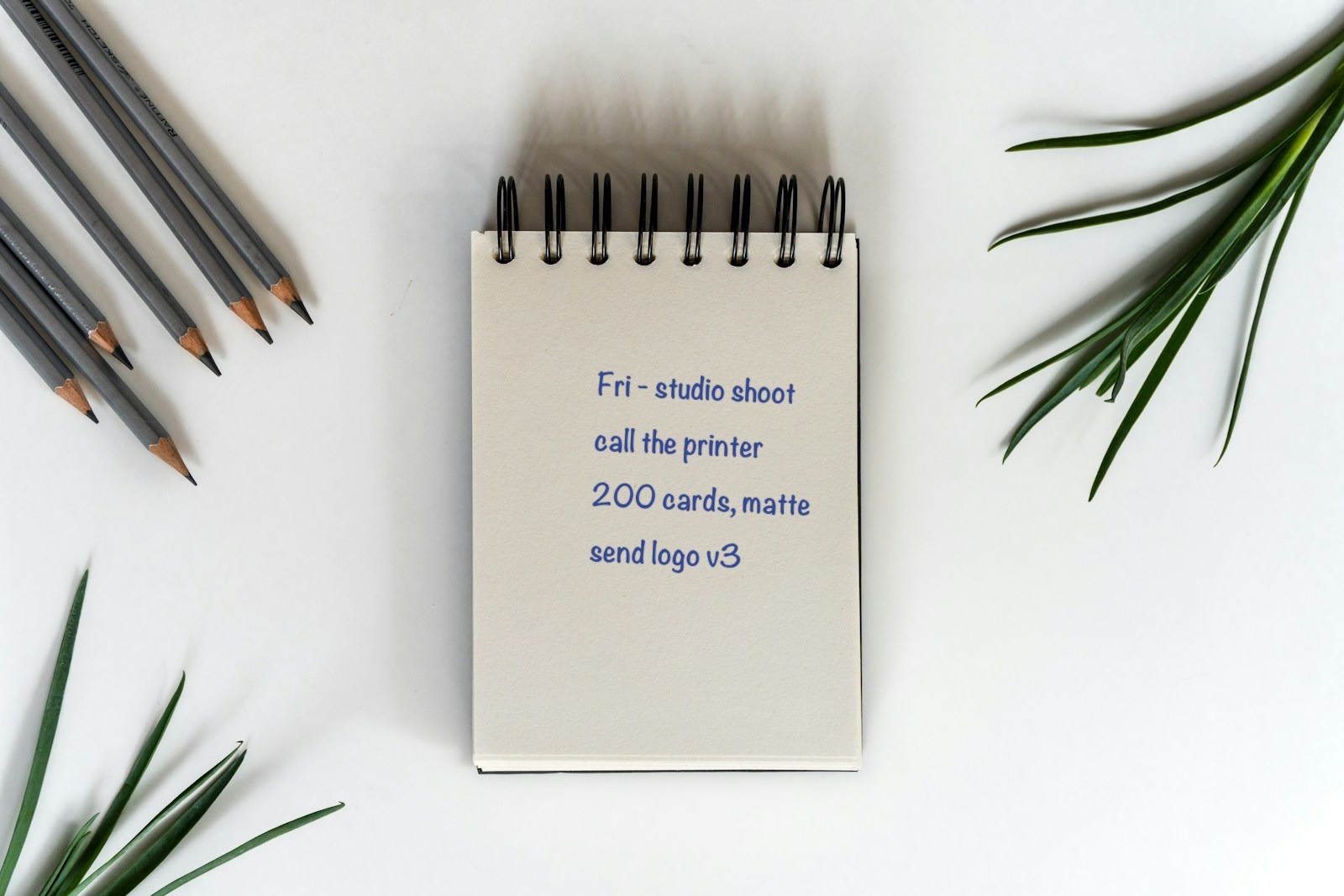
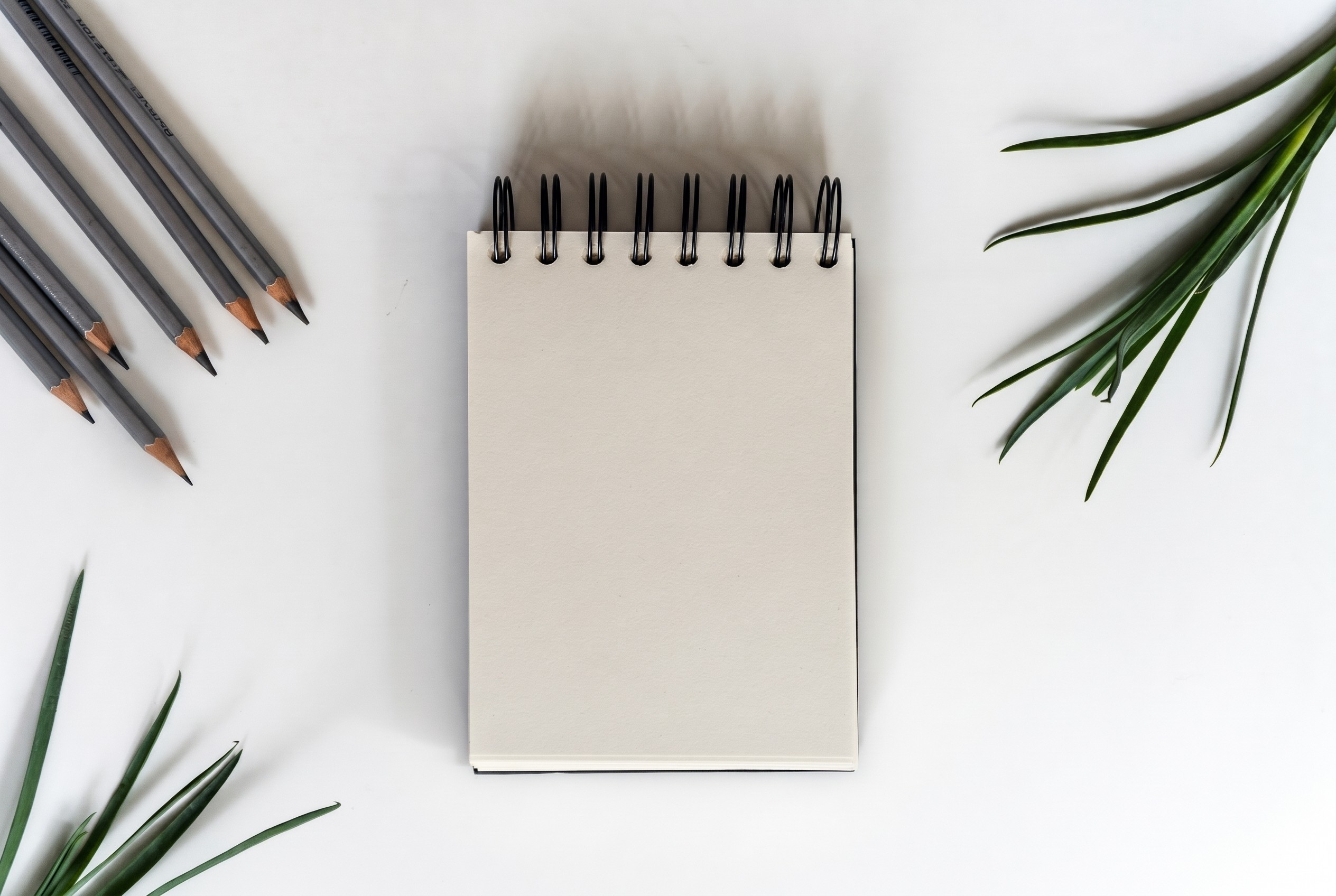
Erase handwritten notes from a notepad photo
Four lines of blue ink covered a notepad in a desk flat lay. With the box around the notes, the page came back blank with its paper texture, and the spiral binding, pencils and leaves outside the box stayed as they were.
What removing text actually does
Covering words with a rectangle of one color works on a flat background, but it leaves a visible patch on a photo, gradient or textured surface. TextImageEdit sends your box to an image model that erases the lettering and rebuilds the area from the colors, texture and lighting around it.
The rebuilt area is an estimate, not the original pixels. It is usually most convincing on smooth or evenly textured backgrounds, and least predictable when text crosses a face, hands, a product or a repeating pattern. Keep your original file, and when exact pixels or editable layers matter, return to the design file or a manual editor.
Our text removal guide tests free heal tools, color patches and AI removal on the same images, and shows when a free method is enough. We also tested removing text with ChatGPT. To change the words instead of erasing them, use the image text editor.
What this editor does
- Best for. Sale headlines, promo lines, handwritten notes and other text you want gone from your own images.
- Accepted input. One JPG, PNG or WebP image, up to 10 MB.
- How to remove. Draw one box around the words, including outlines or shadows, then select Remove text.
- Credits. 1 credit per removal. One free credit on sign-up; email accounts must be verified.
- Result. A downloadable image with the area rebuilt from its surroundings. Check edges, patterns and faces before use.
One-time credit packs (USD)
- Starter $14.90 · 40 credits
- Pro $26.90 · 100 credits
- Studio $39.90 · 180 credits
How to remove text from image
- Upload a JPG, PNG or WebP up to 10 MB, or load a sample. Use an image you own or are allowed to edit.
- Drag a box around the words you want to erase, including any outline or shadow. Keep nearby words and objects outside the box. You can also type the box position in percent.
- Select Remove text. When the result appears, use Show original to compare, then download. Continue editing starts another removal from the result.
Before you finish: Use a tight box, and remove distant text blocks one at a time. Check faces, repeating patterns and fine lines; rebuilt background detail can differ from what was there.
Remove, replace or translate?
Remove when the space should be empty, or before adding new copy in a design tool. Replace when the same spot needs different words: the text editor redraws them in a similar style. Translate when every visible line needs another language.
For text in several places, remove one area, check it, then use Continue editing for the next. Each submission uses one credit.
FAQ — remove text from image
Can I remove text from an image without affecting the background?
The removal rebuilds the selected area from the colors, texture and lighting around it, so the background can stay visually intact instead of showing a flat paint patch. Draw the box tightly around the words, including outlines and shadows, and keep nearby objects outside it. The rebuilt pixels are an estimate, not the hidden originals: on a gradient, a photo or a patterned surface, zoom in on the area before using the image. On a perfectly flat color, a free color patch in any image editor is still simpler.
Can I remove text from a picture or a photo, not just an image?
Yes. Image, photo and picture describe the same task here, and the same tool handles all of them: JPG, PNG and WebP files up to 10 MB. Photographs of signs, labels and notepads work when the text is readable and the surrounding area is not too busy. For text spread across several places, remove one boxed area, check it, then use Continue editing for the next one.
How do I remove text from an image?
Upload the image, drag a box around the unwanted words and select Remove text. You do not type the old words or any replacement. When the result is ready, compare it with the original and download it.
Will it look like the text was never there?
Often it will be close, but not guaranteed. The AI estimates what was behind the letters from the surrounding image; it cannot recover the actual hidden pixels. Smooth gradients and simple textures are easier than faces, hands, repeating patterns or text crossing a product. Zoom in on the selected area before you use the image.
Which backgrounds work best?
Text on a flat color, a soft gradient or an even texture usually gives the most natural result. Text over detailed objects is harder because the model has to invent what was underneath. On a perfectly flat color, painting over the text with the same color in any image editor is a free alternative; near an edge, cropping may be simpler.
Do I need to select each piece of text?
Yes. Each removal uses one box, and there is no automatic remove-all. For text in separate places, remove one area, check it, then use Continue editing to select the next. Each submission uses one credit.
Can I remove one word and keep the rest?
Yes. Draw the box around that word only, including its outline or shadow, and leave neighboring letters outside it. The request asks the AI to keep everything else unchanged, but compare the remaining words in the result too.
Will it remove shadows, outlines and glows around the letters?
Only if they are inside the box. Draw the selection around the visible shadow, outline or glow as well as the letters, with a little margin. If a faint edge remains, start again from your original image with a slightly larger box.
What if it removes too much or leaves a trace?
Use Show original to compare. If something outside the words changed, or a faint outline remains, start again from your original file with a tighter or slightly larger box. There is no brush to restore part of a result, so keep your original image.
Should I remove the text or blur it?
Blur when you only need to hide information, such as a name in a screenshot you are sharing; it is quick and nobody expects that area to look untouched. Remove when the image needs to look clean, for example before adding new copy.
Can I remove a watermark?
Only from images you own or are allowed to edit, such as your own draft or proof marks. Do not remove another creator's watermark, credit or signature: Acceptable use limits the editor to images you own or may edit, and removing someone else's mark can infringe their rights.
Is the text remover free?
A new verified account gets one free credit, once. It covers one removal at the 1K setting, without a card. After that, each removal uses one purchased credit at 2K. Credit packs do not expire and there is no subscription.
Which files can I upload, and what do I download?
One JPG, PNG or WebP up to 10 MB. Export HEIC photos or PDF pages to one of those first. The download is a flattened image without text layers or a watermark. The free credit renders at 1K and purchased credits at 2K, so the format and pixel dimensions can differ from your upload; check the downloaded file at the size you will use it.
Is my image uploaded?
Yes. The image, your selection and the removal instruction are sent for AI processing, and the image and result are kept in private storage linked to your account. Do not upload sensitive material you are not comfortable sharing for processing. For a confidential image, a manual editor that runs on your own device is the safer choice.
Can I use it on my phone?
Yes. Upload from your mobile browser and drag across the words with your finger. If the box is hard to place, type its Left, Top, Width and Height as percentages of the image.
What happens if a removal fails?
A failed generation returns its credit automatically. If a task is still processing or its status is unclear, check the status instead of submitting again. A finished result you choose to redo is a new edit and uses another credit.
Can I use the results commercially?
Yes, as long as you own the original image or are allowed to edit it. You can use the edited images in ads, product listings, websites and print.
What can't I edit?
Don't upload work you don't own or have rights to, government IDs, passports, certificates, official or stamped documents, bank statements, receipts, currency, or edits meant to deceive, such as fake quotes or altered chat screenshots. See the Acceptable Use rules for the full list.
Compare with an AI assistant
How can I remove text from an image, photo or picture and fill the background naturally? Compare box selection, brush and manual clone or fill methods, which backgrounds are hard, free limits and what to check before downloading. Read this page as context: https://textimageedit.com/remove-text-from-image If you cannot access the page, say so rather than guessing its content.
The question includes this page's link. If it is not filled in, copy and paste it.
Further reading
- Photopea: Smart Tools — Spot Healing Brush and Patch, for painting over small areas by hand. Photopea runs in your browser without uploading files.
- Photopea: Basic Tools — Clone Stamp and Brush, for copying nearby texture or painting a flat color over text.
- GIMP: Heal tool — blends surrounding pixels into small areas; large areas take repeated passes.
- Google Photos: edit your photos — brush or circle an area to erase on Android, then compare or revert.
Try it on your own image.
Select the words you want to erase from a JPG, PNG or WebP. TextImageEdit fills that area from the surrounding image so you can compare and download the result.
Remove text from image →