TextImageEdit / Edit text in image online

Edit text in image online

Upload a flat image, type the words you want to edit and what they should say. The AI redraws only that text and keeps the rest of the picture.

Drop a photo here

JPG, PNG, WebP · up to 10 MB

By clicking Edit text, you confirm you own or may edit this image and that the edit is not meant to deceive anyone. We refuse IDs, passports, certificates, receipts, invoices, bank records, official seals and edited chat or email screenshots. See Acceptable use.

No image? Try an example

Quick answer

What does it mean to edit text in image online?

To edit text in an image, upload a JPG, PNG or WebP, enter the existing words and their replacement, then download the edited image. TextImageEdit redraws the requested lettering to match the visible style; review the result before use.

At a glance

What this editor does

Best for
Replacing existing words on flat graphics, photos and screenshots.
Accepted input
One JPG, PNG or WebP image, up to 10 MB.
How to edit
Enter up to five original and replacement text pairs for one image.
Credits
1 credit per submitted image. One free credit with the first Google sign-in.
Result
A downloadable edited image. Review the words, visual details, dimensions and format before use.

Examples

Ways to edit text in image online

Explore the situations below. Before-and-after comparisons show real model edits of our demonstration images.

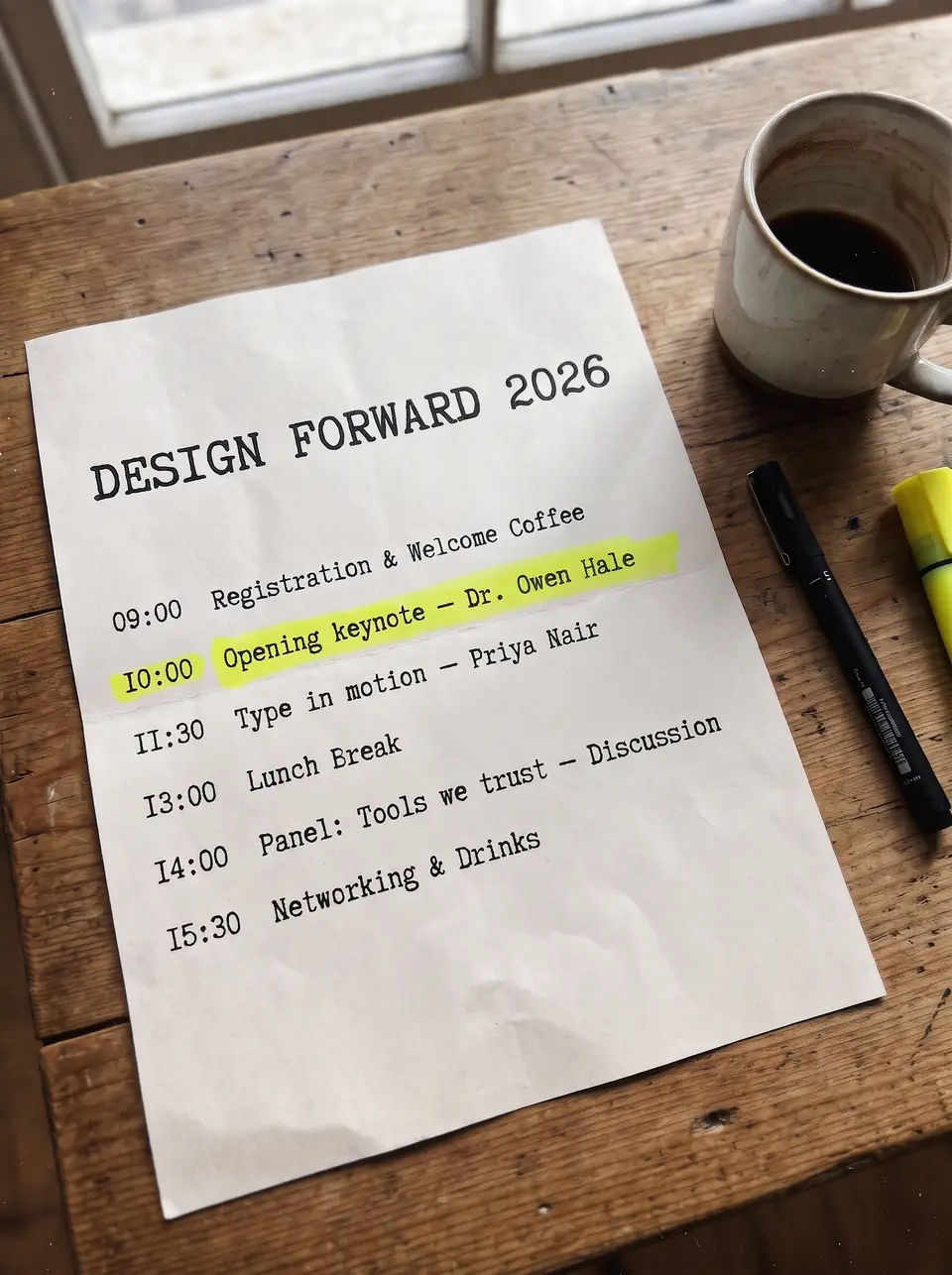
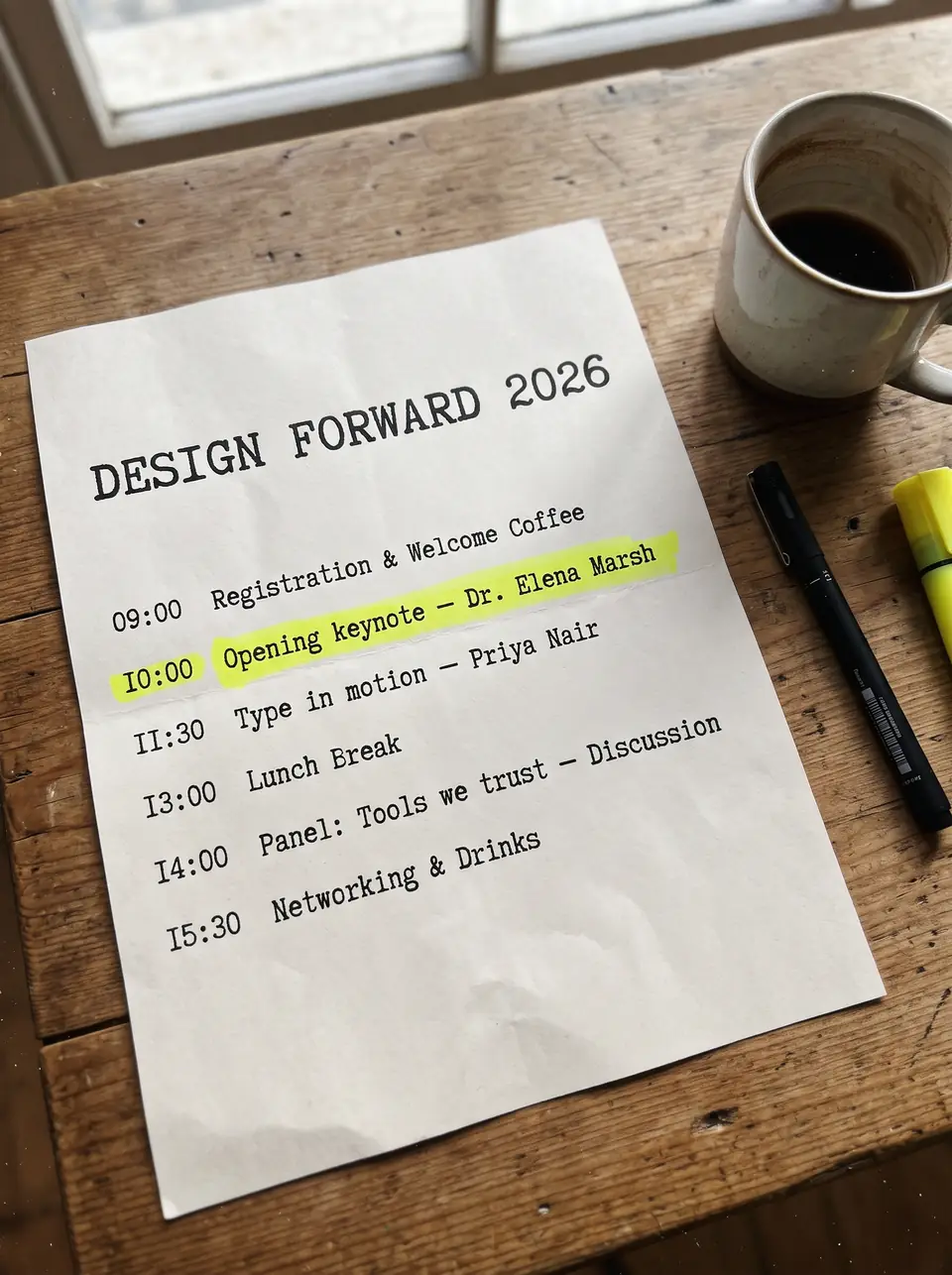
After: Dr. Owen HaleBefore: Dr. Elena MarshBeforeAfter
Real edit · Dr. Elena Marsh → Dr. Owen Hale

Correct a name in an event program

When the only copy is a flattened program, replace the full name rather than a few letters. Check the surrounding line and spacing as well as the spelling.

For a printed program, compare the edited name with the schedule and any captions elsewhere in the file. The example shows an actual model edit on a demonstration program. Inspect the character spacing and the nearby paper texture before using the resulting image.
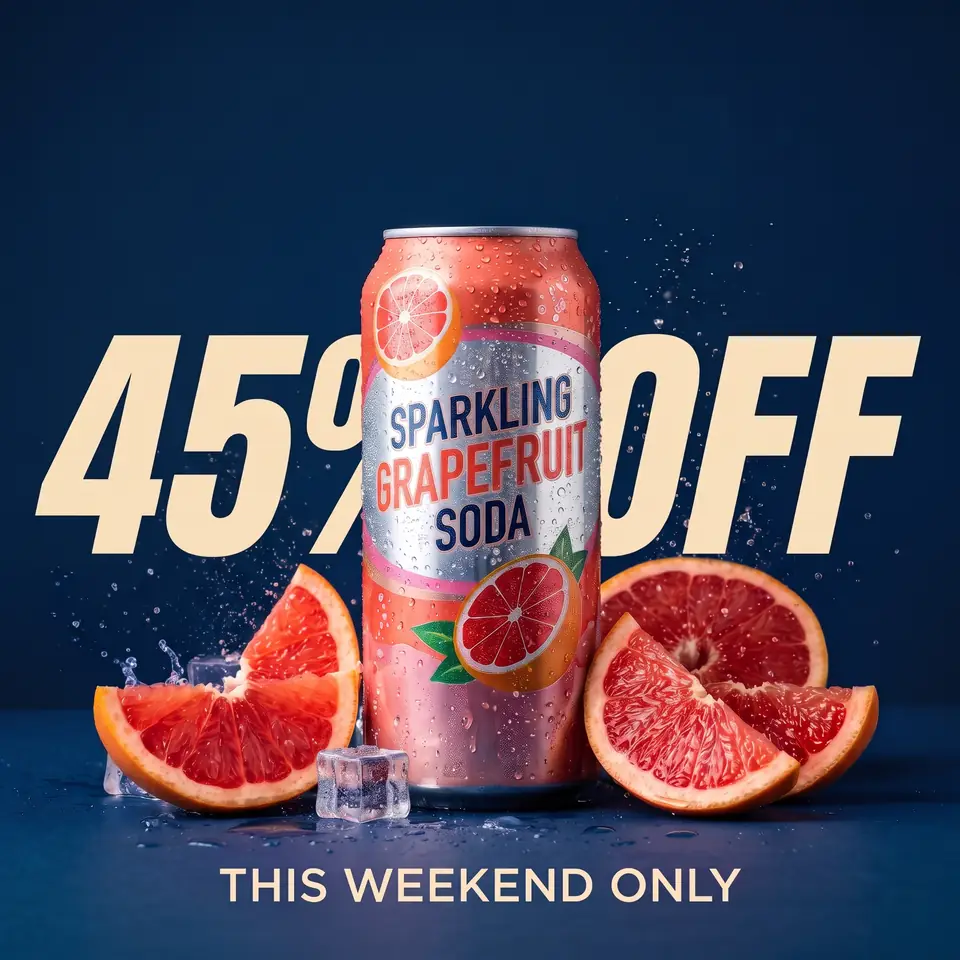
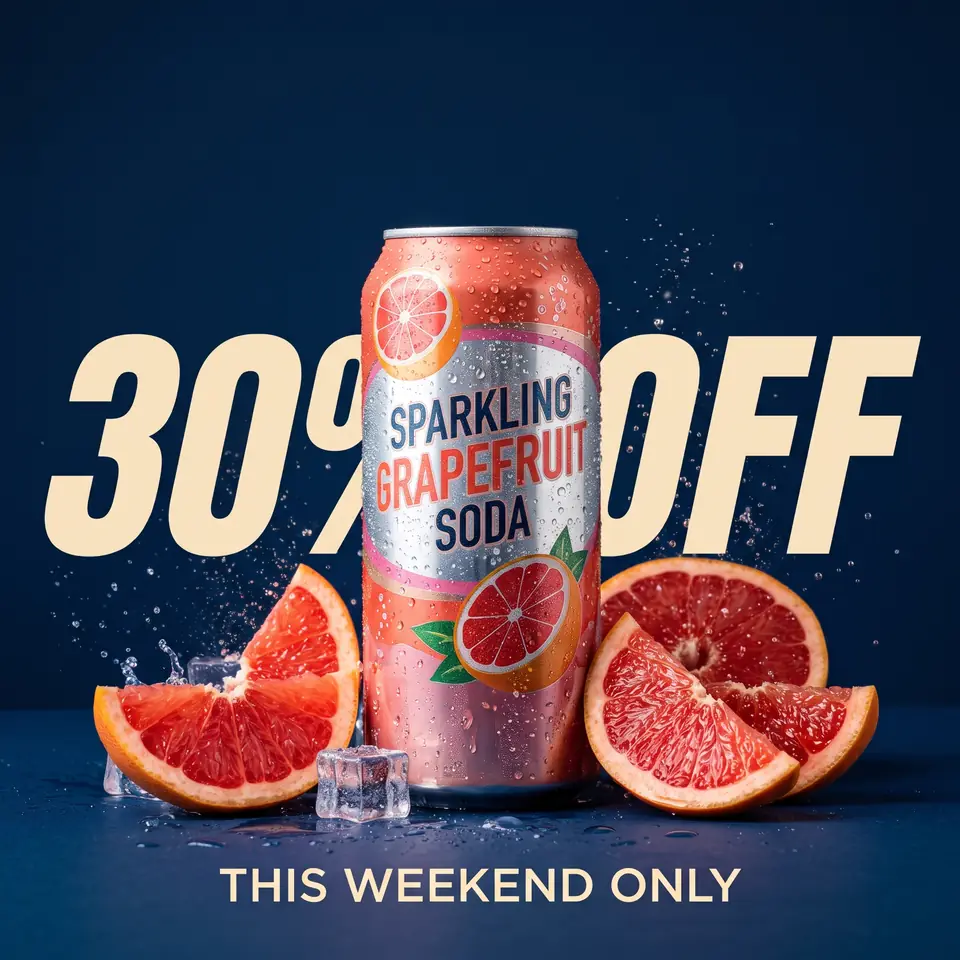
After: 45% OFFBefore: 30% OFFBeforeAfter
Real edit · 30% OFF → 45% OFF

Update a sale badge

Revise a discount on a product graphic using the original offer as the source text. Compare the product and badge, and use only an offer that is actually valid.

This example shows an actual edit of a demonstration offer. A changed badge does not change the product price, checkout or campaign dates. Confirm the replacement is the offer that customers can actually receive, then review the can and surrounding artwork as well as the text.

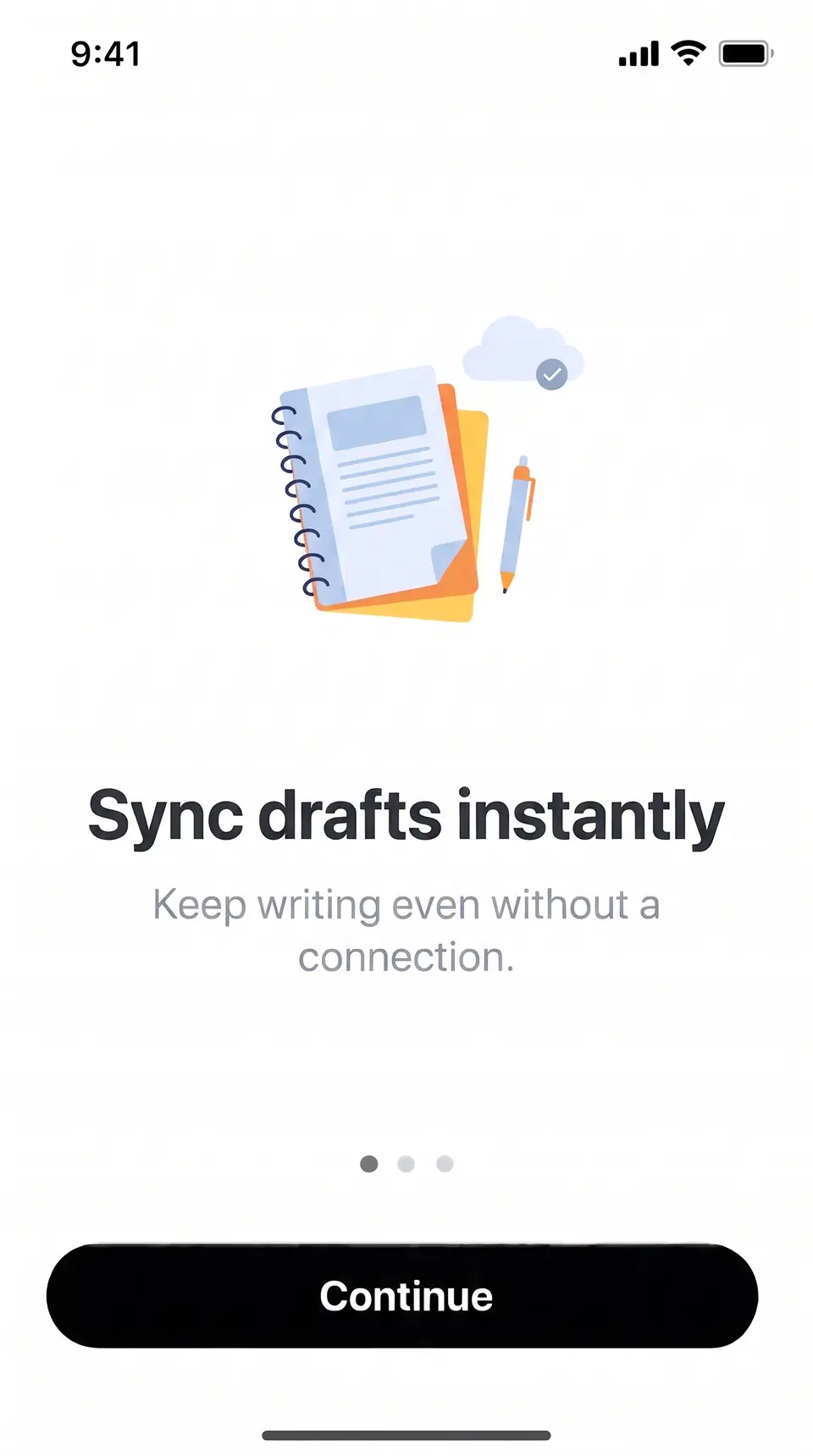
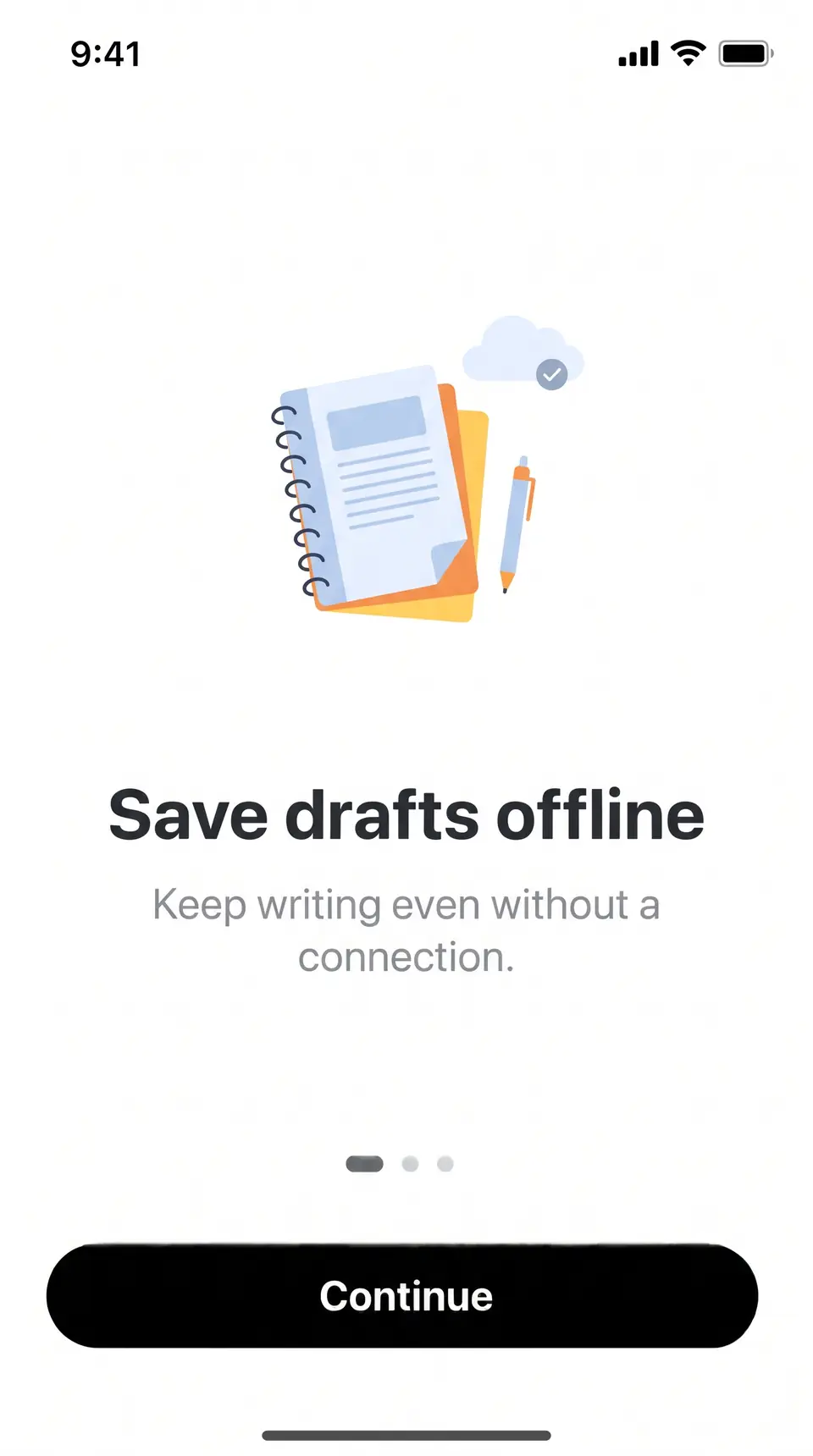
After: Sync drafts instantlyBefore: Save drafts offlineBeforeAfter
Real edit · Save drafts offline → Sync drafts instantly

Revise an exported app screen

A button or onboarding headline can be edited in an image you own. Use a crisp PNG and verify small UI labels and icons after the edit.

Use a capture of your own app or an authorized design. If the screenshot appears in documentation, verify the actual interface and update the accompanying instructions too. Zoom in on buttons, small labels and status details; a generated result is not guaranteed to preserve every pixel.

How it works

How to edit text in image online

  1. Upload a JPG, PNG or WebP image up to 10 MB.
  2. Enter the text as it appears now and the new text.
  3. Press Edit text and download the edited 2K image.

Tips for a clean result

  • Type the original words exactly, including capital letters.
  • Keep the new text close in length to the old text so it fits.
  • Use the sharpest copy of the image you have.

Practical guide

What happens when you edit text in a flat image?

In a JPG, PNG or WebP export, visible letters are part of the pixels, not a separate text layer. Enter the words you can see and their replacement; the editor redraws the requested text in the surrounding style.

Use the original design file when you have it and need exact typography. For an exported image, inspect the result at full size: complex backgrounds and very small letters can need another attempt.

Practical guide

Choose a useful replacement

Type complete words with their original capitalization. A replacement of similar length is easier to fit into an existing headline, button or label; for several different styles, enter each line separately.

The same workflow works for a finished poster, a product image or an app screenshot. Only upload images you own or are allowed to edit.

In detail

Which text editing workflow fits your file?

If a layered source document is available, use its editable text layer when exact font files, vector output or layout control matter. If only an image remains, the letters are pixels: the editor must redraw the words and reconstruct the area around them.

TextImageEdit replaces existing wording or translates visible text. It does not expose editable design layers; for a new caption or moving elements around the page, use a layout editor instead.

In detail

Before you publish or print

Enter the old text exactly, including punctuation and capitals, and keep the replacement close in length where space is tight. Add separate pairs for different lines; up to five can be sent with one image.

Zoom in on the new lettering and nearby details. AI output can differ in small or blurry text, complex backgrounds and unusually long replacements. Start again from the original if another attempt is needed.

Practical details

Find the right method for the file you have

An image text editor is useful when words are baked into a photograph, a flattened export or a screenshot. The upload has no live text layer to select, so the requested wording has to be redrawn. Choose the original layered design instead when it is available and you need to reposition elements or preserve exact vector typography.

For a simple typo, enter the whole word as it appears and the corrected word. For a new event date, include the entire date and punctuation. If the image contains several different changes, add a separate pair for each line and review the complete result before publishing.

Practical details

Prepare original and replacement wording

Copy the source lettering carefully, including capitalization, punctuation and spaces. The words you provide help identify the intended edit. Avoid entering a partial fragment from the middle of a longer word when the whole word is visible: the model has more context when it sees the complete source and destination.

A replacement close in length is easier to fit into a narrow badge, button or single-line headline. A longer phrase can wrap or alter spacing; if exact layout matters, compare at the intended display size or use the source design. Up to five text pairs can be included in one submitted image.

Practical details

Choose between replacing and translating

Use Replace text when you know the old and new words. Each pair describes a specific change. Use Translate when the goal is to translate all visible text into a chosen target language. These modes solve different jobs: translation does not require you to supply each translated line, but it does need human review.

One submission processes one image. To make language versions in several languages, choose one language and run a separate edit for each version. Proper names, numbers and small text deserve particular attention in every downloaded image.

Practical details

Inspect details before the image leaves your workflow

After the editor finishes, compare the changed wording and the surrounding objects at full size. Look for missing punctuation, spacing changes, color drift, soft edges and background artifacts. The model aims to preserve the original design, but it is a generative image edit rather than a pixel-locked text layer.

The downloaded file's format and dimensions may differ from the upload. Before printing or adding it to a site, verify the file extension and pixel dimensions against the requirements of the destination. Keep the original image so you can try a different edit without repeatedly editing a generated result.

Practical details

Know what the free credit covers

A first Google sign-in grants one credit once per Google account. That credit can be used for one submitted image with replacement or translation. A card is not required for the first edit. Purchased credits are one-time packs; they do not start a recurring subscription.

Each image submission costs one credit, including an image with multiple replacement pairs. A failed job returns its reserved credit. A completed result that you decide to try again is another submission, so review the image and your instructions before starting.

More guidance

Fixing a typo after an image has already been exported

A typo can survive into a PNG banner, a presentation graphic or a JPG flyer even when the source file is no longer close at hand. Identify the entire word containing the error and enter both the visible spelling and the desired spelling. Preserve punctuation and capitalization if they are part of the design.

Look beyond the corrected letters when the result arrives. An AI edit can change the spacing between characters or the pixels around the text. If the design is a regulated or legally significant document, do not use this workflow; the service's acceptable-use policy excludes official and financial records.

More guidance

Replacing a date, name or promotional phrase

Dates and names are easy to overlook because only a few characters may change. Enter the complete date or complete name as the source text. If a poster contains the date in both a headline and a footer, specify the intended occurrences as separate pairs and check each occurrence in the result.

For promotional graphics, use the real offer approved for that campaign. Editing a number in the image does not change the product listing, booking information or checkout. Update those systems separately so that the visible graphic remains accurate.

More guidance

What if the image contains several styles?

A single image may combine a heavy title, a small body line and a handwritten label. Giving each line its own original and replacement pair makes the requested scope clearer than combining different styles into one long instruction. One uploaded image can include up to five pairs.

If a phrase is too long for the space available, consider a shorter approved version. The model may change spacing or wrap a long replacement. Where the shape and layout must be exact, edit the original text layer in the source application instead.

More guidance

A practical check before downloading

Read the edited text letter by letter. Then compare the surrounding picture: check the edges of a product, lines in a screenshot, a person's face or fine background details near the edit. A generated image may look correct at thumbnail size while a typo or artifact is visible when zoomed in.

Open the downloaded file in the destination workflow and verify its size and extension. A photo editor, web upload form or printer may have different requirements. Keep the source image and document the exact wording that was approved for the final version.

Step-by-step workflows

Workflow: update a graphic after an event changes

Start with the version of the poster or program that was actually approved, not a screenshot of a compressed preview. Write down the current date, venue and any other field that needs revision. Enter the old date and its replacement as one pair; add a second pair for a name or location if it also changed. The editor accepts up to five pairs for one image.

After the result completes, read the entire image. A date can also appear in small print or in a call to action, and an instruction that changes one occurrence does not automatically update related event systems. Compare the final graphic with the registration page, event time and venue before sharing it.

Step-by-step workflows

Workflow: revise a flat product graphic

For a product promotion, start with an image you own or are authorized to edit. Enter the complete visible offer, including any number and symbol, and type the approved replacement. Keeping the full phrase together gives the model context about which badge or headline you intend to update.

A modified picture is not a product database update. Change the actual price and terms separately, and confirm that the product, variant and promotion match what the customer will receive. Review the image at both full size and its final listing size.

Step-by-step workflows

Workflow: change words in an interface capture

For an app screenshot, choose a clear image of your own product or a permitted mockup. Give each label its own text pair so a button label is not confused with a nearby heading. A PNG capture is often useful for interface text because it can preserve sharp edges.

Check the output against the live interface when the screenshot is used as documentation or a store asset. Inspect icons and status bars as well as the requested wording. An image editor changes the screenshot, not the application or its actual behavior.

Step-by-step workflows

Troubleshooting mismatched or incomplete text

If the wrong text changes, compare the source pair with the image. Similar phrases can appear more than once; spelling, punctuation, capitalization and spacing help make the request clearer. For a poster, area selection provides an additional coordinate instruction, but it does not act as a locked pixel mask.

If a completed edit does not look right, start again from the original image with a shorter replacement or a clearer instruction. A completed retry uses another credit; a failed job returns its reserved credit. For exact typography, the source design remains the best reference.

Questions

Frequently asked questions

Upload the image, enter the current wording and the replacement, and start an edit. The model redraws the requested text in the flat image. Review the spelling and surrounding layout; the result is an image, not a recreated editable design file.

Yes. The editor accepts one JPG, PNG or WebP image up to 10 MB. A screenshot exported as PNG often has sharper small text; a clean original photograph is preferable to a heavily re-saved JPEG.

Yes. Add up to five original and replacement pairs before submitting one image. Separate lines that use different styles, and inspect every change after the result is ready. One submitted image uses one credit.

No font name or font installation is required. The model uses the visible lettering as a style reference. The result is an approximation; use the original design and licensed font if exact typography is essential.

The request instructs the model to leave unmentioned areas alone, but generated images are not guaranteed to be pixel-identical. Check the background, faces, objects and small details before using the result.

Yes. Open the editor in a mobile browser and choose a supported image under 10 MB. If the phone saved the image in another format, export it as JPG, PNG or WebP before upload.

The credit reserved for a failed edit is returned automatically. A successful result that does not meet your preference is a completed edit; another attempt uses another credit.

Yes, if you own the source or have permission to edit it. Check the result and any rights that apply to the original image, wording, logos or branding before publishing.

Yes. Enter the complete misspelled word as it appears and the corrected word, then review the generated image. Start with an image you own or are allowed to edit.

Yes. Add a separate original and replacement pair for each change, up to five pairs for one image. Check both fields after the edit completes.

No. The output is a downloadable image, not a reconstructed document with editable text layers. Use the original source file when you need to change layout, font settings or vector artwork directly.

Export the relevant page as a JPG, PNG or WebP first. The editor accepts one image up to 10 MB; it does not upload or process a multi-page PDF directly.

Use a larger, clearer source if one is available. Fine or blurred characters can be difficult to redraw reliably, so inspect the result closely or edit the source document when exact text is required.

Choose a supported image, enter the words that appear and the replacement, then sign in and start the edit. The first Google sign-in grants one credit. Compare and download the generated image when it is ready.

Yes. A flat JPEG can be uploaded without its layered source. Use the clearest copy under 10 MB and inspect the changed text and surrounding image before publication.

Repeated wording can make the intended target ambiguous. Use clear separate text pairs where the words differ, and check every occurrence in the output. On the poster page, a selected rectangle can also provide position guidance to the model.

The output is a generated image rather than an editable layer. If you need to adjust individual text objects, use the original design file in its source application.

Verify the spelling, numbers, adjacent details, rights to the image and the downloaded file's dimensions and format. Ensure that a promotion or event graphic accurately describes the real offer or event.

Yes, as long as you own the original image or are allowed to edit it. You can use the edited images in ads, product listings, websites and print.

Don't upload work you don't own or have rights to, government IDs, passports, certificates, official or stamped documents, bank statements, receipts, currency, or edits meant to deceive, such as fake quotes or altered chat screenshots. See the Acceptable Use rules for the full list.

Compare with an AI assistant

“How can I edit existing words in an image without the original design file?”

Use any assistant to explore the question. If the question is not filled in, copy and paste it.

Ready to edit text in image online?

Upload an image, choose the wording or language, then review and download the result.

Further reading

Sources and practical references