TextImageEdit / Edit text in a JPG

Edit text in a JPG

A JPG has no text layers, so the words are just pixels. Upload the JPEG, type what it says now and what it should say, and the AI redraws those words in the same style.

Drop a photo here

JPG, PNG, WebP · up to 10 MB

By clicking Edit text, you confirm you own or may edit this image and that the edit is not meant to deceive anyone. We refuse IDs, passports, certificates, receipts, invoices, bank records, official seals and edited chat or email screenshots. See Acceptable use.

No image? Try an example

Quick answer

What does it mean to edit text in a jpg?

To edit text in a JPG, upload the JPEG image, enter the words as they appear and the replacement, then download and inspect the result. A JPG is a flat image, so its text cannot be reopened as an editable layer.

At a glance

What this editor does

Best for
Editing a flat JPG or JPEG when the source design is unavailable.
Accepted input
One JPG, PNG or WebP image, up to 10 MB.
How to edit
Enter the existing words and their replacement; review the output format.
Credits
1 credit per submitted image. One free credit with the first Google sign-in.
Result
A downloadable edited image. Review the words, visual details, dimensions and format before use.

Examples

Ways to edit text in a jpg

Explore the situations below. Before-and-after comparisons show real model edits of our demonstration images.

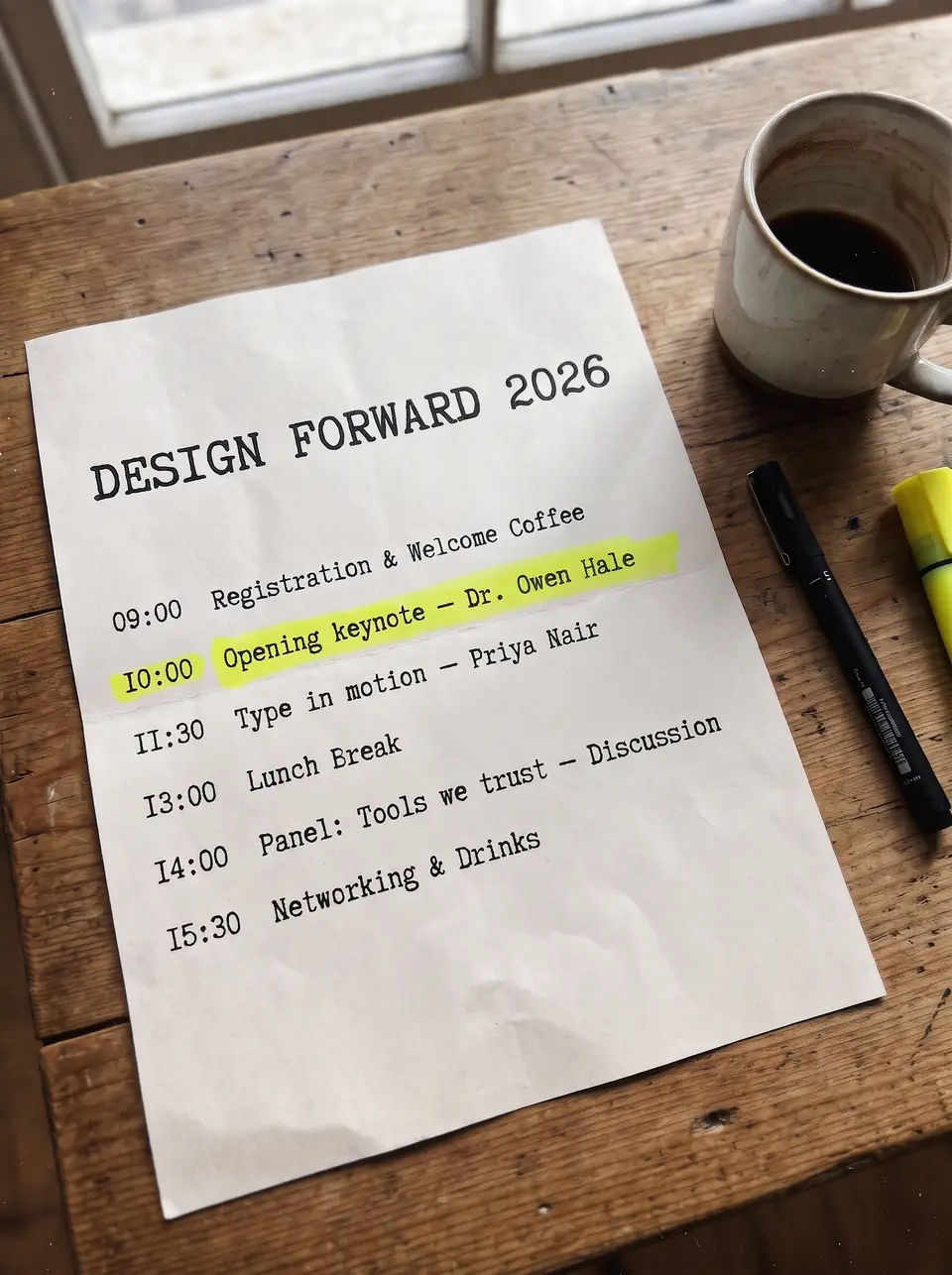
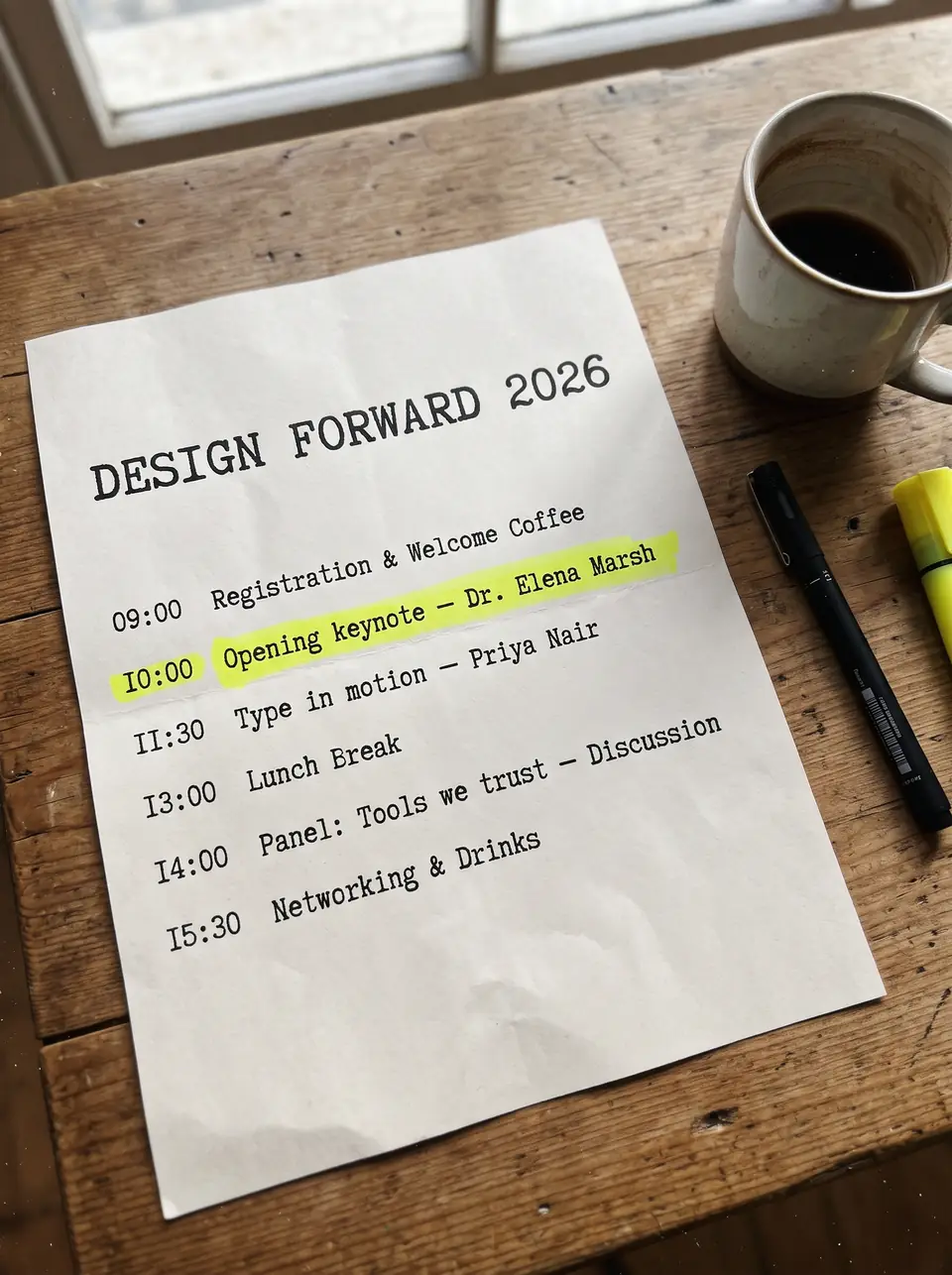
After: Dr. Owen HaleBefore: Dr. Elena MarshBeforeAfter
Real edit · Dr. Elena Marsh → Dr. Owen Hale

An exported program with no source file

A program is available only as a JPG and a speaker's name needs correcting. Replace the whole name and compare the paper grain and typewriter-style text.

The comparison shows a real model edit of a demonstration program, changing one speaker name to another. It illustrates an edit on a flattened image rather than an editable text layer. Check the new name, line spacing and nearby paper texture in your own result.


After: NEXT FRIDAYBefore: THIS FRIDAYBeforeAfter
Real edit · THIS FRIDAY → NEXT FRIDAY

A banner saved from a camera

Update a short phrase in a photographed sign. Choose the clearest copy available, especially if the image has already been sent through a messaging app.

The example is a real edit of a demonstration photograph of a banner. A JPEG saved or shared repeatedly can have softer letter edges; start with the cleanest copy you have. Compare the folds and surrounding scene after the requested phrase changes.

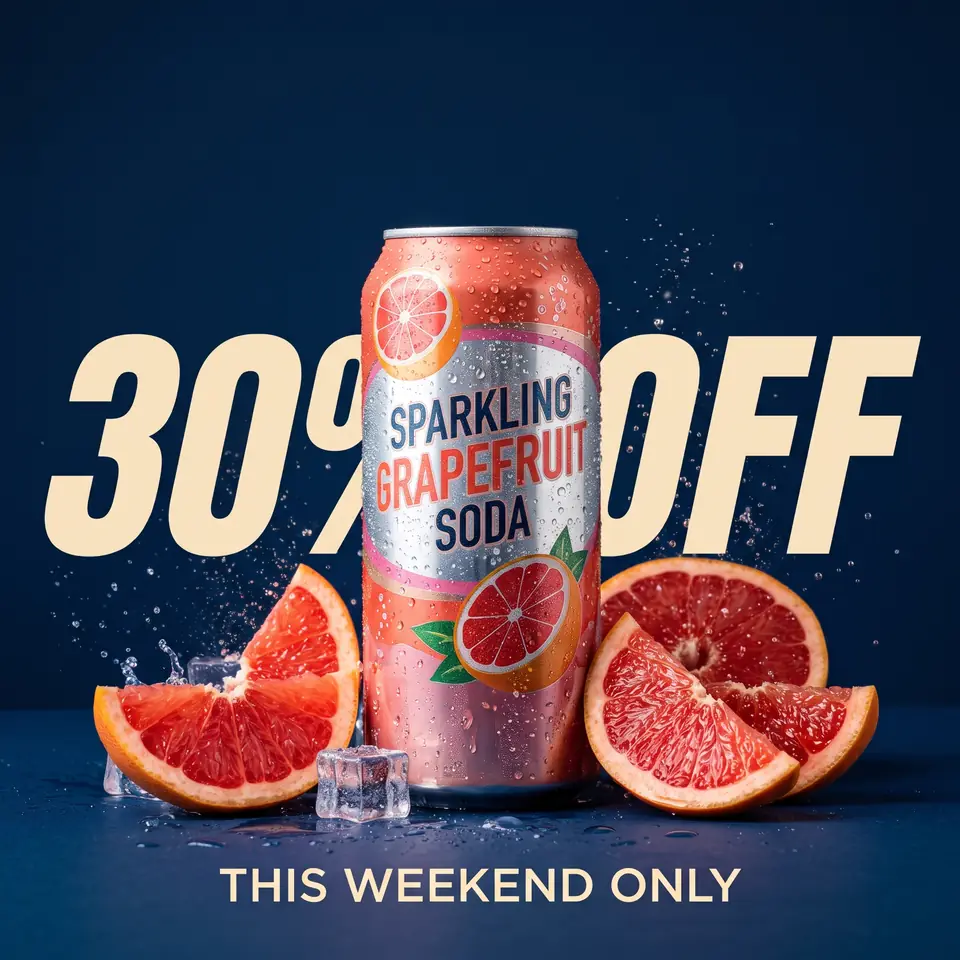
After: 45% OFFBefore: 30% OFFBeforeAfter
Real edit · 30% OFF → 45% OFF

A product promotion in a flat image

Revise a discount after the layered artwork is no longer available. Verify the displayed price or offer matches the actual promotion.

The comparison uses a real demonstration edit of a product promotion. The downloaded format may differ from the original JPG, so check its extension before uploading to a listing. A changed image does not update the actual offer or the store's checkout.

How it works

How to edit text in a jpg

  1. Upload the JPG or JPEG file, up to 10 MB.
  2. Type the original text and the replacement.
  3. Download the edited image.

Tips for a clean result

  • Use the largest, least compressed JPG you have.
  • Strong JPEG compression around the text makes clean letters harder; PNG exports are better when you have them.

Practical guide

Why a JPG cannot be retyped like a document

JPG and JPEG are names for the same image format. A saved JPG contains pixels, so a headline on a flattened export is no longer an editable text layer. The editor redraws the requested words within the image rather than reopening the original design.

Upload the least compressed copy you have. Repeated JPEG saves can soften letter edges and add artifacts; the model cannot recover detail that is no longer visible in the source.

Practical guide

When a JPG text editor is useful

Update an event date on a flyer when the design file is missing, revise a sign photographed on a phone, or fix a label in an exported product image. Enter the full original word or line and the replacement, then inspect both the letters and the surrounding background.

If you have the layered source, editing its text layer offers the most control. For screenshots and graphics, a clean PNG source can preserve sharp edges better than a repeatedly saved JPG. The uploaded file must be JPG, PNG or WebP and no larger than 10 MB.

Practical guide

Review the downloaded image

Compare the new wording at full size, especially for tiny type, textured paper and angled surfaces. A longer replacement can crowd the available space, so a phrase of similar length often fits better.

Check the downloaded file's actual format before using it in a workflow that requires JPEG or PNG. The result is a 2K image; output format and transparency should not be assumed from the uploaded file.

In detail

JPG and JPEG: the same editing problem

JPG and JPEG name the same image format. A JPEG stores a compressed representation of the image, so visible words are part of the picture rather than separately editable characters. To change them, an image editor has to redraw the wording and surrounding area.

Repeated JPEG saves can introduce halos and softness at sharp letter edges. Start with the least-compressed original you have. PNG is often a good source for a screenshot or flat digital graphic because it does not use JPEG's lossy compression.

In detail

How to edit a JPG without the design file

Upload one JPG, JPEG, PNG or WebP file no larger than 10 MB. Type the text exactly as it appears, including capital letters and punctuation, then enter the new words. You can add up to five pairs for the same image.

After the edit completes, compare the spelling, type style and background. Download the result and check its file extension: the returned format follows the generated image's content type, so it is not guaranteed to match the input format.

In detail

When a source design is a better choice

If you still have the original layered document, editing its text layer offers precise control over the font, export size and print settings. TextImageEdit is useful when the flat JPG is the practical source available.

Avoid tiny text, heavily compressed screenshots and very long replacements where possible. A higher-quality source and a shorter replacement give you a more useful result to inspect; AI does not recover detail that the source no longer contains.

Practical details

What changes when words are saved into a JPEG?

A JPG or JPEG stores an image, not the editable text objects from the design application. Opening the file does not reveal a text layer that can be retyped. Editing a word requires the visible lettering and the pixels behind it to be redrawn or reconstructed.

If you can open the original layered source, edit the source instead for precise typography and layout. When only a flat export or a camera photograph remains, an image text editor offers a way to request a replacement while keeping the image as the working format.

Practical details

A clean JPEG versus one saved many times

JPEG uses lossy compression. Repeated saves and low-quality exports can introduce soft edges or halos around fine text. The model can only work from the details present in the uploaded file; it cannot restore the exact original lettering if that information has been lost.

Choose the largest, least-compressed source under 10 MB. If a screen capture or flat graphic is available as PNG, that source may preserve sharper text edges. JPG and JPEG extensions describe the same format and both can be uploaded.

Practical details

Edit words in a JPEG step by step

Upload one JPG, PNG or WebP. In Replace text, type the original word or line exactly, then add the new wording. Include capitalization and punctuation, and add a separate pair for each different line; up to five pairs can be sent with one image.

Sign in and start the edit. Once it completes, compare the wording and the reconstructed area with the source at full size. Download the result and check its extension and dimensions; the generated file is not guaranteed to have the same format or pixel dimensions as the upload.

Practical details

When manual editing is a better fit

A designer can use a clone or fill tool to rebuild the background, identify or approximate the typeface, then position new text manually. This offers detailed control for a difficult composite, but matching letter spacing, perspective and texture can take effort.

Use a source text layer when you have it, especially for exact brand typography, print specifications or extensive layout changes. Use AI editing for a flat image when a reviewed visual match is enough and the source design is not practical to reopen.

Practical details

JPG, PNG, phone photos and the downloaded result

A camera image may already be a JPEG, while a phone can also save photos in HEIC. Export HEIC to JPG, PNG or WebP before upload; this editor does not accept HEIC directly. Screenshots often benefit from a clean PNG source because UI text has sharp edges.

The output's file extension follows the image returned by the model and may not match the input. If a publishing system requires JPEG, inspect the file first and convert it in an appropriate image tool if needed. Converting cannot restore quality that was absent from the source.

More guidance

How compression affects a text edit

JPEG compression reduces file size by representing image detail approximately. Around a sharp letter on a contrasting background, a heavily compressed copy can show soft edges or faint halos. Re-saving a lossy file repeatedly can compound those artifacts, so a copy passed through several apps may be less clear than the source.

Choose the least-compressed original that fits the upload limit. The editor can attempt to redraw a word, but it cannot recover an exact font file or fine image detail that is no longer present. Review the output at full size and at the size where it will be shown.

More guidance

Three source-file situations

An exported flyer may be the only copy left after a design handoff. A camera photograph of a sign may never have had a layered source file. An old product image may contain a price that needs updating. In each situation, the letters are part of the flat JPEG and cannot be edited as a text layer.

If an editable source becomes available, use it for exact positioning and typography. If the image is the practical starting point, enter the complete old line and its replacement, then compare the lettering, background and important details in the generated result.

More guidance

Choose between a JPEG and a PNG source

A photograph is often delivered as JPEG, while a screenshot or flat UI graphic may be available as PNG. PNG is lossless, so an original PNG can preserve crisp edges on small text. Both formats are accepted here, as is WebP, up to 10 MB per uploaded image.

Do not assume the output extension will match the source. The download follows the generated image's content type. If a publishing destination accepts only a particular format, check the file and convert it with an appropriate tool; converting a blurry JPEG to PNG does not recover lost detail.

More guidance

Match a font in a flat JPEG

The editor uses visible lettering as a reference for the requested replacement. It does not identify a typeface or create editable font layers. Match is more difficult when source characters are small, the photograph is angled, the background is textured or the new phrase is much longer.

Enter the original text exactly, including punctuation and capitals. Compare letter shapes, color, shadows and the nearby background after the edit. If the type must match a brand master precisely, use a licensed font in the original design or manual editing workflow.

Step-by-step workflows

Workflow: correct a name in a JPEG program

A program delivered as a JPG may be the only copy available after the design handoff. Enter the whole name visible in the image and the complete replacement, including capitalization and punctuation. The owned example on this page illustrates a name change in a typewriter-style program.

Inspect the nearby paper texture, alignment and any other place where the name appears. A flat image edit changes the image asset, not the underlying event schedule. If the source file is available, a text-layer edit can provide more exact typography.

Step-by-step workflows

Workflow: fix a JPEG that has been shared repeatedly

A file saved and forwarded through several applications may have blur or compression halos around letters. Look for the earliest, largest copy that fits the 10 MB upload limit. Changing the extension from JPG to PNG cannot recover information already lost in the compressed source.

After editing, inspect the new letters at full size and the image at its final display size. The model aims to follow the visible source style, but a very small or soft line may not be reproduced accurately. If the original is unreadable, obtaining a clearer file is the practical next step.

Step-by-step workflows

Workflow: update an offer in a flat product image

For an authorized listing graphic, enter the complete visible promotion, including its number or symbol, and the approved replacement. The example gallery also shows an owned product promotion. Check the product, background and badge as well as the new text.

An edited JPEG does not update the price in an online store. Confirm the offer and product details wherever the customer will see them. Review the output file's dimensions and extension before uploading it to the listing platform.

Step-by-step workflows

Choose an output workflow after the edit

The generated image is downloadable, but its file type follows the model output rather than necessarily matching the input JPEG. Check the extension and inspect the file in the tool that will use it. If a destination requires JPG, convert the result using an appropriate image tool after review.

For an app screenshot or flat logo, a clean PNG source may be useful because it can preserve sharp text edges. For exact layered design, print bleed or brand typography, use the source design. The linked MDN and JPEG references explain common format characteristics.

Questions

Frequently asked questions

Upload the JPEG, provide the old wording and its replacement, and review the edited result. The image text editor works on the flat image; it does not recreate Photoshop layers or identify an exact font file.

No. JPG and JPEG are extensions used for the same image format. Both can be uploaded when the file is within the 10 MB limit.

The visible lettering is part of the encoded image pixels, not ordinary editable characters. Use an image editor or the original design file to change it; a text editor is not a practical way to edit the pictured words.

No. The returned format follows the generated image and can differ from the input. Check the downloaded extension and convert it if the destination requires a specific format.

Small source text, camera blur and repeated lossy compression can soften edges. Use the cleanest available original, review the result at full size and avoid repeatedly editing already-generated copies.

Yes, for an image you are permitted to edit. A clean PNG capture may provide sharper UI text, but JPG, PNG and WebP are all supported up to 10 MB.

Open the editor in your mobile browser and select a supported JPG, PNG or WebP. If the photo is HEIC, export it to a supported format first.

Yes. Google sign-in grants one free credit once per account. One image edit uses one credit; additional credits are available in one-time packs.

A JPEG stores image data, so the visible lettering is part of the pixels rather than an editable text object. Use an image editor to redraw it or edit the original layered design when available.

No. A conversion can change the file format but cannot recover detail already lost to JPEG compression. Start from the cleanest original available and inspect the result.

Yes. JPG and JPEG are extensions for the same image format. Both are supported for upload within the 10 MB limit.

Yes. Open the image text editor in a browser, upload the file and enter the existing and replacement wording. Review the output before using it.

Not necessarily. The file extension follows the generated image's format and may differ from the input. Check the download before using it in a format-specific workflow.

Upload a JPG or JPEG up to 10 MB, enter the existing wording and its replacement, then inspect and download the result. A first Google account credit is free; one submitted image uses one credit.

Yes. The image editor works on the flat picture in a browser. It redraws the requested words but does not recreate editable text layers or guarantee an exact font match.

Small source text, camera blur and lossy compression can soften edges. Start from the cleanest original and avoid repeatedly saving the same lossy image when a better source is available.

Yes, when you are authorized to edit it. A clear PNG capture may preserve sharper UI text, but both JPEG and PNG are accepted within the size limit.

No. The output format can differ from the uploaded file. Check the downloaded extension and convert it if your destination requires JPEG.

Yes, as long as you own the original image or are allowed to edit it. You can use the edited images in ads, product listings, websites and print.

Don't upload work you don't own or have rights to, government IDs, passports, certificates, official or stamped documents, bank statements, receipts, currency, or edits meant to deceive, such as fake quotes or altered chat screenshots. See the Acceptable Use rules for the full list.

Compare with an AI assistant

“How can I edit words in a JPG image without the original design file?”

Use any assistant to explore the question. If the question is not filled in, copy and paste it.

Ready to edit text in a jpg?

Upload an image, choose the wording or language, then review and download the result.

Further reading

Sources and practical references