TextImageEdit / Edit text in a photo

Edit text in a photo

Signs, shop fronts, product labels and printed pages in photos have perspective, lighting and texture. The AI keeps all three when it replaces the words.

Drop a photo here

JPG, PNG, WebP · up to 10 MB

By clicking Edit text, you confirm you own or may edit this image and that the edit is not meant to deceive anyone. We refuse IDs, passports, certificates, receipts, invoices, bank records, official seals and edited chat or email screenshots. See Acceptable use.

No image? Try an example

Quick answer

What does it mean to edit text in a photo?

Edit text in a photo by uploading the image, typing the visible words and the new wording, and checking the downloaded result. The editor uses the photographed lettering as a style reference for signs, labels and other text in the scene.

At a glance

What this editor does

Best for
Words photographed on signs, labels, packaging and printed materials.
Accepted input
One JPG, PNG or WebP image, up to 10 MB.
How to edit
Type the visible words and their replacement; check perspective and lighting.
Credits
1 credit per submitted image. One free credit with the first Google sign-in.
Result
A downloadable edited image. Review the words, visual details, dimensions and format before use.

Examples

Ways to edit text in a photo

Explore the situations below. Before-and-after comparisons show real model edits of our demonstration images.

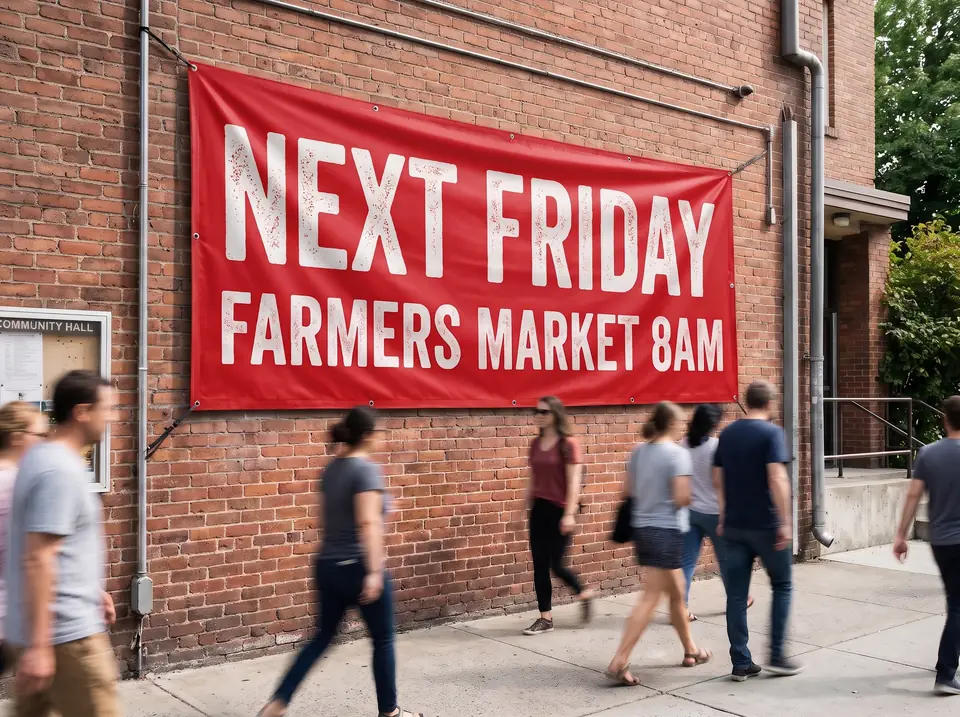
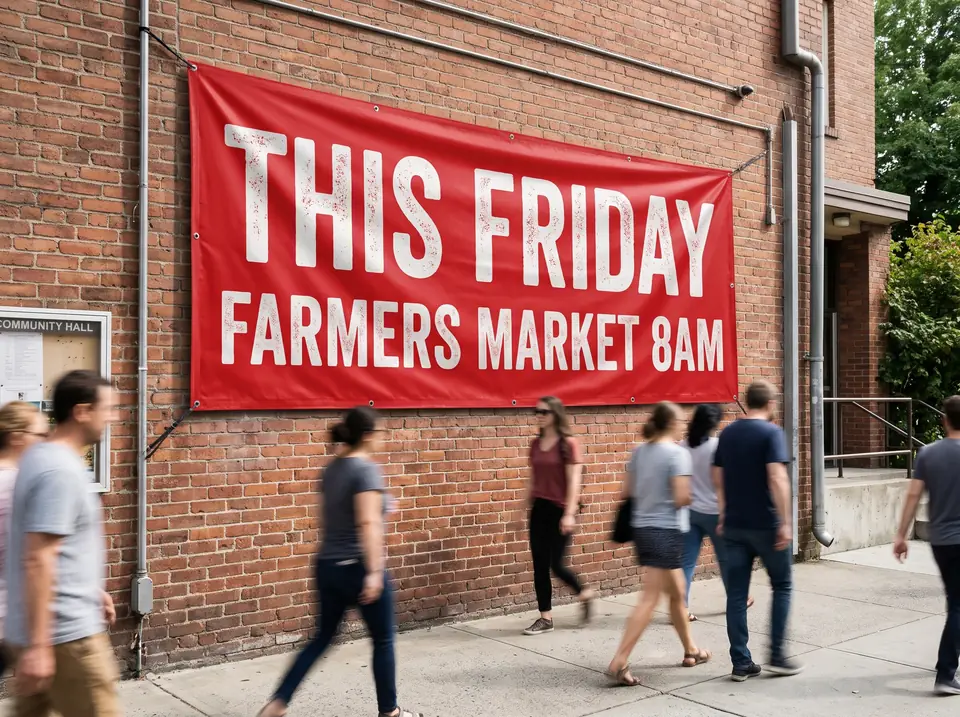
After: NEXT FRIDAYBefore: THIS FRIDAYBeforeAfter
Real edit · THIS FRIDAY → NEXT FRIDAY

Move an event announcement

Replace the date or short phrase on a photographed banner. The folds, shadows and light around the lettering are useful details to compare afterward.

The comparison shows a real demonstration edit of a photographed event banner. Check the vinyl folds, background and daylight near the replacement. If a new date appears elsewhere in the image or on an event page, review those places independently.
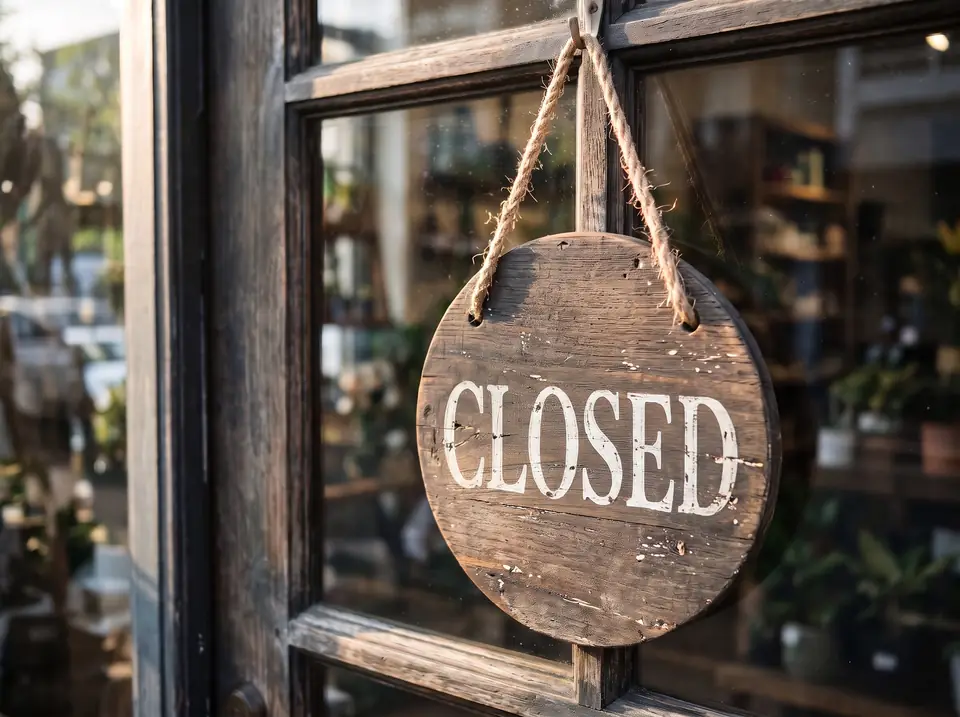
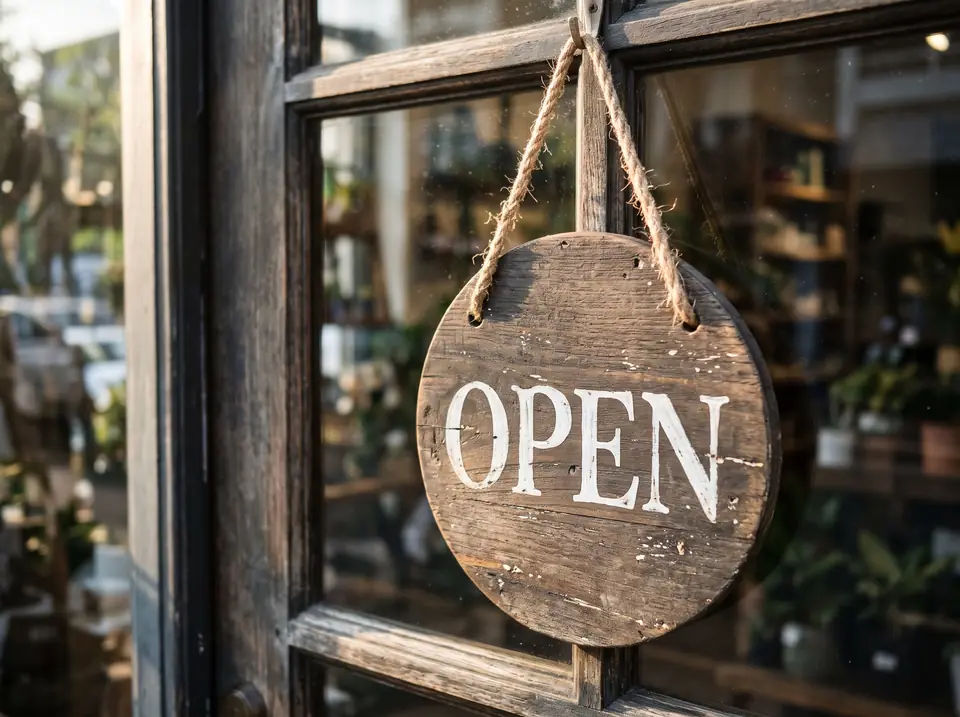
After: CLOSEDBefore: OPENBeforeAfter
Real edit · OPEN → CLOSED

Update a painted shop sign

For a sign in your own photo, enter the full original word and a similarly sized replacement. Uneven paint and perspective are harder than flat digital type.

The comparison uses a demonstration photograph of a painted sign. The edit replaces a complete visible word; compare the painted edges, surface and nearby lighting. A different sign, angle or replacement can behave differently, so inspect your own result before posting it.

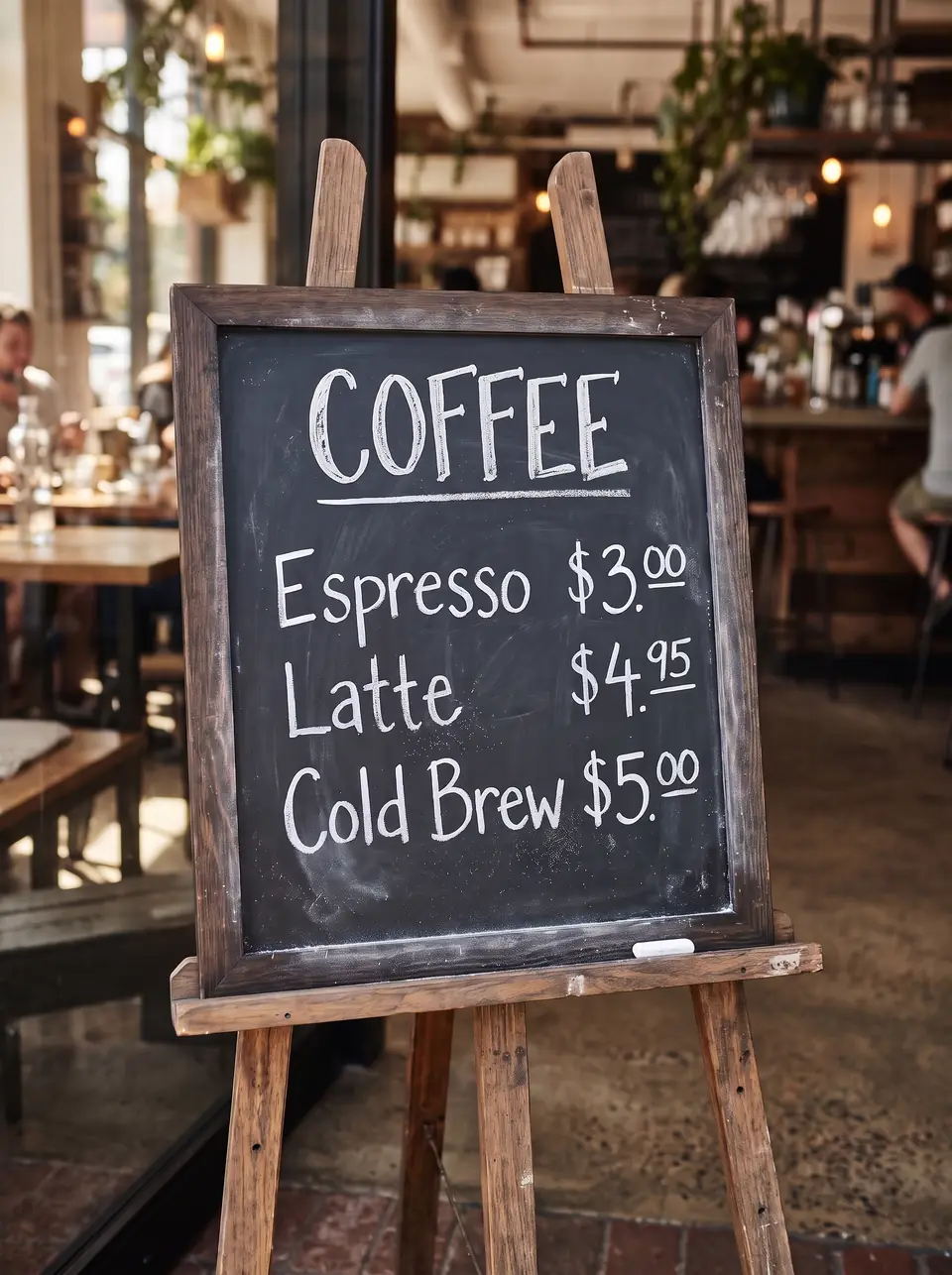
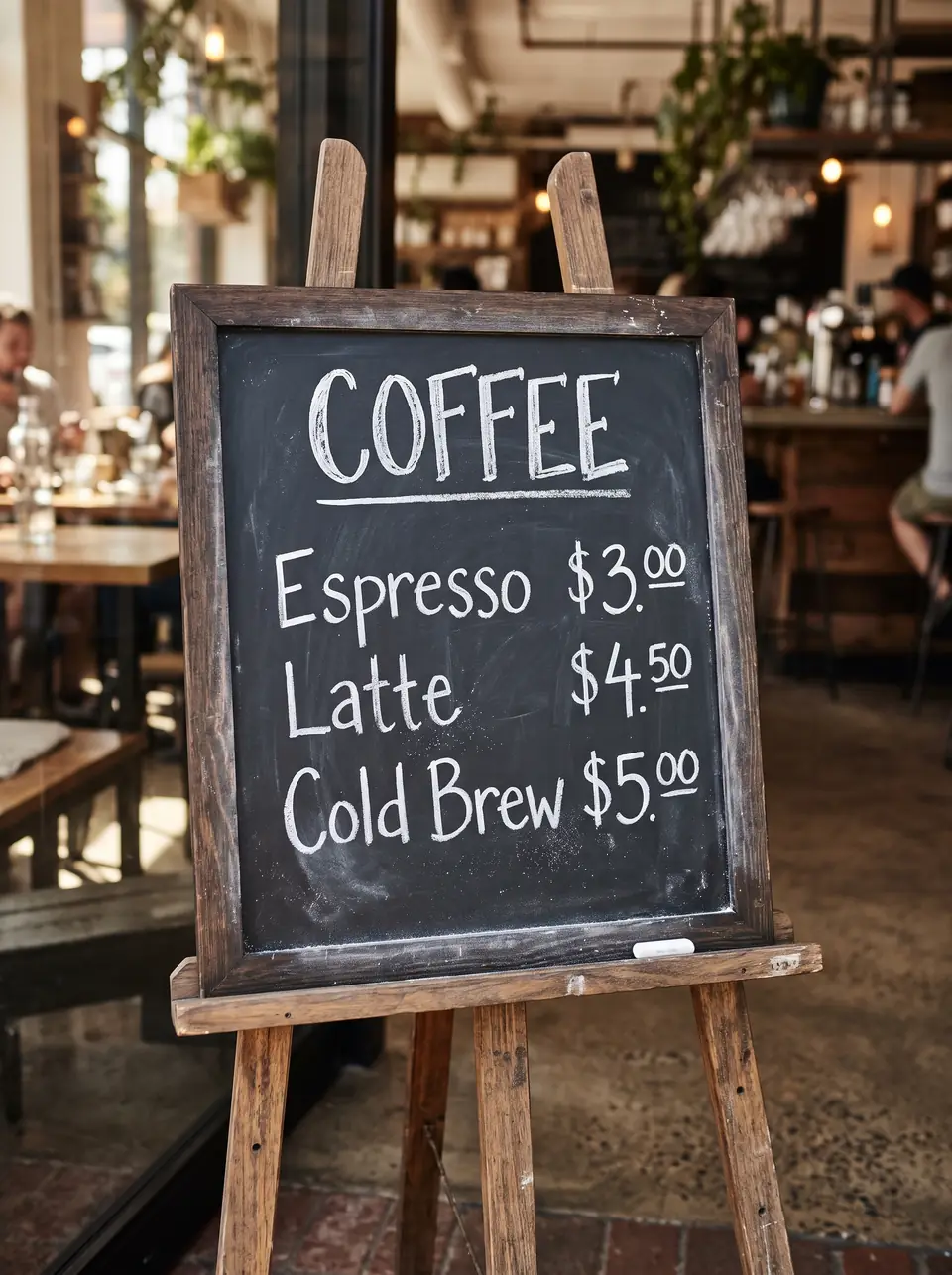
After: $4.95Before: $4.50BeforeAfter
Real edit · $4.50 → $4.95

Change a menu board price

Replace the entire price, including currency symbols and decimal places. Review adjacent menu items so a small numerical change does not create an incorrect listing.

The demonstration compares a price change on a chalkboard-style menu. Check that the currency symbol and decimal places are correct and that other menu lines still read as intended. For an actual menu, verify prices and any dietary information with the business before publication.

How it works

How to edit text in a photo

  1. Upload the photo.
  2. Type the words on the sign or label and the replacement.
  3. Compare before and after, then download.

Tips for a clean result

  • Photos taken straight on give the cleanest results.
  • For curved packaging, change one line at a time.
  • Avoid tiny or out-of-focus text; enlarge the photo first if you can.

Practical guide

Editing words photographed in the real world

A sign, menu board or package is affected by light, camera angle and surface texture. Upload the clearest photo available and enter the whole word or line so the model can use its visible surroundings as context.

Check the result around the edges of the lettering as well as the words themselves. Reflections, curved bottles and distant text make matching harder than a flat, front-facing sign.

Practical guide

Prepare a photo before uploading

Use an original camera file where possible rather than a copy compressed by a messaging app. JPG, PNG and WebP up to 10 MB are supported; export other formats to one of these first.

For a set of product photos, edit each file separately and compare the wording and placement across the set before publishing.

In detail

Photographed text is part of the scene

Unlike a clean design export, a photo includes perspective, reflections and a surface: paper, painted wood, glass or fabric. A clear, straight-on original gives the model more detail to work from than a distant or motion-blurred shot.

Use a local copy of the highest-quality image rather than downloading a thumbnail or repeatedly re-saving a JPEG. Phone photos in another format need to be exported as JPG, PNG or WebP, within the 10 MB upload limit.

In detail

Check light, curves and the surrounding image

A short replacement that fits in the original space is easier to review. Curved packaging, glare across a letter and tiny writing may need another attempt; inspect the surface around the replacement, not only the spelling.

Each photo is a separate edit. This is intended for images you own or have permission to modify, not for changing official records or producing misleading proof.

Practical details

Why text in a photograph is harder than a flat label

A photographed sign is part of a scene: the letters can be tilted, shaded, reflected or printed on a rough surface. Replacing a word means reproducing the look of the letters in that setting while retaining the scene around them. A clean, front-facing photograph provides a clearer reference than an out-of-focus crop.

Different surfaces expose different failure points. Look for edges around the word on painted wood, wrinkles on a fabric banner and highlights on a bottle. The model is instructed to preserve surrounding content, but generative editing can change details; compare both versions before publishing.

Practical details

Four photo tasks to consider

A small business might revise a sign in its own marketing photo, a market organizer might update a date printed on a banner, or a shop might change the text in an owned product graphic. A menu-board image can need a corrected price. These are separate image edits even if they share a campaign.

Use accurate wording. An edited photo should not be used as false proof of an event, a payment or an offer. If the photo documents a real product or place, ensure the final image does not misrepresent what a viewer will actually receive.

Practical details

Phone photos, image formats and source quality

Pick the largest and least-compressed copy you have, within the 10 MB upload limit. Messaging services often reduce image detail, making fine letters softer. For a phone photo in HEIC or another unsupported format, export a JPG, PNG or WebP copy before using the editor.

You do not need to crop the image just to isolate a word. Keeping more context can help a reviewer compare the scene. If the text is very small or obscured, a clearer original or a new photograph may be more dependable than repeated attempts on a blurry file.

Practical details

Give the model a clear replacement

Write the original wording exactly as shown and enter the replacement in the second field. Include currency symbols, spaces and punctuation. When multiple lines need different styles, put them in separate pairs so each change is explicit; the editor accepts up to five pairs for one image.

Keep the new phrase close to the length of the original where the sign or label has limited space. If the requested wording is substantially longer, check whether it has been squeezed, wrapped or placed too close to another element.

Practical details

Review the completed photo

Inspect the text first, then the wider photo. Check spelling and numbers, the material behind the letters, nearby people or products, and fine edges where the word overlaps the background. The result is generated at the configured 2K setting; the downloaded dimensions may not match the source.

For a campaign with several files, upload and review each one separately. This tool does not publish the edited photo to your store or social account. Download the image and use the destination platform's own publishing workflow.

More guidance

Edit a sign while accounting for its surroundings

A sign in a photograph has edges, shadows and surface detail that a flat digital banner does not. Choose a photo where the text is visible and enter the complete wording. A clear front-facing photo helps you compare the position, thickness and color of the edited letters.

After editing, look at the surface immediately around the word. In a real scene the background may include a wall, fabric, reflections or an object crossing the letters. The model aims to retain that scene, but a generated output can vary and should be checked before sharing.

More guidance

Photographed labels and curved packaging

Words printed on a bottle, can or curved box follow the surface and may be partly affected by glare. Enter the full short label, not just one hidden character, and keep the new phrase close in length. Avoid assuming the result will preserve every reflection or exact brand color.

For ingredients, safety instructions or legally required packaging text, use approved source artwork and an appropriate human review. This editor is better suited to a reviewed visual change than to preparing compliance-critical small print from a photograph.

More guidance

Working with a photo from a messaging app

A version forwarded through chat or social media can be smaller and more compressed than the original. That may add softness around the exact characters you want to change. If you can, return to the camera roll or photographer's delivery file and choose the sharpest supported image under 10 MB.

If the only available file is HEIC, export a supported JPG, PNG or WebP before uploading. Do not expect conversion to recover detail that was already missing. Review the downloaded result at the size at which it will appear in your listing, post or print layout.

More guidance

Compare the edited wording at its final display size

A sign that looks convincing on a phone may reveal mismatched spacing at full resolution. Conversely, a very large preview can make minor texture differences more visible than they will be in a small social post. Inspect both the close-up and the intended final display size.

Do not publish an edited photo as evidence of a transaction, conversation or official event that did not occur. Marketing images should accurately reflect the real product and offer. For an honest concept or mockup, make its purpose clear to the audience.

Step-by-step workflows

Workflow: update the words on a photographed banner

Choose an image in which the banner text is legible and the photograph belongs to you or can be edited with permission. Enter the entire phrase as it appears, including its capitals, then type the replacement. A phrase of similar length usually gives you a clearer basis for comparing the layout.

Review the folds, shadows and the material at the edge of the new letters. A model-generated image can alter fine surroundings, so inspect the entire banner and the scene rather than checking the word alone. If the image represents a real event, make sure the revised date and venue are accurate.

Step-by-step workflows

Workflow: revise a label on an owned product photo

A label photographed on a curved package has changing light and perspective. Enter the whole short phrase that needs to change and avoid asking the model to infer critical specifications. A simple overlay in an owned promotional image is usually easier to check than fine print molded around a reflective bottle.

After generation, compare the label with the approved product information and the product being sold. AI editing is not a replacement for legal, safety or packaging review. If the physical package has changed, a current approved product photo may communicate the update more reliably.

Step-by-step workflows

Why the original photo matters

A large original can preserve details that vanish in a screenshot or an image forwarded repeatedly through a messaging app. Within the 10 MB limit, use the clearest JPG, PNG or WebP you can access. A HEIC phone photo should be exported to one of the supported formats first.

If a word is blurred or hidden by glare, try obtaining a clearer photo rather than guessing the source text. Conversion to a different file extension cannot restore missing detail. Keep a copy of the original so future edits do not build on already-generated outputs.

Step-by-step workflows

Check perspective and light before posting

Look at the shape of the replacement letters and where they sit on the object. Text photographed from an angle may need a matching baseline and perspective. For a painted sign, inspect brush edges; for a glossy label, look at highlights and reflections around the altered words.

No AI image edit guarantees that the rest of the scene is pixel-identical. Compare people, props and background elements that matter to the photo. For public-facing material, verify that the result does not mislead viewers about the product, event or place.

Questions

Frequently asked questions

Upload your permitted photo, enter the original words and their replacement, then inspect and download the edited image. Use a clear source and type complete words. The first credit is free with Google sign-in.

It can attempt to match perspective and lighting in the source. Angled, curved or reflective surfaces are more demanding than flat graphics, so inspect the result rather than assuming an exact match.

The model is instructed to change the requested text and preserve other content. Since the output is generated, small surrounding details can vary. Compare faces, product edges and the background before using the image.

Yes, for photos you own or may edit. Upload a JPG, PNG or WebP up to 10 MB; convert unsupported formats first. Check numbers and surrounding lettering at full size.

No. Sign in with Google to receive one free credit, once per Google account. That credit covers one image edit. Additional credits are sold in one-time packs.

TextImageEdit does not add a watermark to edited results. Verify the downloaded image and your rights to the original before sharing or using it commercially.

Small source letters, blur, repeated JPEG compression, glare or a long replacement can make a close match more difficult. Use a clearer source and a shorter phrase, and review the result before retrying.

The editor accepts one image per submission. Prepare and review each photo separately; every submitted image uses one credit, and a failed job returns its reserved credit.

Upload the photo, type the sign's existing text and the replacement, and compare the resulting scene with the original. Use a clear source and make sure you have permission to edit it.

The editor can attempt to follow the visible perspective, but curvature and highlights make matching harder. Inspect the label and product closely; use the original package artwork for exact or compliance-critical text.

Yes, if the exported file is JPG, PNG or WebP and no larger than 10 MB. A HEIC source needs to be exported to a supported image format before upload.

The result is generated from the image and instructions, so texture, lighting or fine details may vary. Compare the before and after, particularly around the edited letters and important objects.

No font installation is required. The model aims for a visual match using the visible source lettering, but it does not identify or guarantee the exact typeface.

Yes, if the photo is yours or you have permission. Enter the original wording and replacement, then inspect the sign, material and surrounding scene in the result.

The model attempts to follow the visible perspective and lighting. A tilted, curved or reflective surface can be harder to match, so review the output rather than assuming exact placement.

A mobile browser can upload a JPG, PNG or WebP under 10 MB. Export HEIC or another unsupported file type to a supported format before selecting it.

The output is generated from the image and instructions, not edited as locked layers. The request asks the model to preserve unmentioned content, but small visual differences can occur and should be reviewed.

Yes, provided you own the source or have the necessary permission. Check that the result and any product or promotional claims are accurate before use.

Yes, as long as you own the original image or are allowed to edit it. You can use the edited images in ads, product listings, websites and print.

Don't upload work you don't own or have rights to, government IDs, passports, certificates, official or stamped documents, bank statements, receipts, currency, or edits meant to deceive, such as fake quotes or altered chat screenshots. See the Acceptable Use rules for the full list.

Compare with an AI assistant

“How can I replace words in a photo while keeping the surrounding scene?”

Use any assistant to explore the question. If the question is not filled in, copy and paste it.

Ready to edit text in a photo?

Upload an image, choose the wording or language, then review and download the result.