TextImageEdit / Edit text in a screenshot

Edit text in a screenshot

Update product screenshots for help articles, store listings and decks. Rename a button, fix a sentence or change a sample value in the same interface font.

Drop a photo here

JPG, PNG, WebP · up to 10 MB

By clicking Edit text, you confirm you own or may edit this image and that the edit is not meant to deceive anyone. We refuse IDs, passports, certificates, receipts, invoices, bank records, official seals and edited chat or email screenshots. See Acceptable use.

No image? Try an example

Quick answer

What does it mean to edit text in a screenshot?

Use the screenshot text editor to revise a label or sentence in an exported image of your own app or website. Upload the capture, type the original and replacement text, and inspect the interface in the result.

At a glance

What this editor does

Best for
Your own app, web and product screenshots used in documentation or mockups.
Accepted input
One JPG, PNG or WebP image, up to 10 MB.
How to edit
Enter the existing UI label or sentence and what it should say.
Credits
1 credit per submitted image. One free credit with the first Google sign-in.
Result
A downloadable edited image. Review the words, visual details, dimensions and format before use.

Examples

Ways to edit text in a screenshot

Explore the situations below. Before-and-after comparisons show real model edits of our demonstration images.

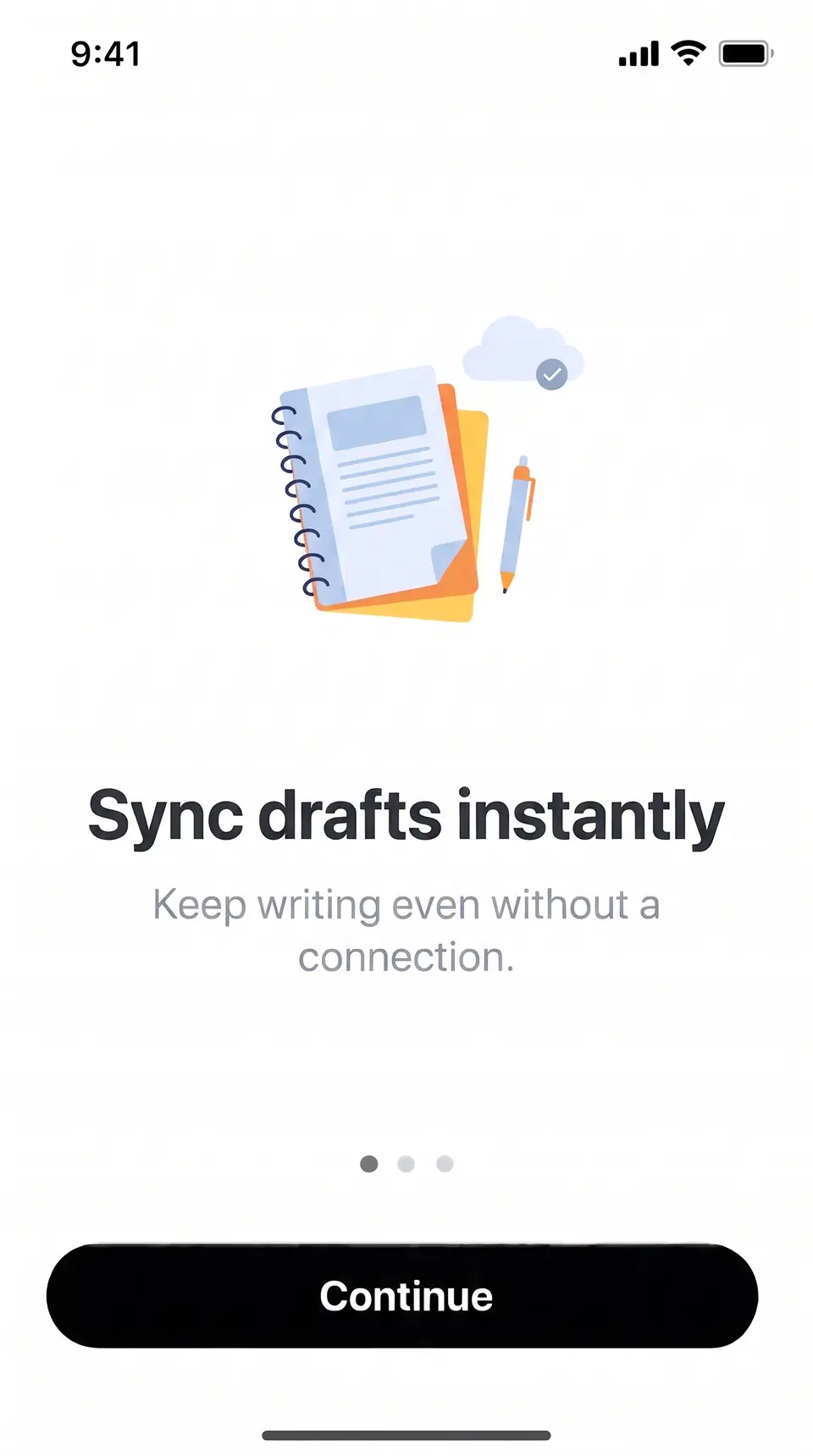
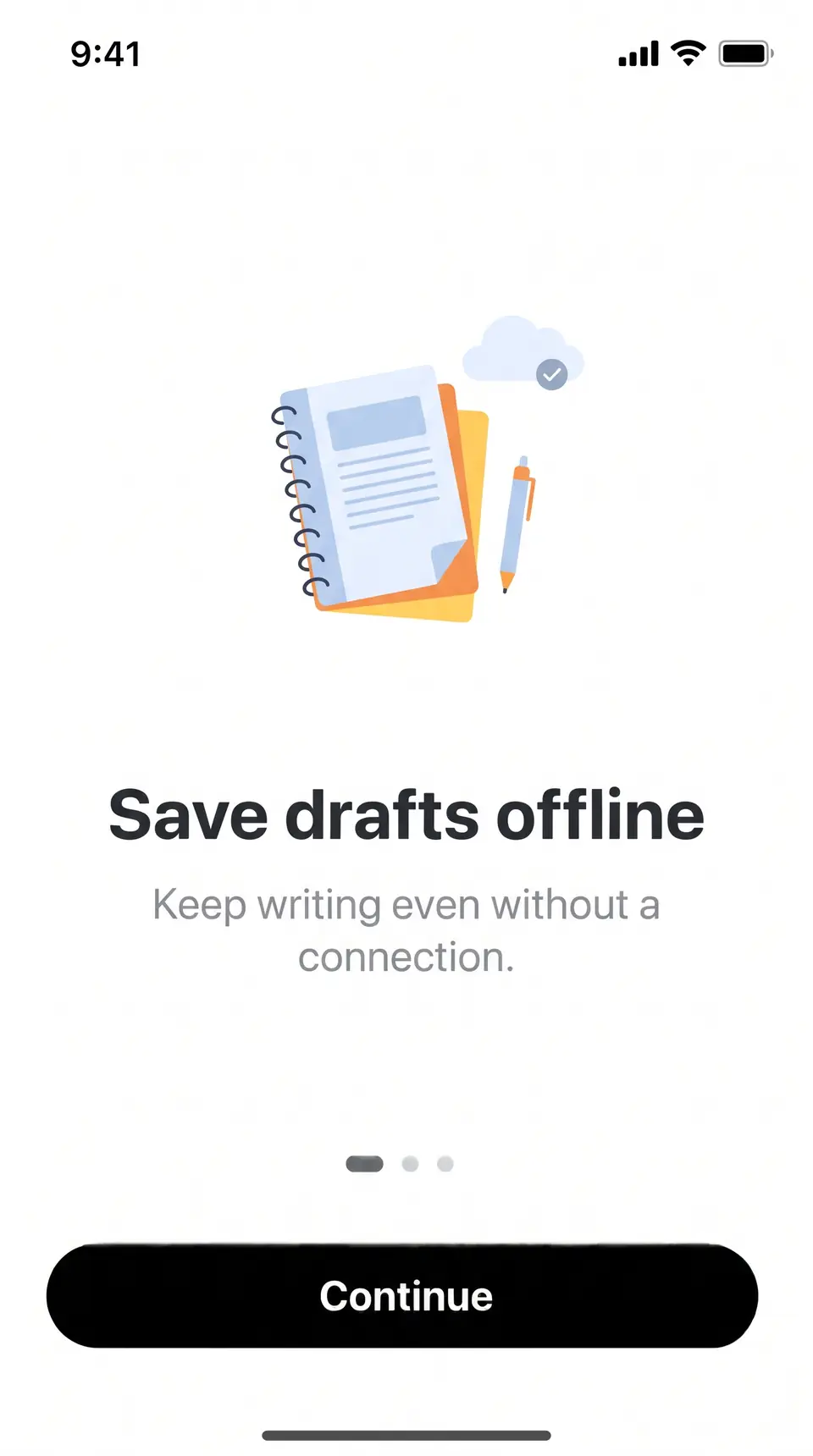
After: Sync drafts instantlyBefore: Save drafts offlineBeforeAfter
Real edit · Save drafts offline → Sync drafts instantly

Revise onboarding copy

Replace an outdated headline in a product screenshot after a copy review, then compare the illustration, status bar and surrounding buttons.

This is a real model edit of a demonstration onboarding image, from Save drafts offline to Sync drafts instantly. Compare the headline with the surrounding illustration and screen elements. For real product documentation, confirm that the wording accurately matches the application.
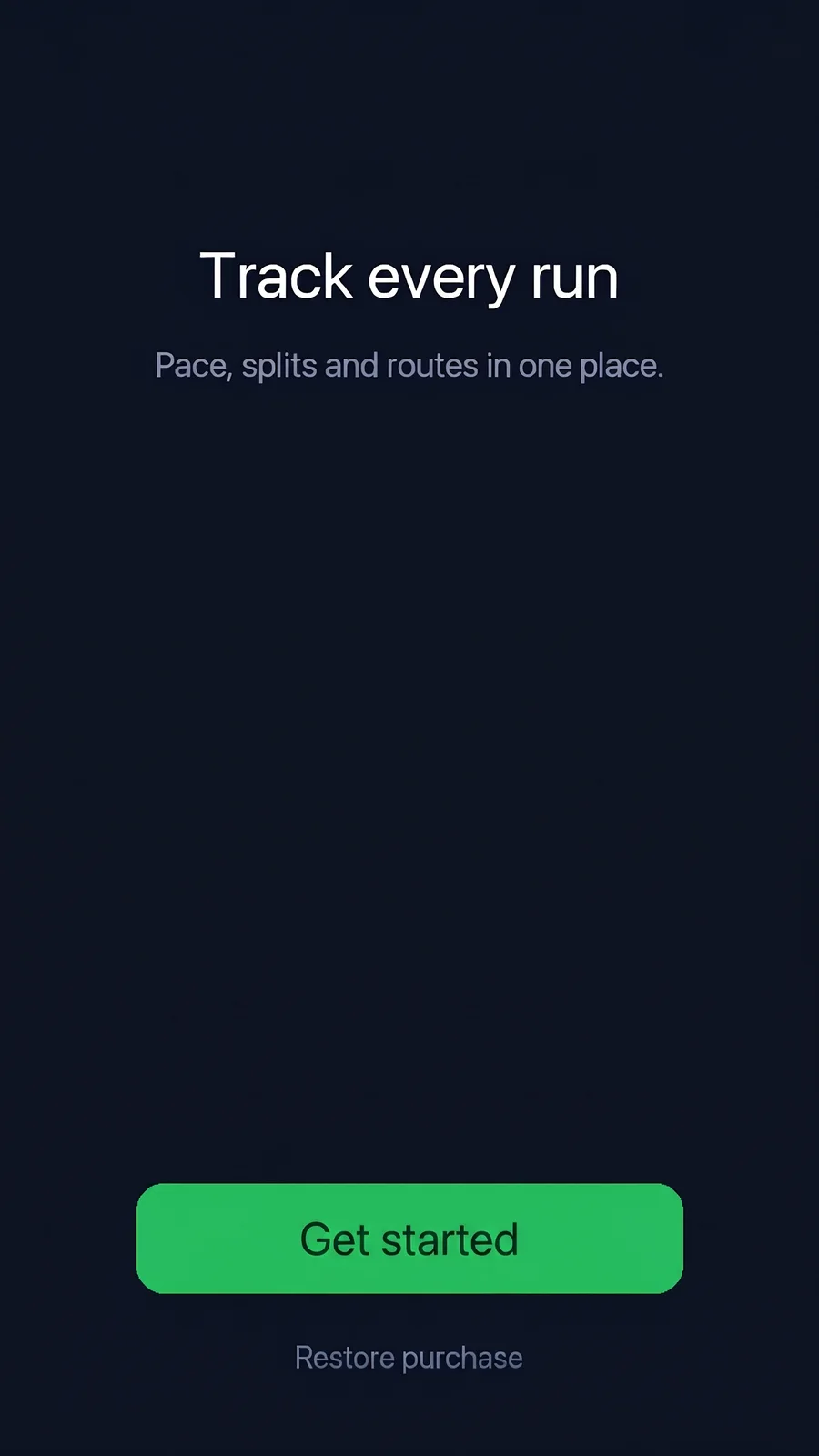
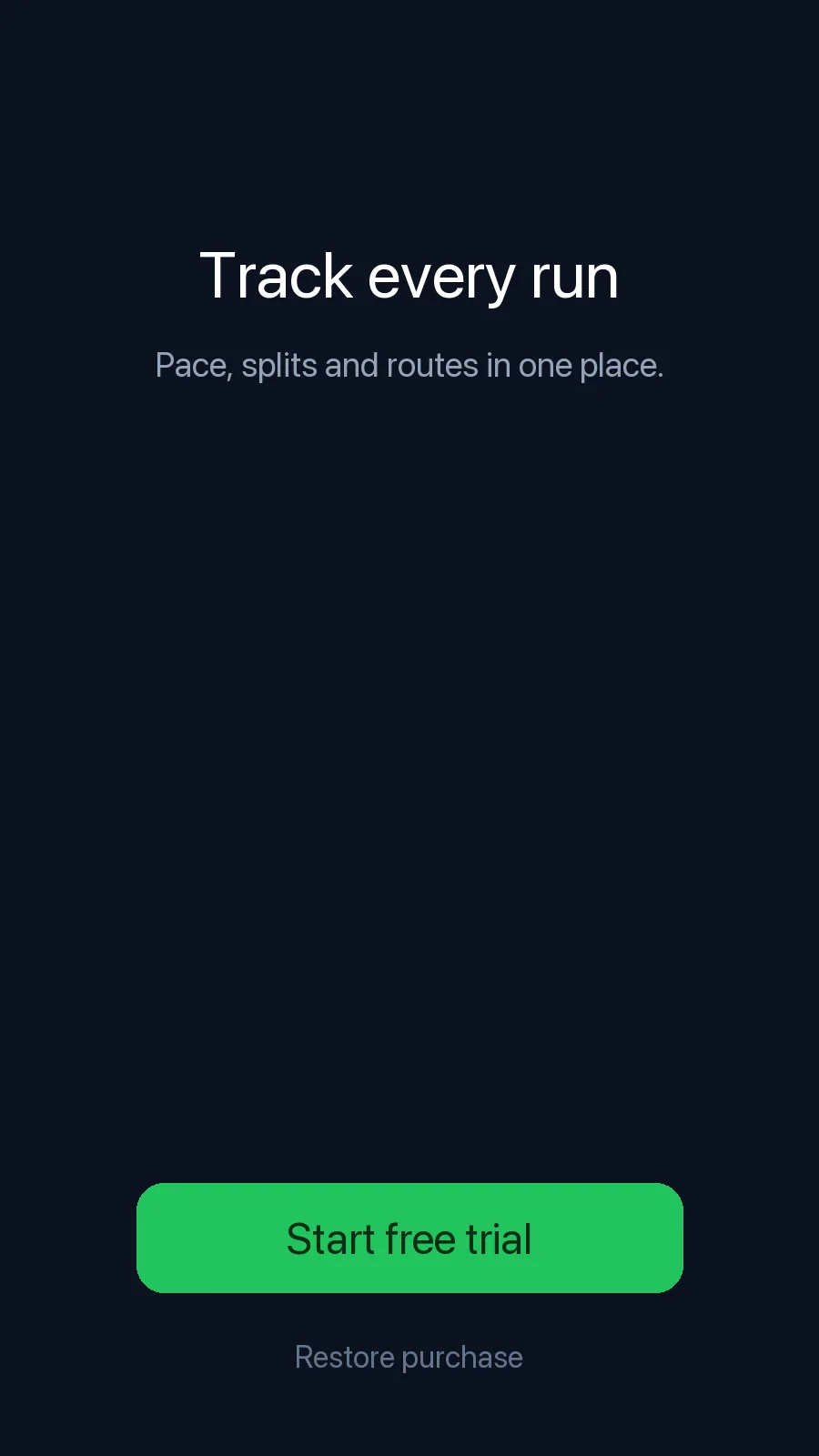
After: Get startedBefore: Start free trialBeforeAfter
Real edit · Start free trial → Get started

Refresh a help article

When your product's call to action changes, update the label in an existing documentation image. This example replaces Start free trial with Get started; compare the button and surrounding screen, then prefer a fresh capture when the live product can be opened.

The before-and-after example comes from a model test on a demonstration app screen. The edited label is visible on the button. Inspect the button edges and nearby type as well as the words; if the live app can be captured again, a new screenshot is the most direct reference.

Prepare an honest design mockup

Try alternative wording in a concept screen that you own. Keep it clearly a mockup; do not alter a real conversation, account record or payment to mislead someone.

For a concept screen, provide the existing and proposed labels as separate text pairs and keep the image clearly identified as a mockup. Do not present an edited chat, payment or account screenshot as proof of an event or statement that did not happen.

How it works

How to edit text in a screenshot

  1. Upload the screenshot, ideally as PNG.
  2. Enter the current label or sentence and the new wording.
  3. Download the updated screenshot.

Tips for a clean result

  • PNG keeps UI text sharper than JPG.
  • Change one UI element per line so each keeps its own style.

Practical guide

Update a product screenshot for a guide or mockup

Use this editor for your own app screens and design examples: update a button label, correct an onboarding headline or revise a sample value after the screenshot was exported.

A PNG capture usually preserves fine interface text better than a compressed JPG. Enter one UI element per line, then compare icons, spacing and the status bar before using the image.

Practical guide

Use the original screen when precision matters

If you can open the product or design file, taking a fresh screenshot provides the most exact result. Image editing is useful when you only have the exported capture or need a quick mockup.

Do not alter messages, payments, account records or other screenshots to misrepresent what happened. The acceptable use policy explains the prohibited cases.

In detail

PNG, JPEG and tiny interface text

Screenshots saved as PNG tend to keep sharp edges on small UI type. JPEG screenshots can show compression around letters, especially after being shared through a messaging app. Upload the cleanest source under 10 MB.

Replace one UI element per text pair. Longer labels may not fit their buttons, and small icons or status information can drift; zoom in before publishing the result.

In detail

Editing versus capturing the screen again

If you have the app, browser state or design file, making the change there and taking a new capture gives you precise control. An image editor is useful for a flat export when the source is unavailable or a quick concept is enough.

App-store screenshots and documentation should accurately represent the product. Editing private messages, receipts or account balances to imply an event happened is prohibited.

Practical details

Make a screenshot change without losing its purpose

A product screenshot may need a new button label, a corrected feature name or a revised heading after a copy review. Start with your own app capture or an authorized mockup, then enter the exact existing UI text and the new wording. The screenshot remains an image rather than becoming an editable interface.

For a help article or store listing, the image should faithfully describe the current product. If the original application is available and can be opened in the correct state, capturing the real screen again is the most precise option. Image editing is useful when a flat export is the practical starting point.

Practical details

iPhone, Android and web-app captures

Screenshots from phones and browsers contain small type, icons and interface chrome. A clean PNG capture preserves sharp edges; a JPEG may already contain compression artifacts around letters. Upload one PNG, JPG or WebP no larger than 10 MB and avoid upscaling a tiny screenshot before the edit unless necessary.

After the result is ready, inspect the status bar, navigation, buttons and text outside the edited area. The model aims to preserve those details, but it does not promise pixel-identical output. The original and generated image can also have different pixel dimensions.

Practical details

Preparing screenshots for an app store

An app-store image has two jobs: it must show the product accurately and meet the store's technical specifications. An edited screenshot can help draft a new caption, but compare it with the actual product and check the downloaded file's width, height and format before uploading.

If you are preparing translated images, verify terminology and whether the app truly supports that language. Use the linked Apple screenshot specifications for current supported sizes, and consult the destination platform's own rules rather than assuming one resolution works everywhere.

Practical details

Replace text or translate the whole screenshot

Use Replace text when you have a specific old label and replacement. Add a separate pair for each UI element and keep new labels short enough to fit their buttons. This is a useful way to explore wording in an honest product mockup.

Use Translate when the goal is a new-language image. Choose one target language for each submission and ask a fluent speaker to review the result. For a localized product that can be run directly, a fresh capture of the actual localized interface remains the strongest reference.

Practical details

Respect the boundary between mockup and evidence

Do not alter conversations, financial records, account balances or payment screenshots to suggest something happened when it did not. A mockup of your own interface and a falsified record are different use cases; the latter is prohibited by the acceptable-use policy.

When showing an edited design to colleagues, identify it as a proposed or illustrative version if it does not represent the live interface. This prevents a design review image from being confused with evidence of a real transaction or statement.

More guidance

Refresh documentation without confusing the reader

A documentation screenshot can become stale when an application changes a navigation label or headline. Identify the old wording exactly, then replace it with the wording actually used by the product. If an interface also changed its layout or functionality, recapture the updated application instead of editing only the words.

After the edit, review any arrow, callout or surrounding label in the help article. A screenshot can be visually polished and still be wrong for the documented workflow. Give readers the same button names and steps they will see in the real application.

More guidance

Check the details in mobile and desktop captures

Phone screenshots may include a status bar, clock, battery indicator, navigation controls and tiny system text. Desktop captures may show browser chrome or window controls. Check those details in the generated result because the model is not a deterministic layer editor.

Use a clear original image and inspect the output at full size. PNG is often a convenient input for crisp UI graphics. If your publishing system requires a specific pixel size or format, verify the downloaded file rather than assuming it matches the upload.

More guidance

When the new text does not fit a control

A small button has limited space. A replacement that is much longer than the original can crowd nearby icons, change line breaks or look unusually small. Use concise wording that represents the actual product and inspect the edges of the control.

If the whole interface needs a redesign, the source application or design tool is the right place to make the change. This editor redraws existing wording on the screenshot; it does not produce an interactive interface or update the application itself.

More guidance

Use localized screenshots as drafts for review

Translation mode can help prepare a language version of an image, but translated text should be reviewed by a fluent speaker and checked against the live localized product. Product names, date formats and UI labels may require approved terminology.

App stores publish device-specific screenshot requirements. Consult the relevant store's current specification and compare the output dimensions before upload. If the real application is available in that locale, capturing the real localized UI is a reliable way to confirm the screen accurately represents the product.

Step-by-step workflows

Workflow: revise an onboarding screenshot

Suppose an application changes the text on a button after an onboarding screenshot was exported. Use a screenshot you own, enter the complete old button label and the new approved wording, then compare the edited result with the actual product. The example on this page shows a test edit from Start free trial to Get started.

Check the button's outline, spacing and position after the edit. A generated result may change surrounding details even when the request focuses on one label. If the application is available in the correct state, a fresh capture provides the most direct evidence of the real interface.

Step-by-step workflows

Workflow: keep a help article current

When a feature is renamed, a help article may need more than a changed image. Update the written instructions and the screenshot together, and verify the sequence in the live product. If a button moved or the workflow changed, changing only the label in a static screenshot can mislead the reader.

Use separate text pairs for different labels on the same screenshot. The editor accepts up to five pairs on one image. For multiple screenshots, submit each image separately and review the set for consistent wording, dimensions and visual presentation.

Step-by-step workflows

Keep screenshots accurate when preparing a mockup

An edited screenshot can be useful during a design review when the goal is to compare possible wording. Clearly identify a proposed screen as a mockup when it does not represent a live feature. Keep a copy of the source so colleagues can understand the change and review it in context.

Do not edit communications or transaction evidence to falsify what happened. The acceptable-use policy excludes deceptive alterations of chats, payments and account records. The editor is for authorized product images and honest design work.

Step-by-step workflows

Inspect a screenshot before store submission

A screenshot used on an app store should show the real product and meet the store's current image specifications. Check the output dimensions, device frame, text and product state. The editor requests the original framing, but a generated file can differ in exact pixel size.

For a localized screenshot, confirm the language is supported by the product and ask a fluent speaker to review the wording. Apple's current screenshot specifications are linked in the further-reading section; other destinations may have different requirements.

Questions

Frequently asked questions

Upload a screenshot you are permitted to edit, type the original label and its replacement, then review and download the result. A clear PNG is often a good source for small UI text.

Yes, when it is your image or you have permission to edit it. Use a supported JPG, PNG or WebP under 10 MB and inspect the system UI and status bar in the output.

A flat screenshot can be edited directly. If the image will document a live product, however, check the current interface or take a fresh capture so the resulting documentation remains accurate.

Not necessarily. The model is instructed to preserve the framing and aspect ratio, but the output dimensions may differ. Check width and height before uploading to an app store or inserting into a fixed layout.

Yes, for a capture you own or have permission to modify. Specify the UI words to replace and review buttons, icons and any other content that should remain unchanged.

Add a separate original and replacement pair for each label, up to five pairs on one image. A longer phrase may not fit its original control, so check alignment and line breaks.

PNG can preserve sharp interface edges without JPEG-style lossy compression. Either format is accepted; the best source is generally the clearest original under the upload limit.

Do not edit records to falsify what someone said, paid or did. The service is intended for owned product images, documentation and honest mockups, not deceptive evidence.

Yes. Enter the existing and replacement labels for a screenshot you are authorized to edit. Check the button shape, spacing and surrounding UI, and keep public documentation consistent with the actual product.

Upload the existing JPG, PNG or WebP, provide the wording change and review the output. If the image must document the current application, a fresh capture may be more accurate when the app can be opened.

The model is asked to preserve unmentioned content, but it is not guaranteed to keep every pixel unchanged. Inspect the status bar, icons and nearby text before publishing.

Yes, if you own the screenshot or have permission to edit it. Use the existing label as the source text and check that the finished image honestly represents the application.

Try a shorter, accurate phrase or make the change in the source design. An AI-generated replacement may wrap, shrink or crowd the edge of the control.

Yes. Upload a screenshot you may edit, provide the original and replacement text, and compare the result. Keep public documentation or store assets faithful to the actual product.

The editor works on a flat JPG, PNG or WebP image. Enter the specific old and new wording; it does not require a layered design file or update the application itself.

Translate mode creates a version in one selected language per edit. Check the output with a fluent reviewer, verify dimensions and ensure it represents the actual localized product.

A clean PNG capture often preserves sharp edges on interface lettering, though JPG and WebP are also accepted. Choose the clearest source available within the 10 MB upload limit.

No. Altering communications, payments or account records to misrepresent what occurred is prohibited. Use the editor for your own product imagery and clearly identified mockups.

Yes, as long as you own the original image or are allowed to edit it. You can use the edited images in ads, product listings, websites and print.

Don't upload work you don't own or have rights to, government IDs, passports, certificates, official or stamped documents, bank statements, receipts, currency, or edits meant to deceive, such as fake quotes or altered chat screenshots. See the Acceptable Use rules for the full list.

Compare with an AI assistant

“What are practical ways to update a label in a screenshot of my own app?”

Use any assistant to explore the question. If the question is not filled in, copy and paste it.

Ready to edit text in a screenshot?

Upload an image, choose the wording or language, then review and download the result.

Further reading

Sources and practical references