TextImageEdit / Edit text in a product photo

Edit text in a product photo

Offers change faster than product shoots. Upload the listing image or promo tile, type the old and new text, and keep the product, the lighting and the layout exactly as they were.

Drop a photo here

JPG, PNG, WebP · up to 10 MB

By clicking Edit text, you confirm you own or may edit this image and that the edit is not meant to deceive anyone. We refuse IDs, passports, certificates, receipts, invoices, bank records, official seals and edited chat or email screenshots. See Acceptable use.

No image? Try an example

Quick answer

What does it mean to edit text in a product photo?

Edit text in a product photo or listing image by uploading the image and replacing a visible label, price or offer. Check the product, wording and surrounding details before updating your store.

At a glance

What this editor does

Best for
Revising accurate prices, short labels or offers on your own listing images.
Accepted input
One JPG, PNG or WebP image, up to 10 MB.
How to edit
Replace the whole visible phrase and update each image separately.
Credits
1 credit per submitted image. One free credit with the first Google sign-in.
Result
A downloadable edited image. Review the words, visual details, dimensions and format before use.

Examples

Ways to edit text in a product photo

Explore the situations below. Before-and-after comparisons show real model edits of our demonstration images.

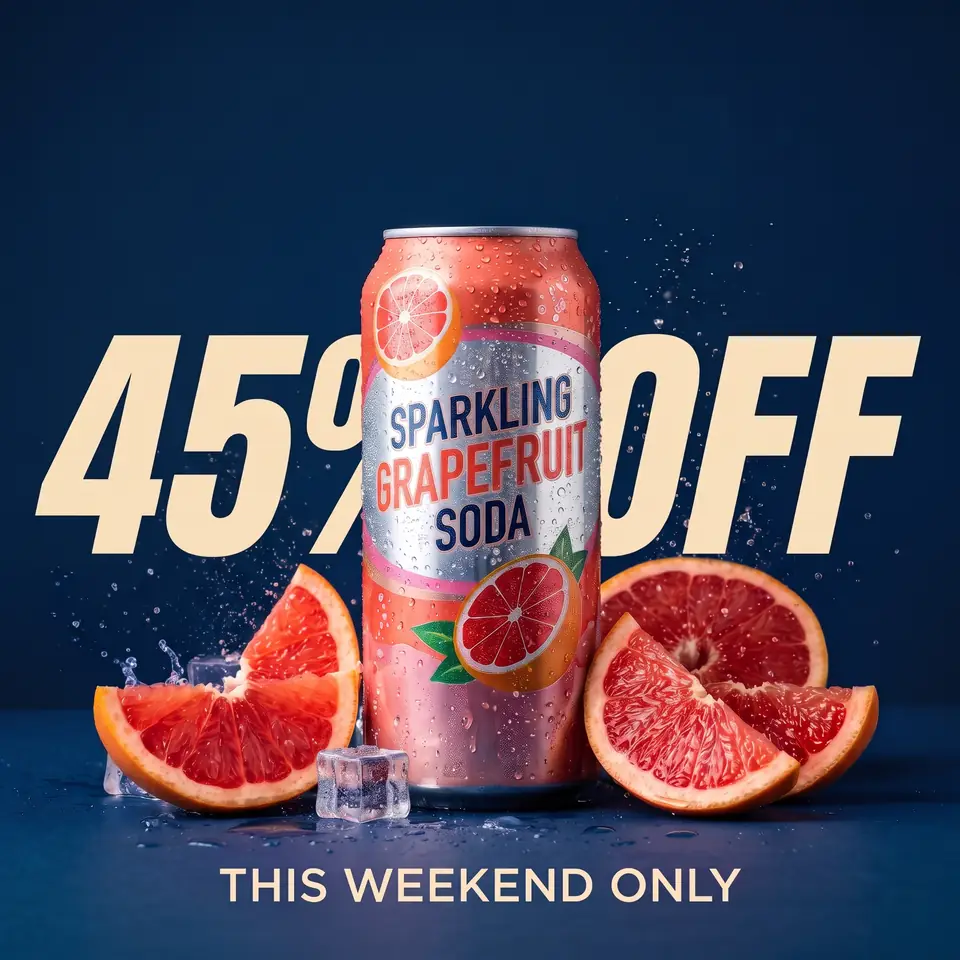
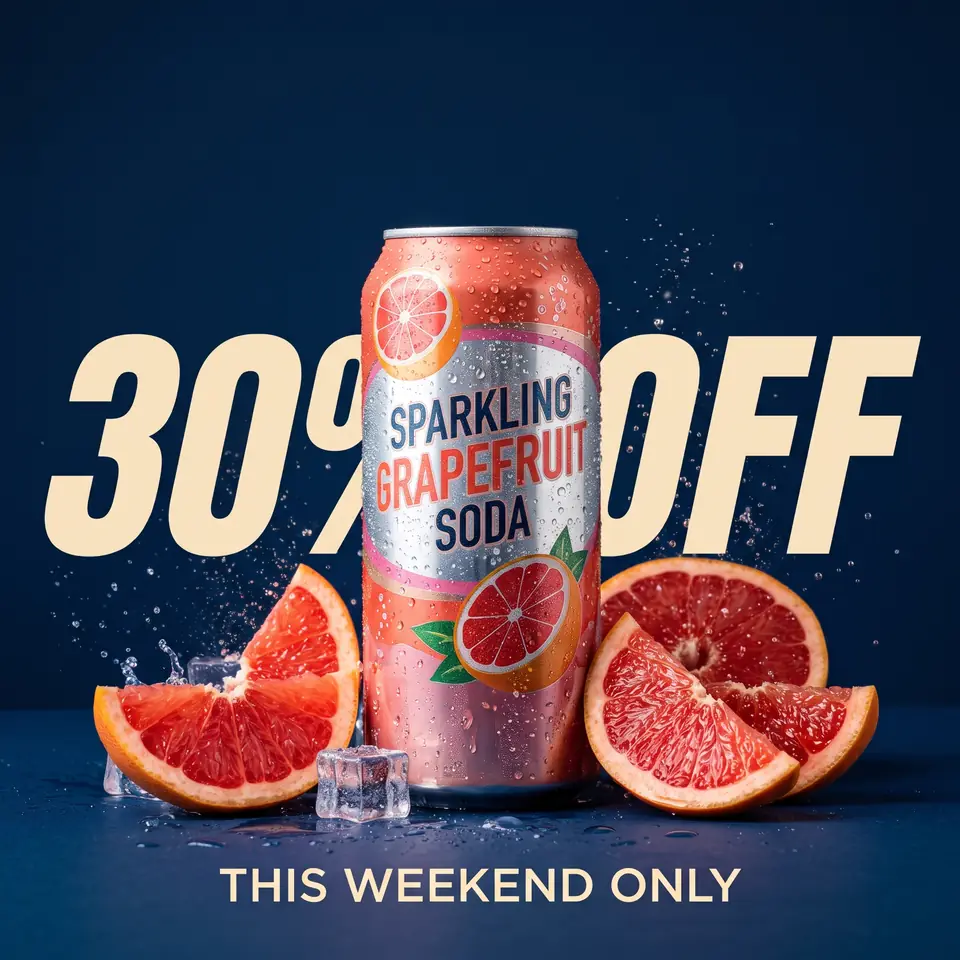
After: 45% OFFBefore: 30% OFFBeforeAfter
Real edit · 30% OFF → 45% OFF

Revise a sale badge

Update an offer shown over a product image. Enter the full badge text so the percentage and label are edited together.

The before-and-after comparison is a real demonstration edit from 30% OFF to 45% OFF. Confirm that a real campaign's replacement offer is accurate, then update the product listing and checkout separately. The image editor does not publish a store or modify its prices.
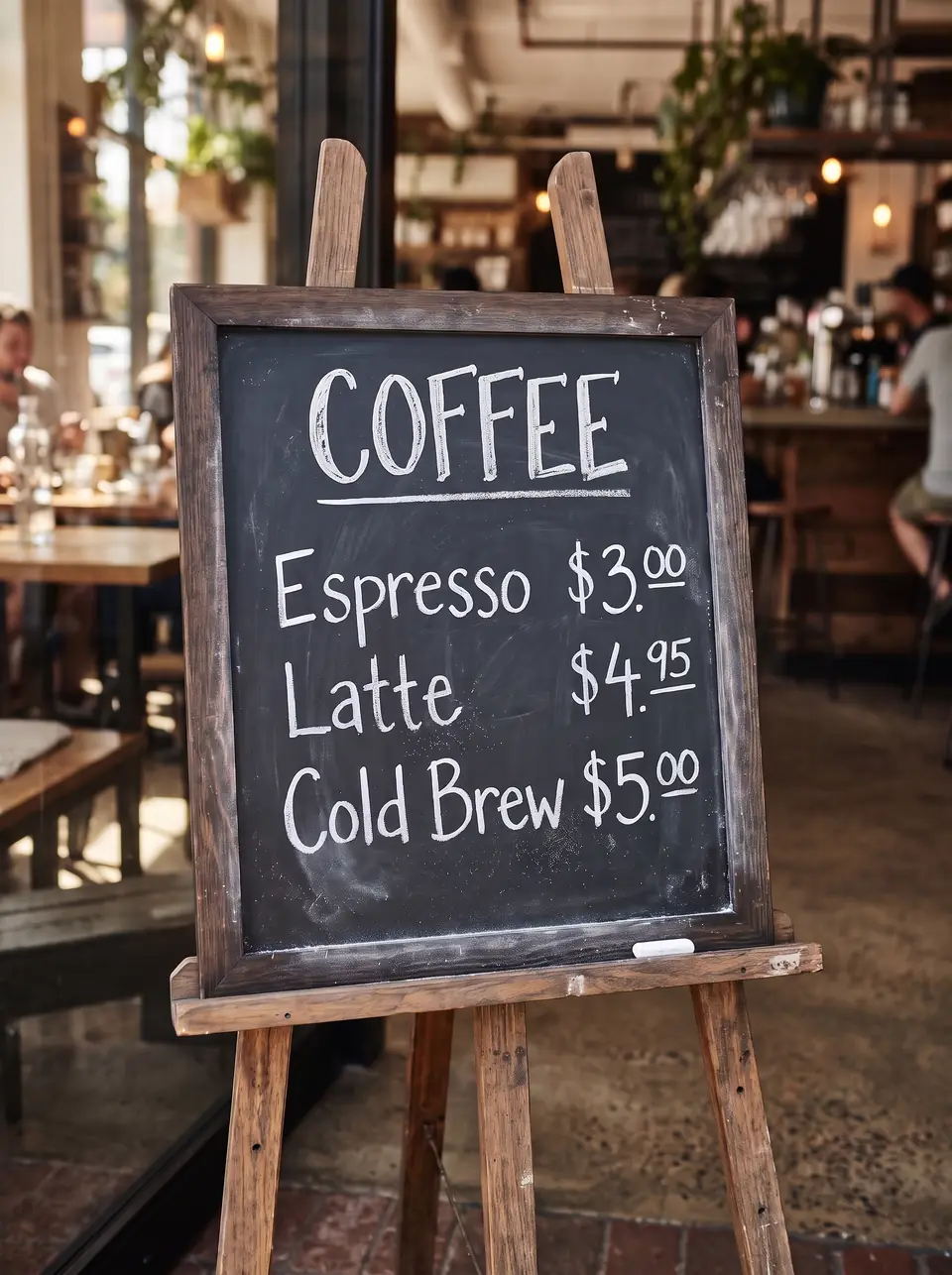
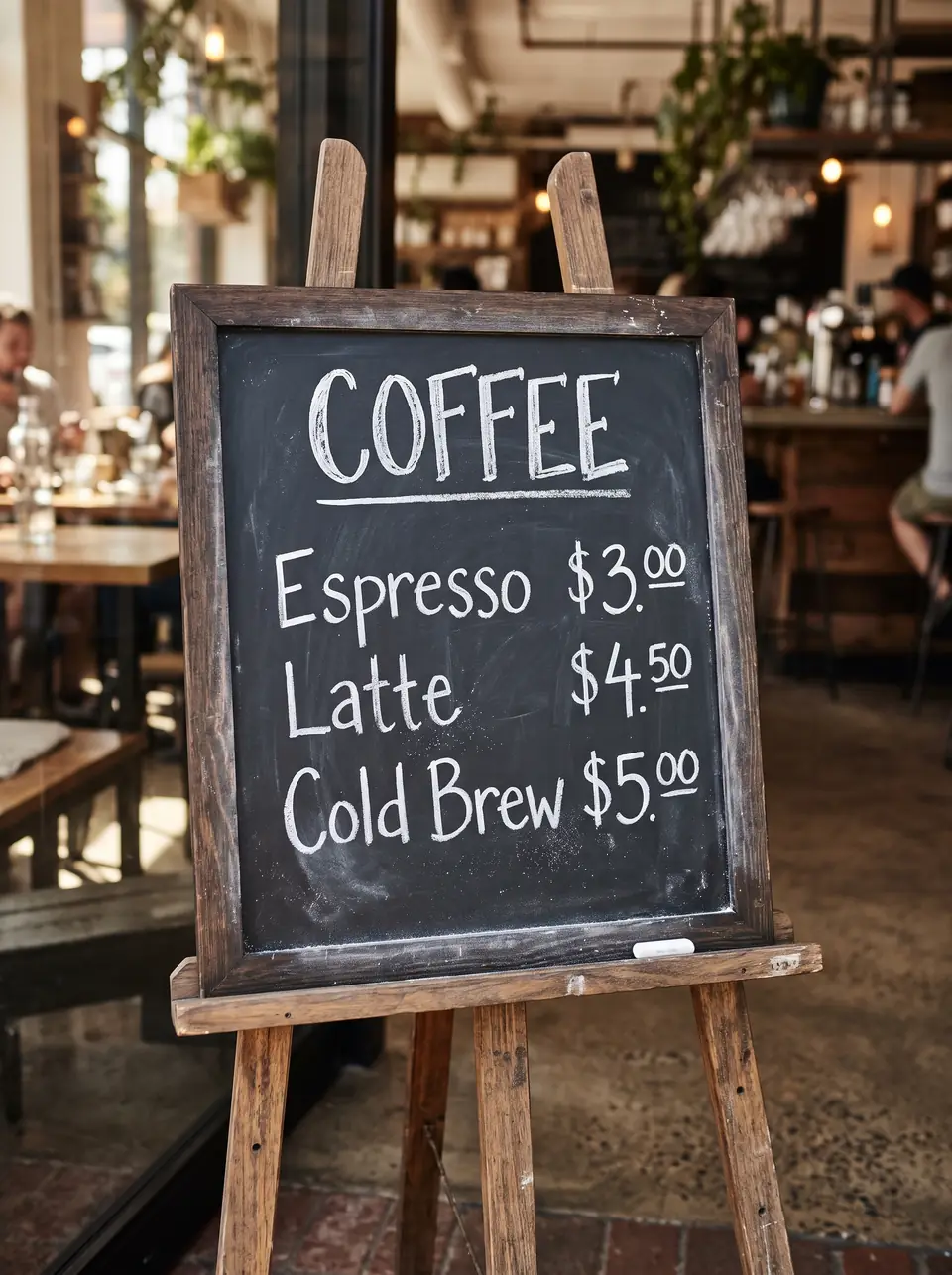
After: $4.95Before: $4.50BeforeAfter
Real edit · $4.50 → $4.95

Update a menu-style price graphic

Replace the visible price on a promotional image and verify the currency and neighboring values after the edit.

The example shows a real edit of a demonstration price graphic. Include the currency and decimal places in the request, and compare other values after generation. For legally required product information or critical packaging details, use the approved source artwork and appropriate human review.

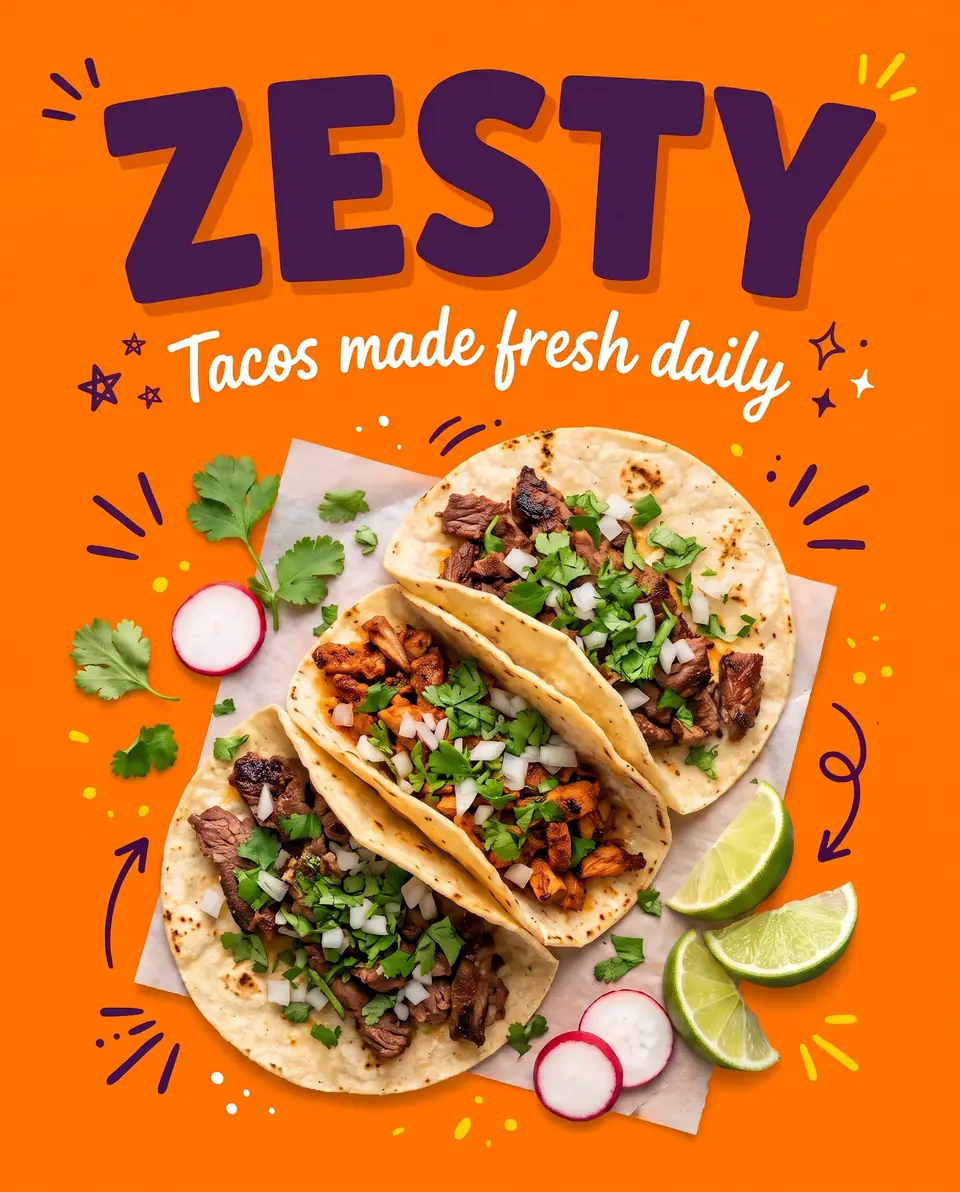
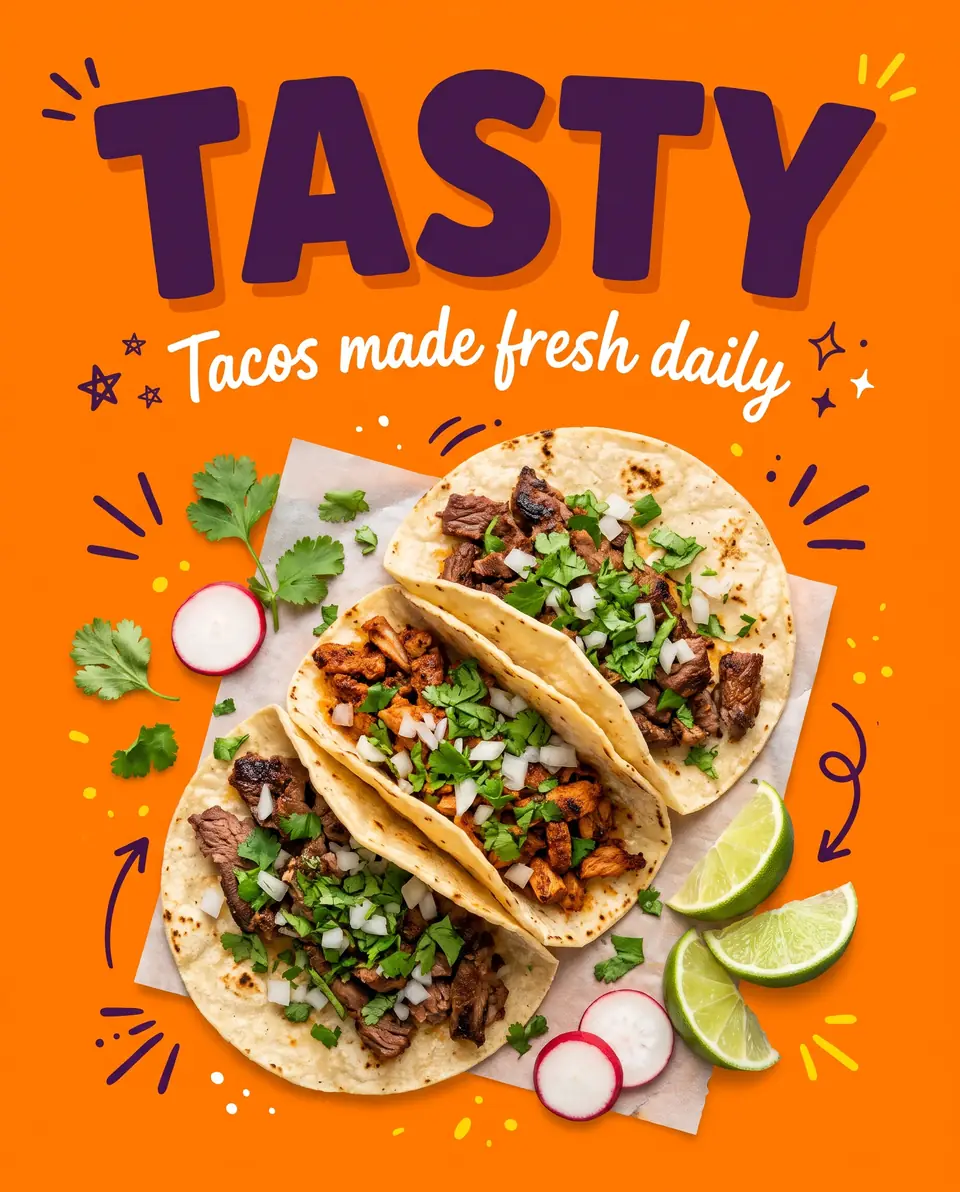
After: ZESTYBefore: TASTYBeforeAfter
Real edit · TASTY → ZESTY

Adapt a campaign headline

Test an alternate word on your own ad creative without reshooting the product. Compare the original and replacement at the size customers will see.

The comparison shows a real headline edit on a demonstration ad. Review the text at the size it will appear in the listing or campaign. The result can vary in color, texture or surrounding detail, so compare it with the approved product image before publication.

How it works

How to edit text in a product photo

  1. Upload the product image you already use.
  2. Enter the price, discount or label as it appears and the new wording.
  3. Download the updated image for your store or ad.

Tips for a clean result

  • Change prices and percentages as whole strings, such as "30% OFF".
  • Text printed on the product itself is harder than text on the background; check it closely.
  • Only change offers you actually run: misleading prices are not allowed.

Practical guide

Revise an offer on an existing product image

Update a sale badge, promotional headline or short label without rebuilding the whole listing image. Enter the complete original phrase, such as a percentage and its accompanying word, together with its replacement.

After the edit, compare the product, packaging and lighting with the original. Text printed on curved packaging is more difficult to match than a flat promotional overlay.

Practical guide

Keep listings consistent

Each uploaded image is a separate edit. If an offer appears on several images, apply the same approved wording to each and check that the resulting prices and dates match your actual offer.

Use a clean source image and avoid very small print. For packaging that requires precise legal or brand text, update the original artwork instead of relying on a generated match.

In detail

Text over a photo versus text on packaging

An overlaid offer is usually easier to inspect than tiny text wrapped around a bottle or printed on a reflective package. Curvature, shadows and textures can affect how closely the new letters match.

Use a high-quality source and enter complete phrases. Keep the updated offer truthful and consistent with the product listing, landing page and checkout.

In detail

Review a set of listing images

One submission edits one image. For several storefront or marketplace images, edit and review each file separately; there is no automatic batch update in this editor.

Check whether the new text fits, whether the product and props still look correct, and whether the downloaded dimensions meet your marketplace's requirements. For legally required small print, use the editable packaging source and a human review.

Practical details

Revise a product image without another shoot

A product listing image may have a seasonal badge, price or short heading baked into a flat image. Upload your authorized source and replace the complete phrase. This can save a design round-trip when the photograph and layout remain appropriate for the current offer.

The edited graphic must still describe the actual product. Confirm that its price, quantity, promotion and other claims match your listing and checkout. Do not edit packaging or compliance information to imply a feature or certification that the product does not have.

Practical details

Overlaid badges versus packaging text

A large, flat sale badge has clear edges and is generally easier to review than small lettering printed on a curved bottle. Packaging may include reflections, perspective and fine print; the model aims to follow the visible style, but its output can vary.

Enter the entire old and new phrase, including the currency symbol or percent sign. For several distinct labels on one image, add separate pairs. If a label is legally required or needs exact text, use the source artwork and the responsible person's approved copy.

Practical details

Prepare product images for different markets

A marketplace campaign may need different language, a region-specific price or a revised promotional headline. Use Translate for one target language or Replace text for approved wording. Each language and each image is a separate submission; there is no batch publishing to a store.

Have a fluent reviewer check the localized result, especially product names, units and prices. Then verify the destination platform's current image, product-claim and advertising rules. This tool does not make a listing compliant merely by editing its image.

Practical details

Keep a consistent set of listing images

Before editing, list the files in which an offer appears and the correct final wording. Update one image at a time, then check all variants together. A price changed on the hero image does not update the product page, the checkout or other images automatically.

Compare brand colors, product shape and surrounding props with the source. Generated results are not guaranteed pixel-identical. If exact color matching is required, inspect the final asset in your production workflow and use the original layered design when available.

Practical details

Download and review before publishing

Check the new text, image size and file type after download. The output format and dimensions can differ from the input, and an image with very small packaging text may need a clearer source. Ensure the edited product still accurately represents what will be shipped.

Use the store or advertising platform's normal upload process to publish the finished asset. You are responsible for rights to the image, trademarks and source material, including images supplied by a manufacturer or agency.

More guidance

Update a sale badge and the systems around it

A seasonal product image can contain an offer in a badge that is part of the flat graphic. Enter the complete original phrase and the actual approved replacement. Inspect the number, percent sign, nearby product and badge shape; a generated output can differ in small details.

A revised picture does not change the price on your store or checkout. Update the product listing, landing page and promotional terms independently, and check that the final offer is truthful wherever a customer sees it.

More guidance

Prepare a set of marketplace images

Many product listings use several images, each with its own caption or benefit statement. This editor handles one image per submission; there is no single batch action that updates every variant. Make a list of the assets that contain the old wording and review the new versions together.

An edited image does not automatically comply with a marketplace's rules. Review the current requirements for the destination, including image dimensions, product representation, promotional text and claims. Use only supplier images for which you have the right to create and publish an edited version.

More guidance

Separate on-image offers from actual package claims

A promotional phrase over a photograph is different from a label printed on a physical package. The latter can contain quantities, warnings or ingredients that must be approved and accurate. Do not change a label to imply a different product or certification from the one a buyer receives.

If the actual product package has been updated, use current approved artwork and photographs when possible. AI editing of a flat image is a reviewed visual workflow, not a substitute for checking packaging or legal requirements.

More guidance

Check brand consistency across files

Compare the product silhouette, background, colors, text weight and positions across all versions. A generative model tries to match the visible source but can introduce small changes. Exact brand colors and licensed typefaces should be checked against the approved master.

Inspect the image at full size and at the size it will appear on a product page. Verify the downloaded extension and pixel dimensions before upload. If you need exact layers, use the original design file or ask the designer for an updated export.

Step-by-step workflows

Workflow: update a genuine sale offer

Find the approved source image and type the full existing badge, including the percentage or currency symbol. Enter the real new offer and compare the badge, product and background after the job completes. The owned example on this page shows a demonstration change from 30% OFF to 45% OFF.

Changing the image does not change the product page, checkout price or campaign terms. Update those separately, and make sure the offer shown in the image is truthful and currently applicable. A misleading price or product representation is not an appropriate use of the editor.

Step-by-step workflows

Workflow: prepare image variants for a store

A listing may have multiple images or variants with different labels. This editor accepts one image per submission; make a simple list of each file and the approved wording so that no old version is overlooked. A first Google credit covers one image, and further submissions use prepaid credits.

Review the variants as a set after downloading. Check the same product, promotion, color and wording across all assets. The editor does not batch-update a catalog or publish to a marketplace; use that destination's own tools to make listing changes.

Step-by-step workflows

Workflow: localize an authorized product graphic

Choose Translate when visible text should be translated into one target language. If the marketing team already supplied approved wording for a particular badge or headline, Replace text lets you provide the exact old and new phrase. Each language version is a separate submission.

Have a fluent reviewer check quantities, units, claims and the offer in context. A translated image is not proof that a product is available in that market or compliant with the marketplace. Consult the destination's current policies before publication.

Step-by-step workflows

Check a product and its packaging carefully

A generative edit may introduce minor changes to the background, lettering or product details. Inspect the silhouette, packaging, lighting and logo as well as the new words. A subtle change to a product representation can matter more than a small mismatch in an ad headline.

Do not edit a package to misrepresent its contents, certification or safety information. Where claims or package text are regulated, use the approved design and product data. Exact brand colors and type are best checked against the original production master.

Questions

Frequently asked questions

Upload an image you may edit, enter the entire current discount and the correct replacement, and review the result. Update the listing and checkout separately so the visible offer remains accurate.

It can attempt to redraw short visible labels. Small print, curved surfaces, reflections and texture make exact results harder; inspect the packaging carefully and use source artwork for critical information.

You may use the result when you have the necessary rights and the image accurately represents the product. Check the particular marketplace's current policies and image specifications before publishing.

The model aims to match the visible color but does not guarantee exact color values or unchanged pixels. Compare the result in your production workflow and use the original design for strict color requirements.

No. One submission edits one image. Process each variant separately and verify that the same correct wording appears across your listing assets.

No. The editor creates an image file; it does not modify a store listing, product price, checkout or advertising campaign. Update those separately using the relevant platform.

Only when you have the rights or permission needed to edit and publish it. Check the supplier's terms and avoid changing claims in a way that misrepresents the product.

Yes. Choose Translate and one target language for each submitted image. Review wording, numbers and offers with a fluent speaker and confirm the localized claims are accurate.

Yes. Upload an authorized image, enter the old badge wording and the real replacement, then review the result. Change the actual listing and checkout separately so the promotion stays accurate.

The model aims to match the source but does not guarantee exact colors or pixel-identical output. Compare the downloaded image with the approved master and use the source design for strict brand requirements.

No. One edit processes one uploaded image. Submit and review each product image or variant separately; each submission uses one credit.

No. It produces a downloadable image. Update the relevant marketplace or store through its own tools, and check its current product-image policies.

It can attempt to redraw visible text, but small print, curved surfaces and glare can make the result unreliable. Use approved source artwork and human review for legally required or safety-critical wording.

Upload an image you may edit, enter the current badge and the accurate replacement, then review the result. Update the real listing and checkout separately so that the offer is consistent.

Yes, subject to your rights and the marketplace's current rules. Confirm that the image accurately represents the actual product and that any promotional claims are permitted.

No. It creates a downloadable image only. Change the product price and terms separately in the store or marketplace where the product is sold.

The model can attempt to redraw visible package text, but curved surfaces and small print are challenging. Use approved source artwork for safety, ingredient or other compliance-critical text.

One submitted image uses one credit. Process each image or variant separately and review the entire listing set for consistent, accurate wording.

Yes, as long as you own the original image or are allowed to edit it. You can use the edited images in ads, product listings, websites and print.

Don't upload work you don't own or have rights to, government IDs, passports, certificates, official or stamped documents, bank statements, receipts, currency, or edits meant to deceive, such as fake quotes or altered chat screenshots. See the Acceptable Use rules for the full list.

Compare with an AI assistant

“How can I revise a sale badge on a product image without another photo shoot?”

Use any assistant to explore the question. If the question is not filled in, copy and paste it.

Ready to edit text in a product photo?

Upload an image, choose the wording or language, then review and download the result.