 TextImageEdit
1 free credit on sign-upJPG, PNG or WebP up to 10 MBOne image per edit
To add text to an image so it looks part of the scene, use TextImageEdit's AI mode: upload a JPG, PNG or WebP, draw a box where the words should go, type them and choose printed, headline, painted, neon, handwritten or caption. The model draws the words into the scene, following the surface, perspective and light. Compare with the original, check the spelling and download; one addition uses 1 credit.
Real add-text examples
These are real additions from our current model, not customer results. All three product images are our own fictional graphics. Review the spelling and the rest of your own result before you use it.
PRODUCT PHOTO · PRINTED
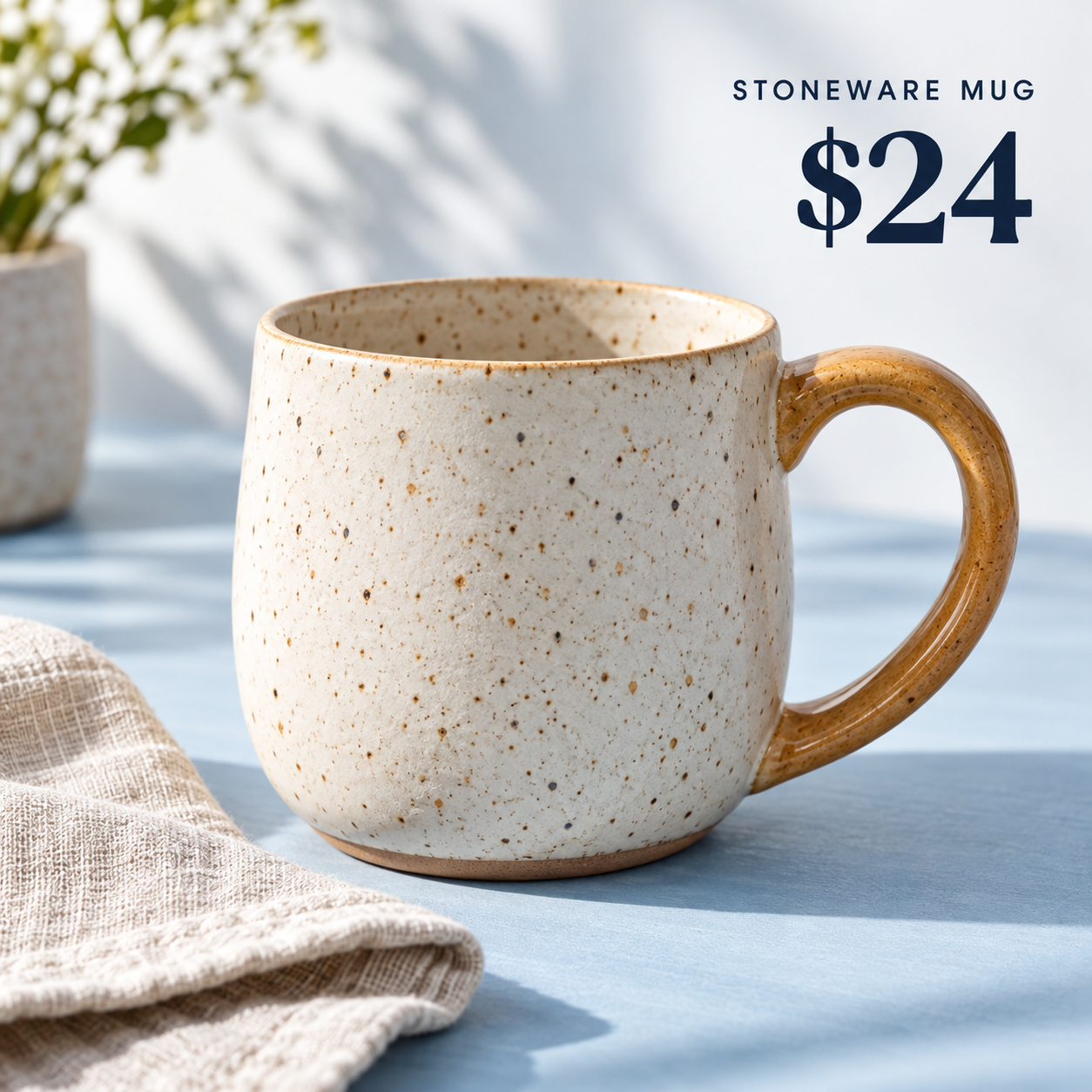
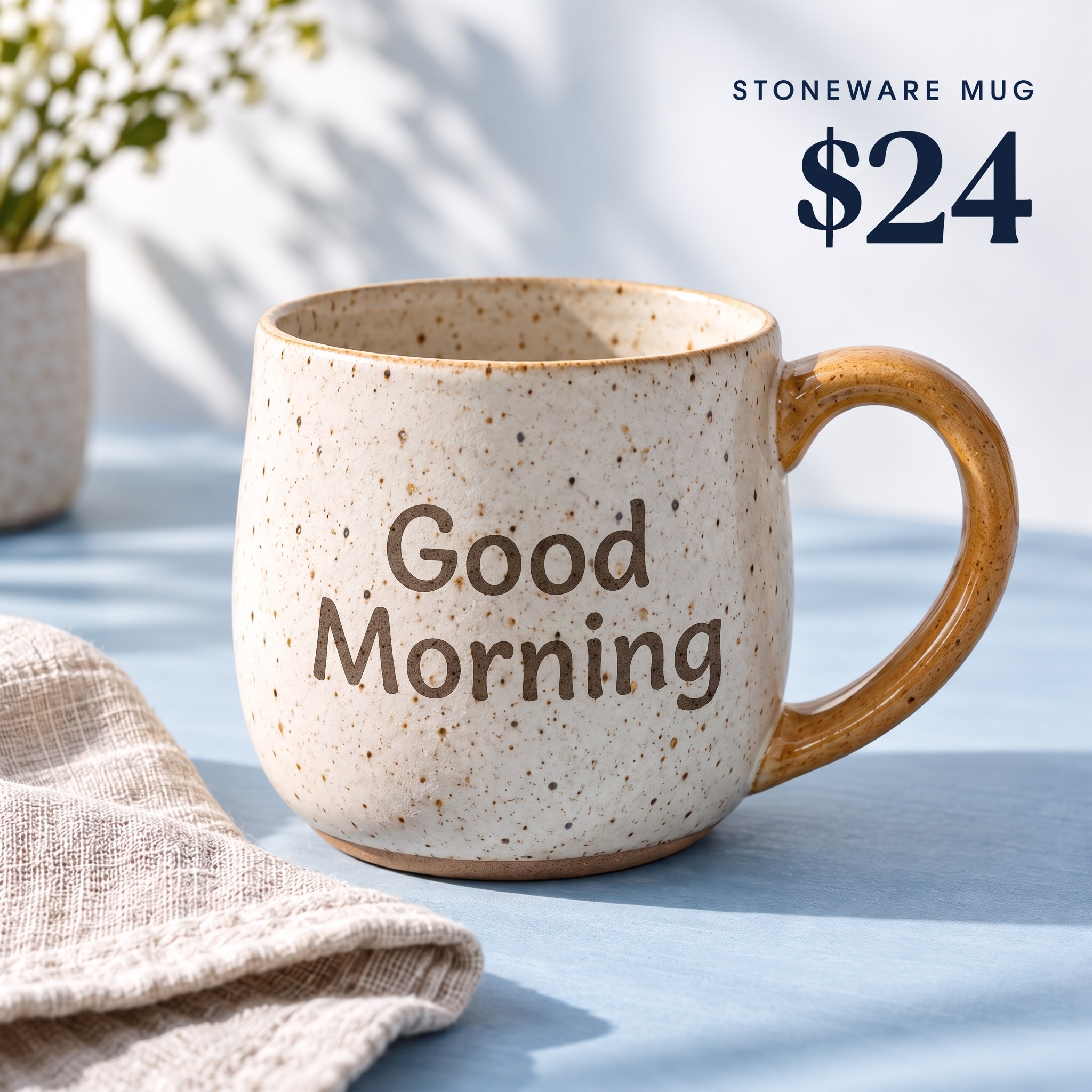
Print a greeting across a plain mug
A speckled stoneware mug with an empty front. With a box over the body, Good Morning, and the Printed look, the words came back as a glaze print that follows the mug's curve, speckles and soft side light. The price tag, handle and linen outside the box stayed as they were.
PRODUCT AD · NEON HEADLINE
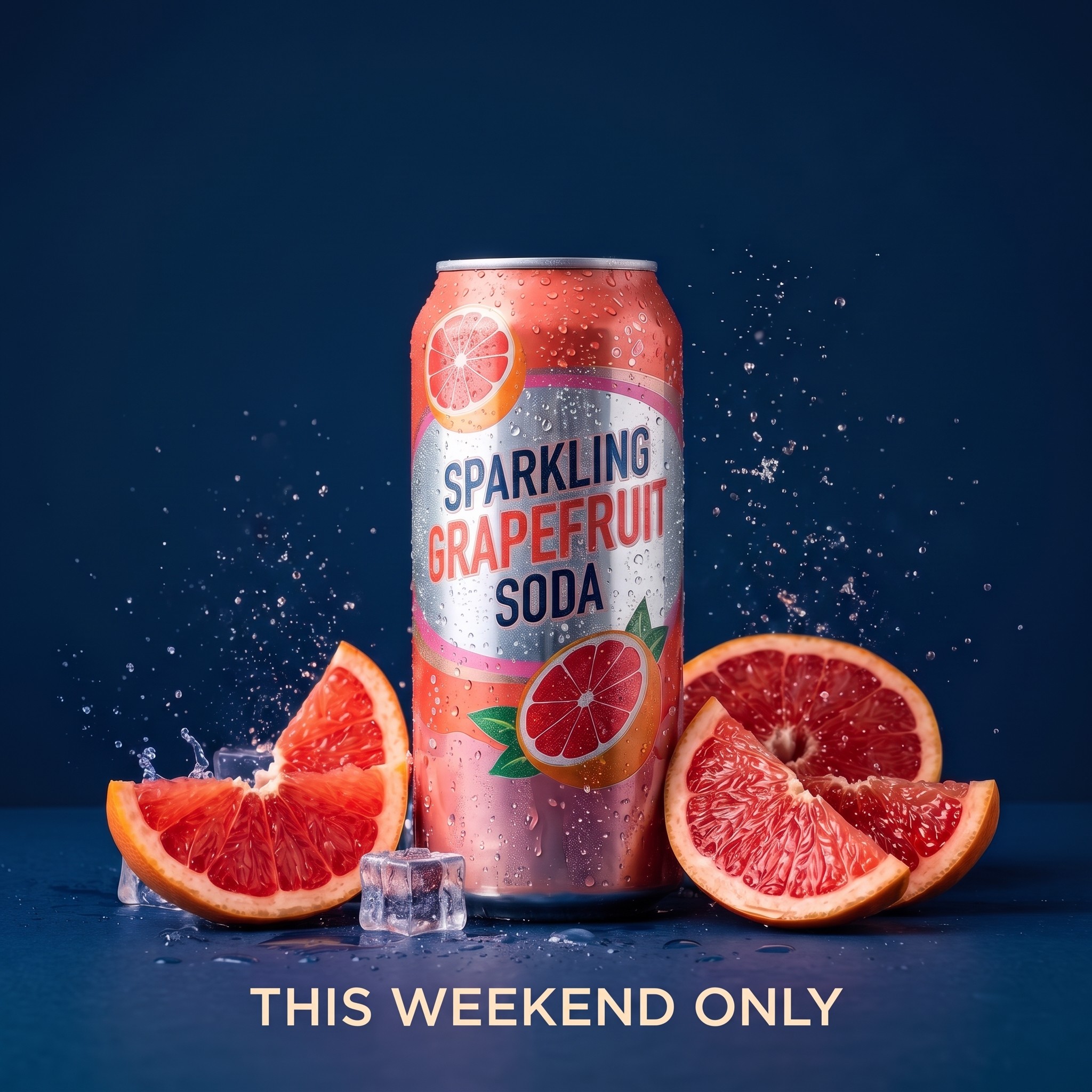
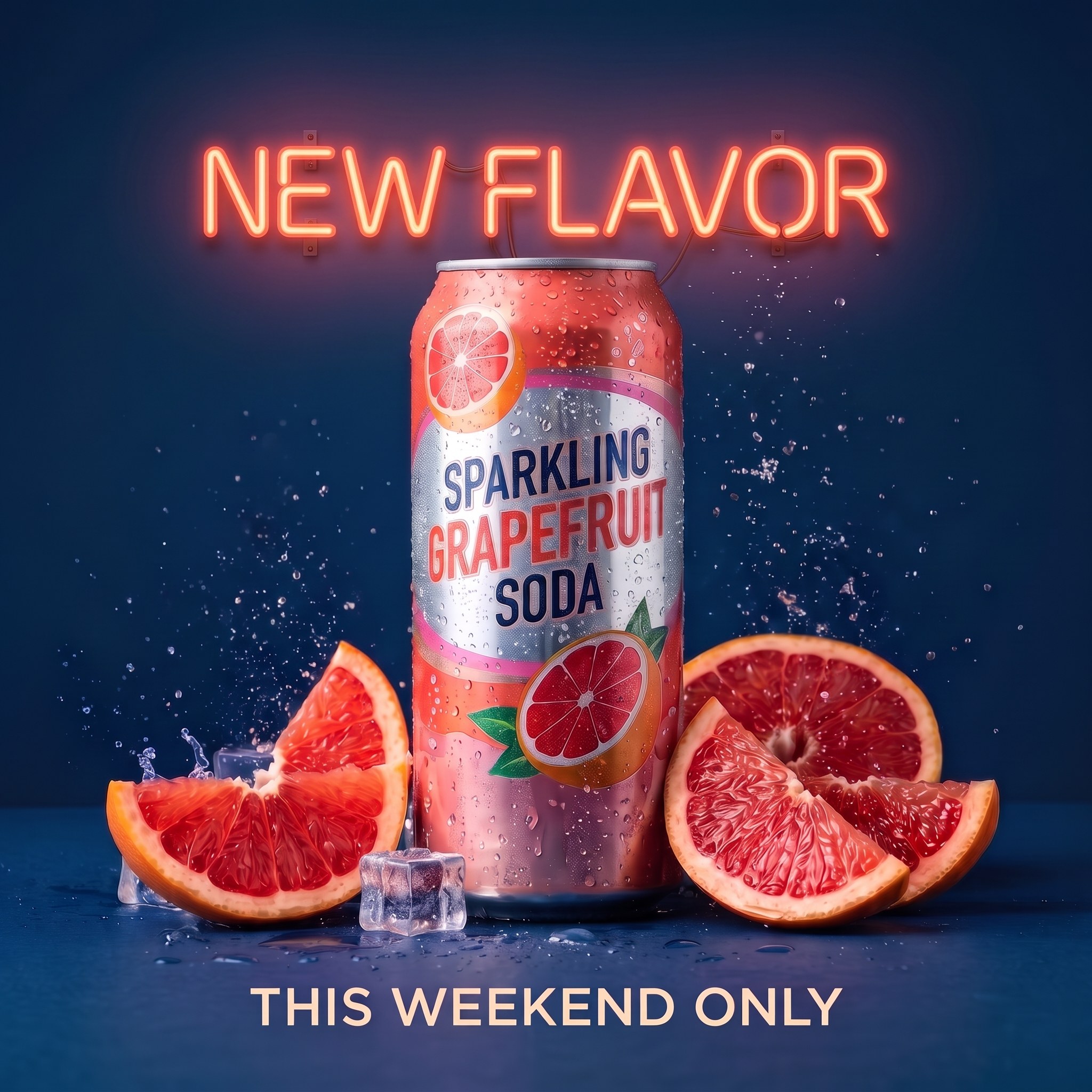
Add a glowing headline to a product ad
A soda ad with an empty dark backdrop. We asked for NEW FLAVOR in neon across the middle; the model placed the glowing sign just above the can instead, where it fit the layout, and left the can label, fruit and THIS WEEKEND ONLY untouched. Placement can shift like this, so check where the words land.
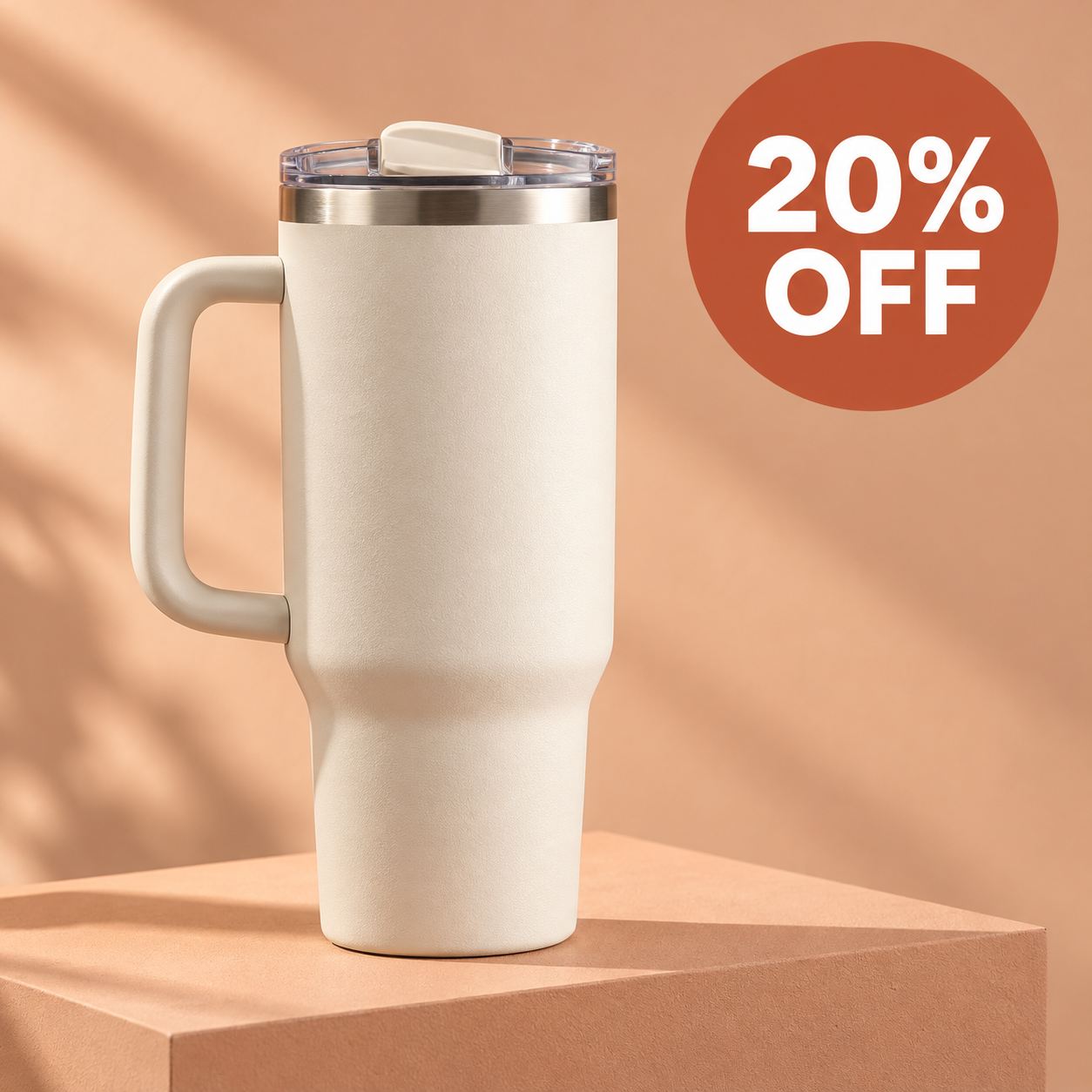

PRODUCT PHOTO · BOLD PRINT
Print a bold slogan on a travel tumbler
A plain cream tumbler beside a 20% OFF badge. A box on the tumbler body with STAY / COLD and the Printed look gave two lines of heavy lettering that sit on the matte surface and follow its light. The badge stayed exactly as it was. In an earlier try, a box placed next to the badge led the model to rewrite the badge, so keep the box on the surface you want printed.
What adding text with AI does
A text layer from a design app sits on top of a photo: flat, evenly lit and perfectly straight. TextImageEdit instead sends your box, your words and the look you pick to an image model, which redraws that area so the letters take on the surface they sit on, such as the curve of a mug, the grain of paper, the glow of a neon tube or the texture of a painted wall.
Because the model redraws the image, the result is new pixels, not your original plus a layer. Spelling is usually right for short phrases but is not guaranteed, and fine details near the box can shift. Keep your original file and check each result before you use it.
To change words that are already in a picture, use the image text editor; it keeps their style. To clear old words first, remove text from the image, then add new ones with Continue editing. Our real model tests show where AI lettering still needs a spelling check.
What this editor does
- Best for. Product mockups, signs, packaging, notes and posters where the words should look printed, painted, lit or handwritten in the scene.
- Accepted input. One JPG, PNG or WebP image, up to 10 MB.
- How to add. Draw one box where the words go, type them, pick a look, then select Add text.
- Credits. 1 credit per addition. One free credit on sign-up; email accounts must be verified.
- Result. A downloadable image with the words drawn into it. Check spelling, letter spacing and nearby details before use.
One-time credit packs (USD)
- Starter $14.90 · 40 credits
- Pro $26.90 · 100 credits
- Studio $39.90 · 180 credits
How to add text to image
- Upload a JPG, PNG or WebP up to 10 MB, or load a sample. Use an image you own or are allowed to edit.
- Drag a box where the new words should go, type them exactly as they should read, and pick a look: printed, painted, neon, handwritten or caption.
- Select Add text. When the result appears, use Show original to compare, check the spelling, then download. Continue editing adds the next text from the result.
Before you finish: Give the words room: a box slightly larger than the text you expect works best. Check every letter and the area around the box; AI redraws the image, so small details can shift.
Add, replace or remove?
Add when the space is empty and needs new words. Replace when words are already there and should read differently: the text editor keeps their style. Remove when the words should be gone, and add new ones afterwards with Continue editing if you need them.
For text in several places, add one block, check it, then use Continue editing for the next. Each submission uses one credit.
FAQ — add text to image
How do I add text to an image with AI?
Upload the image, drag a box where the words should go, type them and choose a look: printed, painted, neon, handwritten or caption. Select Add text, then compare the result with the original and download it.
Will the text look like part of the photo?
That is the aim. The model follows the surface under the box, including its curve, perspective, texture and light, so the words look printed, painted or lit in the scene rather than pasted on top. Results vary by image; check the edges and lighting before you use it.
Is the spelling always correct?
Not always. Short phrases usually come out right, but AI can drop, swap or repeat letters, especially in long text or small boxes. Type the words exactly, keep them short, and proofread the result. If a letter is wrong, start again from your original with a larger box.
Can it change other text in my image by mistake?
It can. In one of our tests, a box next to a 20% OFF badge led the model to rewrite the badge instead of adding new words. Keep the box away from existing text, and compare the result with the original before you download.
Can I choose the font?
Not by name. Pick a look and the model chooses lettering that fits it and the scene. To match words that are already in the image, use Edit text instead; it keeps the existing style as closely as the model can.
Can I add text to a product photo or mockup?
Yes. Box the surface, such as a mug, bottle, bag or box, type the words and pick Printed. The text follows the product's shape. Use it for your own products and mockups, not to misrepresent someone else's brand.
Can I add text in several places?
Each addition uses one box. Add the first block, check it, then use Continue editing to add the next from the result. Each submission uses one credit.
Can I add text to a photo on my phone?
Yes. Upload from your mobile browser and drag the box with your finger. If it is hard to place, type its Left, Top, Width and Height as percentages of the image.
Is adding text free?
A new verified account gets one free credit, once. It covers one addition at the 1K setting, without a card. After that, each addition uses one purchased credit at 2K. Credit packs do not expire and there is no subscription.
Is my image uploaded?
Yes. The image, your box, your words and the chosen look are sent for AI processing, and the image and result are kept in private storage linked to your account. Do not upload material you are not comfortable processing this way.
What happens if an addition fails?
A failed generation returns its credit automatically. If a task is still processing or its status is unclear, check the status instead of submitting again. A finished result you choose to redo is a new submission.
Can I use the results commercially?
Yes, as long as you own the original image or are allowed to edit it. You can use the edited images in ads, product listings, websites and print.
What can't I edit?
Don't upload work you don't own or have rights to, government IDs, passports, certificates, official or stamped documents, bank statements, receipts, currency, or edits meant to deceive, such as fake quotes or altered chat screenshots. See the Acceptable Use rules for the full list.
Try it on your own image.
Draw a box where the words should go, type them and pick a look. AI draws the text into the photo, following its surface, perspective and light, so it looks like it was always there.
Add text to image →