TextImageEdit / Edit text in a poster

Edit text in a poster

Posters and flyers get reused: a new date, a new venue, one word per edition. Upload the finished poster, type the old and new text, and the AI rewrites only those words in the poster's own lettering.

Drop a photo here

JPG, PNG, WebP · up to 10 MB

Upload an image to select the text area.

By clicking Edit text, you confirm you own or may edit this image and that the edit is not meant to deceive anyone. We refuse IDs, passports, certificates, receipts, invoices, bank records, official seals and edited chat or email screenshots. See Acceptable use.

No image? Try an example

Quick answer

What does it mean to edit text in a poster?

Edit text in a poster by uploading the finished image and entering the old and new wording. Use the result to update an event date, venue or headline, then check the lettering and background before sharing or printing.

At a glance

What this editor does

Best for
Updating dates, names and headlines on posters or flyers you can edit.
Accepted input
One JPG, PNG or WebP image, up to 10 MB.
How to edit
Enter text pairs or select the text area and enter replacement wording.
Credits
1 credit per submitted image. One free credit with the first Google sign-in.
Result
A downloadable edited image. Review the words, visual details, dimensions and format before use.

Examples

Ways to edit text in a poster

Explore the situations below. Before-and-after comparisons show real model edits of our demonstration images.

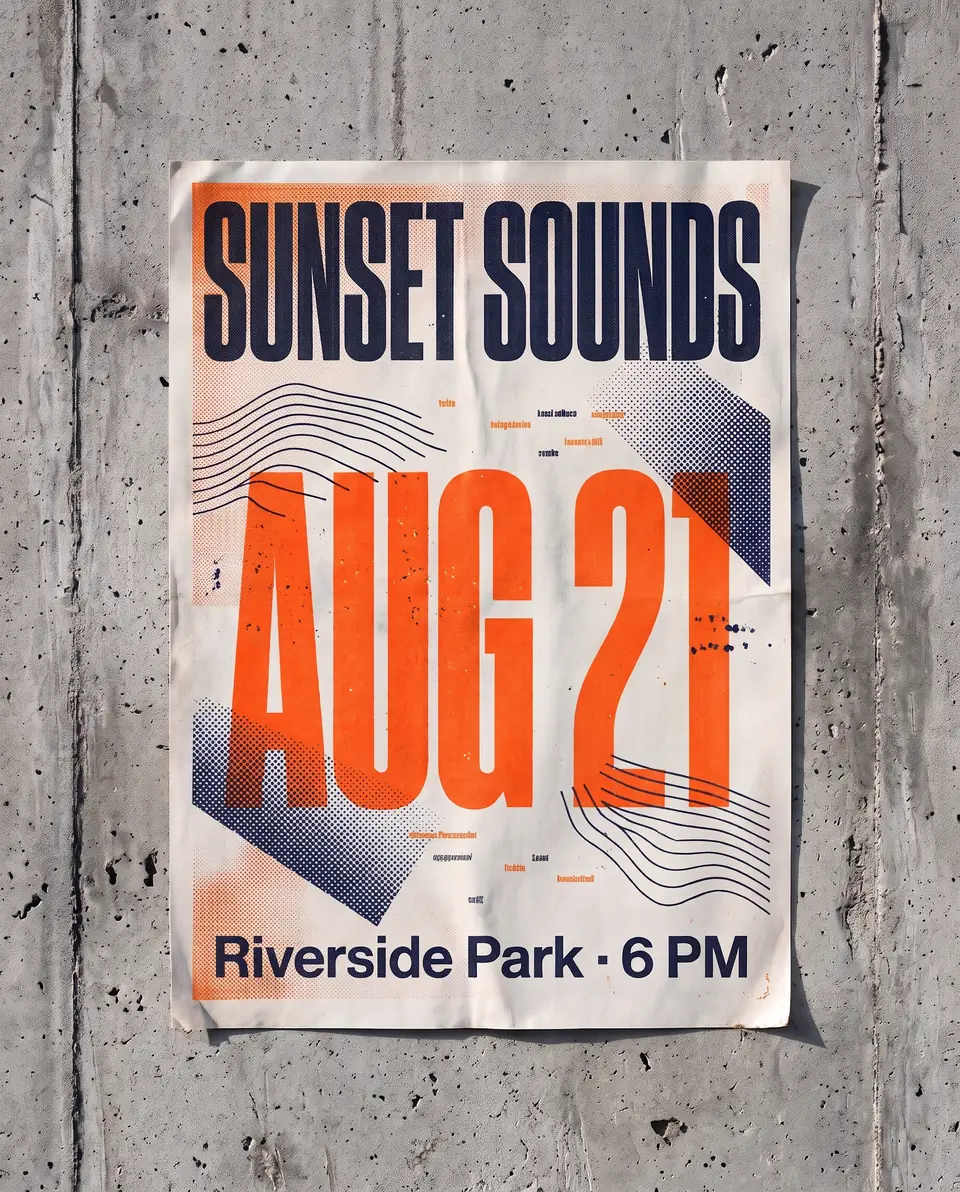
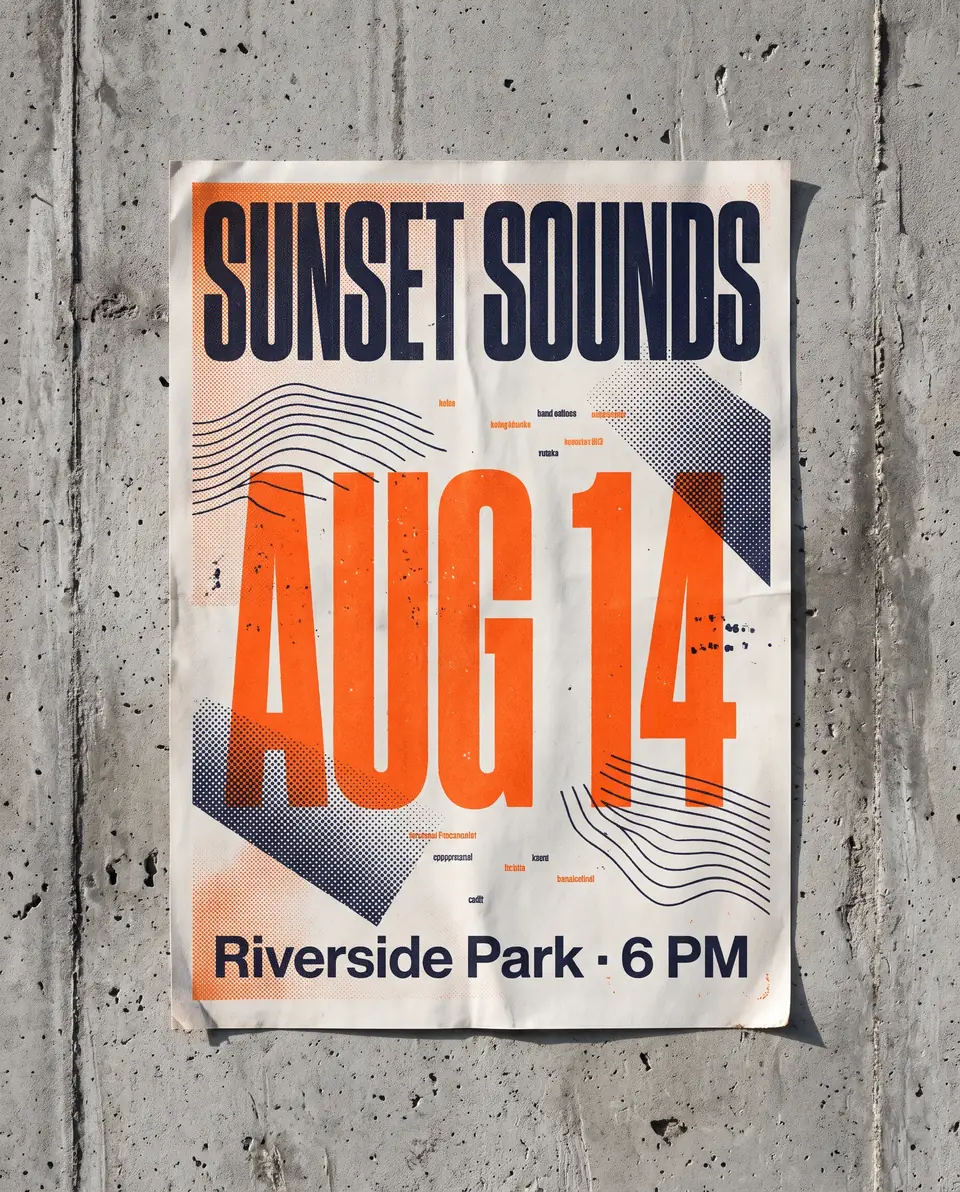
After: AUG 21Before: AUG 14BeforeAfter
Real edit · AUG 14 → AUG 21

Update the date on a flyer

An event moves from one day to another after the flyer is exported. Replace the complete date and confirm the new date agrees with the event details.

The comparison shows a real demonstration change from AUG 14 to AUG 21. Check the date, lettering and paper around the edit. In an actual campaign, the correct event details also need to appear in the ticket page, schedule and other places where the poster is used.
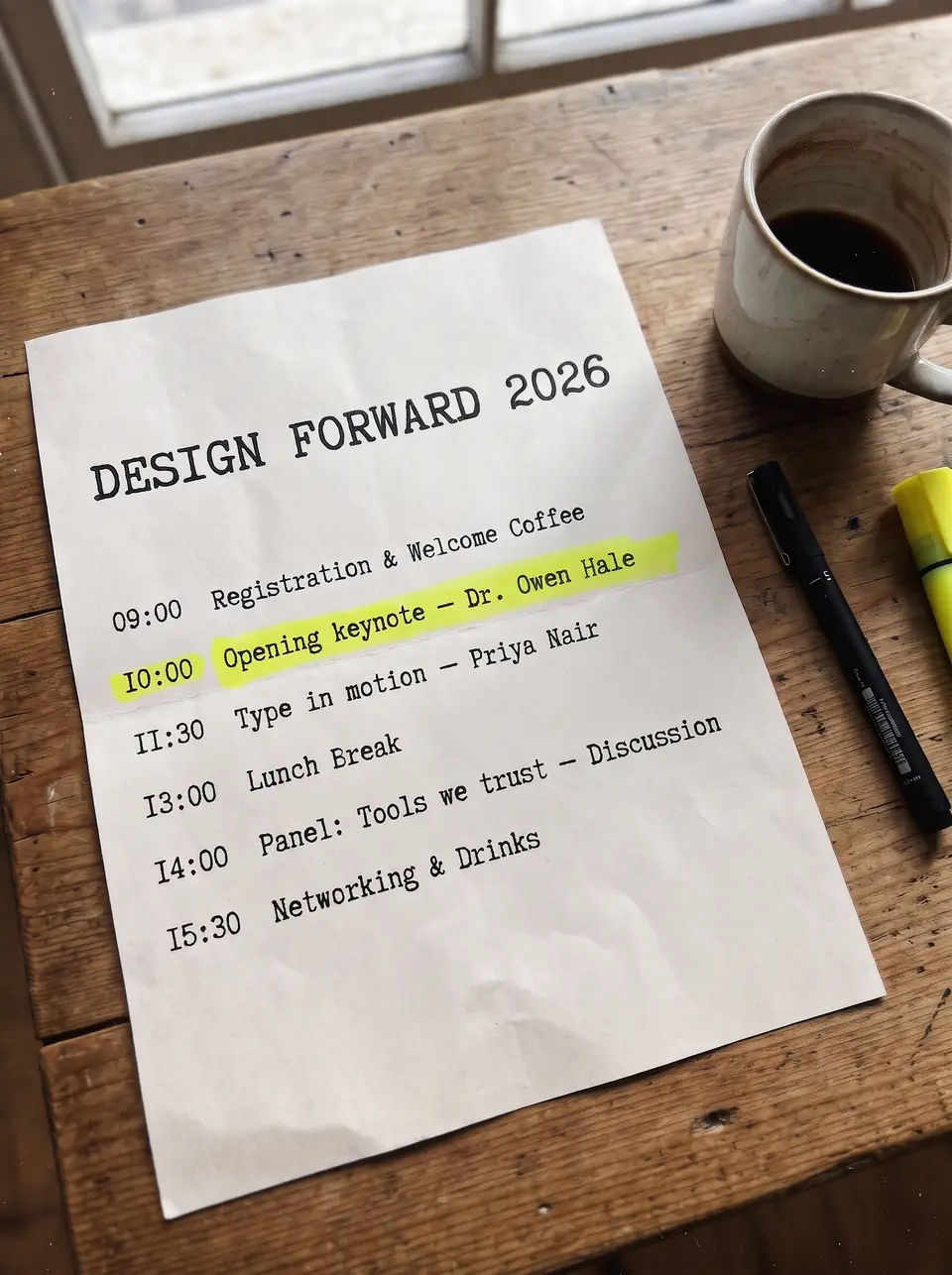
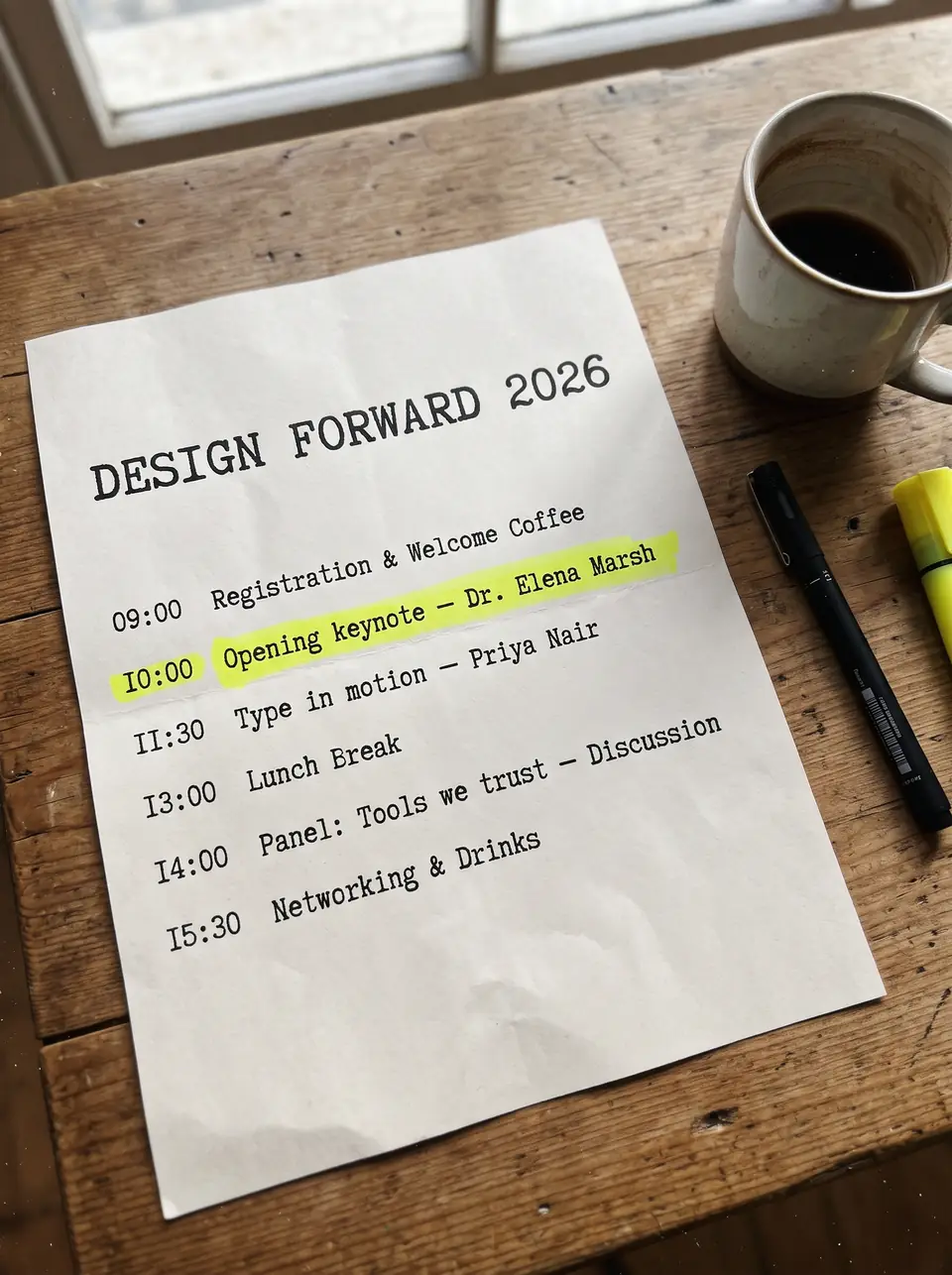
After: Dr. Owen HaleBefore: Dr. Elena MarshBeforeAfter
Real edit · Dr. Elena Marsh → Dr. Owen Hale

Reuse an event program

Update a speaker or performer name in a flat program image. Inspect the surrounding paper texture and the line's spacing.

The second comparison is a real edit of a demonstration program. Replace the complete name and inspect the line spacing and paper texture. A program may mention the same person in multiple sections, so review the complete file against the approved schedule.

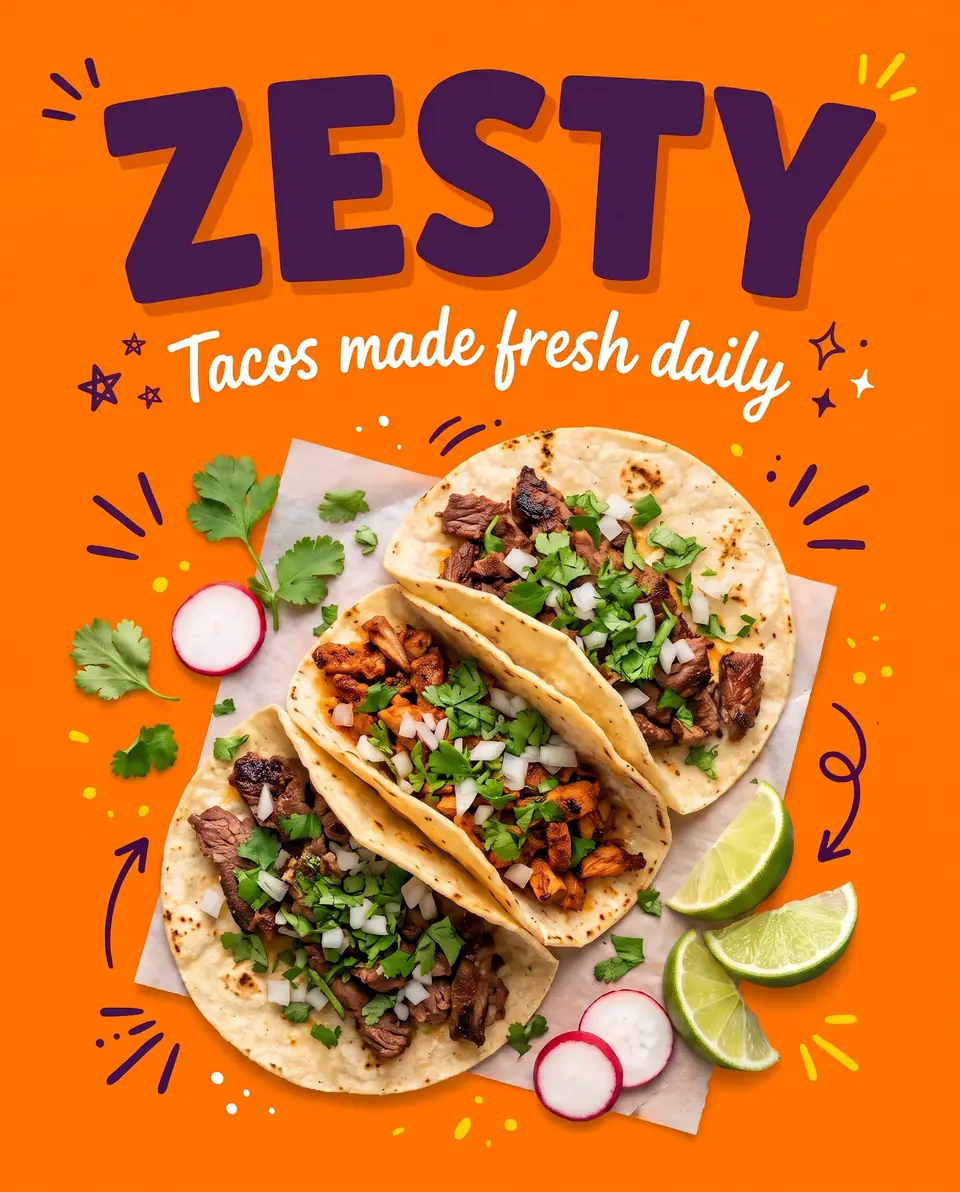
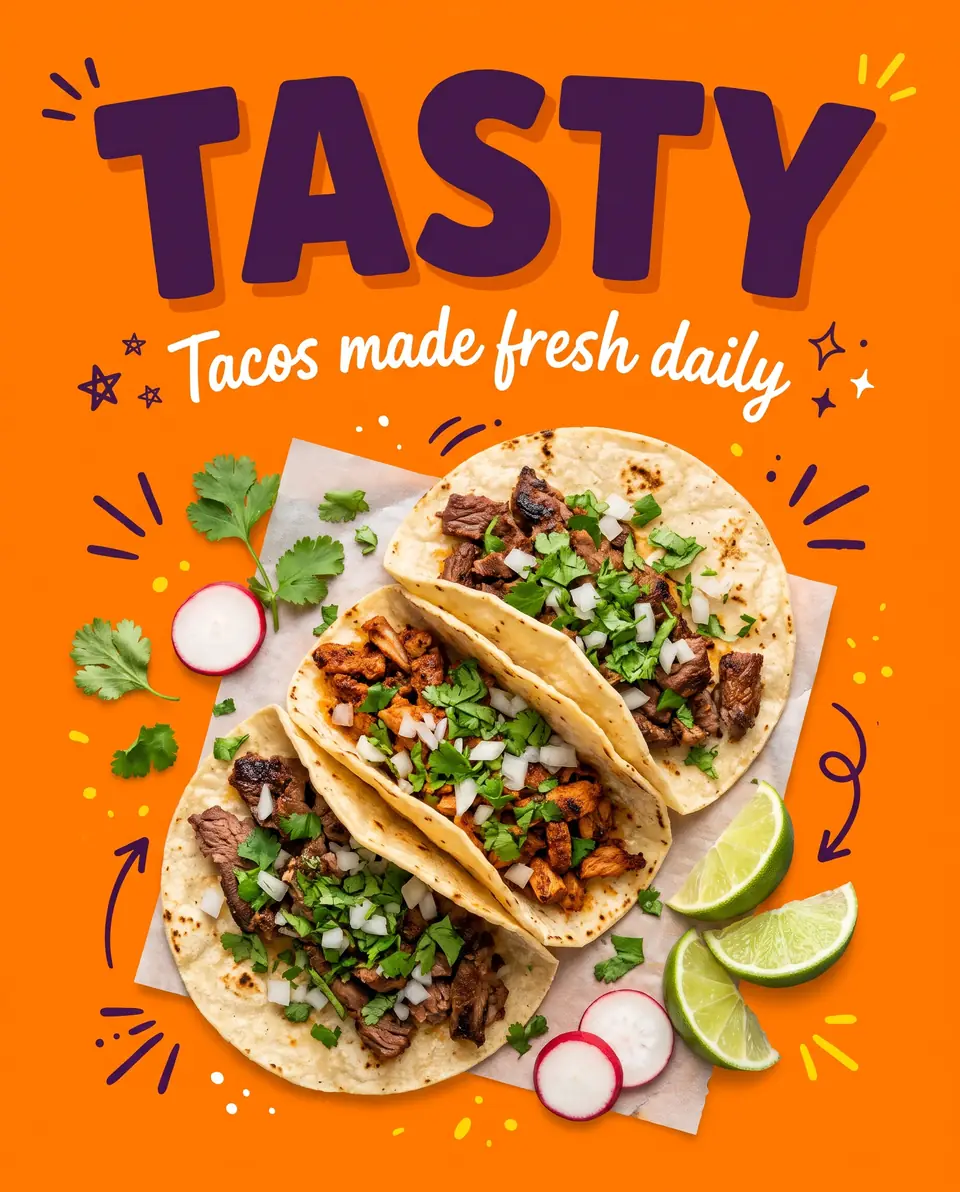
After: ZESTYBefore: TASTYBeforeAfter
Real edit · TASTY → ZESTY

Try another campaign headline

Revise a short word on a finished promotional graphic. Use a replacement that fits the original space and compare the letter shapes.

The comparison uses a real demonstration edit of a short headline. A longer phrase may not fit the original space as neatly. Check the letter shapes and background after the edit; use the source design if the whole layout or exact print settings need to change.

How it works

How to edit text in a poster

  1. Upload the poster as a JPG, PNG or WebP, or a photo of the printed copy.
  2. Enter the original and replacement words, or select the text area and type a replacement.
  3. Download the changed poster in 2K.

Tips for a clean result

  • Change one line at a time when the poster mixes several typefaces.
  • Keep new dates and names close in length to the old ones.
  • A straight-on photo of a printed poster works better than an angled one.

Practical guide

Update a poster after export

A flyer can need a new date, venue or headline after its layered file is gone. Upload the finished artwork, enter the original line and the replacement, then compare the new lettering with the print texture and layout.

For a photograph of a printed poster, choose a straight-on image with even light. A clean export is preferable when tiny type or paper grain needs to remain legible.

Practical guide

Check the details before printing

Keep dates and names close to the original length and edit different type styles one line at a time. Zoom in on the result to verify spelling, punctuation and the area around the changed words.

If the source design is available and exact print typography is required, make the update there. Only edit posters that you own or are licensed to modify.

In detail

Working with a flattened poster

A JPG or PNG export no longer has separate headline or date layers. Enter the existing and replacement words, or choose Select area and draw a rectangle around the text before entering a replacement. The AI uses the selected position as an instruction; check that it changed the intended wording. It does not recreate vector layers or reflow the design.

For photographed posters, even lighting and a straight angle make lettering easier to read. Avoid screenshots of already-compressed thumbnails when a clean export is available.

In detail

Prepare a poster for a printer

Proofread the whole image: dates, time, address, names, capitalization and any nearby details. The output is an image, not an editable print file, and its dimensions may differ from the source.

For large prints, exact colors, bleed or branded type, use the printer's specifications and the original layout file when available. A generated 2K image is not automatically suitable for every print size.

Practical details

Reuse an existing poster or flyer

An event poster may need a different date, venue, speaker or short headline after the design file has been archived. If a flat image is the only usable copy, upload it and specify the existing wording and replacement. Keep the event information accurate across the poster, registration page and other materials.

A completed image is not an editable Illustrator, InDesign or Canva file. When the source exists and the whole composition needs to be reflowed or prepared for a printer, editing the original design offers more precise control.

Practical details

Choose text pairs or an area selection

In Replace text mode, type the complete source phrase and the new wording. Add separate pairs for different lines, up to five pairs in one image. This is useful when the poster's lettering is legible and you know exactly which words should change.

On this poster page, Select area also lets you drag a rectangle around the target and enter a replacement. The selected coordinates are sent as instructions to the image model, rather than as a pixel-locked mask. Check carefully that the intended area changed and that other details remain suitable.

Practical details

Dates, venues and speaker names

When changing a date, type the whole visible date and its replacement, including punctuation or a year if shown. For a venue or speaker name, compare capitalization and the space available. A shorter replacement is generally easier to fit into a narrow line than a long sentence.

Review all other event details at the same time. A poster can contain the date in a headline, a footer and a ticket instruction; one specified text change does not automatically update every related location unless the request explicitly includes it.

Practical details

Printed posters, texture and perspective

A clean digital export is a strong source. If you only have a photograph of a printed poster, use even lighting and a straight-on angle when possible. The model attempts to match the surrounding texture and lettering, but foil, grain, shadows and folds can vary in the output.

Avoid using a very small thumbnail when a larger image is available. Fine type, handwriting and overlapping illustrations require careful inspection. Check the area around the edited line as well as the spelling before sending the graphic to an audience.

Practical details

Before ordering a print run

Check the downloaded dimensions, file format, colors and print provider's requirements. A 2K-configured image is not automatically suitable for every physical size, bleed or color profile. Proofread the headline, dates, contact information and sponsor names at the intended print size.

For a large-format print or exact brand typography, request the layered artwork and licensed font. A generated flat image is best treated as a reviewed image asset rather than a replacement for a production-ready vector file.

More guidance

Update a recurring event without rebuilding the artwork

An annual event may reuse an approved poster while the date, venue or speaker changes. Start from an image you own or are allowed to edit. List every place where the changed information appears, then enter a separate pair for each relevant line or use the area-selection mode for one target.

After the edit, compare the poster with the actual event page and tickets. A visual edit does not change schedules, booking links or details on other materials. Proofread the final image at the intended display size before sharing it.

More guidance

Pick a method for headline text

Use Replace text when you can read the original line and know its exact replacement. It accepts up to five original-to-new pairs on one image. This is useful for dates, short venue names and several small changes in a flat graphic.

Use Select area when you prefer to draw a rectangle around the target. The editor sends the selected position as a textual coordinate instruction to the model, not as a precise mask. Verify the requested text and the rest of the poster; the model may not follow a selection exactly.

More guidance

Review metallic effects, grain and overlapping artwork

A decorative poster may combine texture, colored outlines, shadows and an illustration that overlaps the headline. The model attempts to preserve those visual cues, but an edited output may not reproduce every detail. Inspect the overlap, the outline and the paper or foil effect near the edited characters.

For exact effects and large printed pieces, the original vector or layered artwork provides more reliable control. A generated image can help prepare a reviewed digital asset, but it does not replace a production design file with editable text and print settings.

More guidance

Calculate what a printer needs

A print provider may specify pixel dimensions, physical size, bleed, file format and color settings. The editor uses a configured 2K generation setting, but output dimensions can differ by image. A general calculation is pixels divided by printed inches: 2,000 pixels across 10 inches is 200 pixels per inch.

That arithmetic does not mean a particular output is acceptable to a particular printer. Check the actual file and the printer's current requirements before ordering. If exact layout, full-bleed artwork or high-resolution source text is needed, use the source design.

Step-by-step workflows

Workflow: revise a date for a recurring event

An organizer may want to reuse an owned poster design after an event moves. Identify every occurrence of the old date and enter the full replacement, including the year if shown. Use separate pairs if the headline and footer use different strings, or select the target area on the poster page.

Before sharing, compare the image with the event listing, venue and ticket information. The generated image changes only the image asset; it does not update reservations or other marketing channels. Inspect the typography and nearby illustrations after the edit.

Step-by-step workflows

Workflow: update names on an event program

A speaker, sponsor or performer can change after the image export is complete. Type the complete existing name and the approved replacement, paying attention to capitalization and punctuation. A very long name may not fit the original line without a layout change.

Check the program as a whole: the same name can appear in a headline, schedule and footer. A generated text edit is useful for a flat image, while an editable source gives a designer more control if several sections need to be moved or reflowed.

Step-by-step workflows

Prepare a photo of a printed poster

Use a straight-on, evenly lit photograph if the digital export is unavailable. Avoid a small thumbnail or a picture where glare hides the letters. JPG, PNG and WebP uploads are supported up to 10 MB; a PDF should be exported as an image first.

A photo contains the paper, folds, surrounding wall and lighting as well as the text. Those details can vary after a generative edit. Compare the entire result and do not assume a selected rectangle protects every pixel outside it.

Step-by-step workflows

Check the destination before printing

A digital social post and a large physical print have different requirements. Inspect the downloaded file's actual dimensions, format, colors and any printer-required bleed. The configured 2K setting describes the generation request; it is not a promise that the image satisfies every print size.

If exact brand type, editable layers or production color profiles are essential, ask for the source file or use a designer's original export. For any poster, verify dates, names, contact details and rights before the final asset is printed or posted.

Questions

Frequently asked questions

Upload a flat JPG, PNG or WebP, enter the current and replacement wording, or choose Select area on the poster page. Compare the generated lettering and layout before sharing or printing.

In Replace text mode you can add up to five original and replacement pairs for a single image. For different lettering styles, enter each line separately and check every result.

Yes. Choose Select area, drag a rectangle around the text and enter the replacement. The coordinates guide the model; they are not a guaranteed pixel mask, so review the result carefully.

Yes, if you own the photo or have permission to edit it. A clear, straight-on photo with even lighting provides a better reference than a blurry image or a small thumbnail.

The model attempts to follow visible texture, color and lighting but can vary. Metallic effects, paper grain and complex shadows should be inspected closely; use the source design for an exact production match.

No single image setting guarantees the right file for every print size. Check the downloaded dimensions, format, bleed and color requirements with your printer before ordering.

Only if you own it or have permission to edit the image and included artwork. Do not use the service to impersonate another organization or make misleading claims.

Google sign-in grants one free credit once per account. One submitted poster image uses one credit; failed jobs return the reserved credit.

Yes. Upload a clear image and enter the complete old and new dates, or select the area on the poster page. Check every date and related event detail before publishing.

In Replace text mode, add separate original and replacement pairs for each field, up to five pairs in a single image. Review each field and its surrounding layout in the result.

Choose Select area, draw a rectangle and enter replacement text. The coordinates are included in the model instruction; they are not an exact editing mask. Inspect the result to confirm the correct area changed.

A scan can be used if it is saved as JPG, PNG or WebP, is under 10 MB and you have permission to edit it. Clear, straight images with readable type are easier to inspect than low-quality scans.

No. Check the actual output dimensions, format, color and bleed against your printer's requirements. Use the original production artwork when precise or large-format output is needed.

Upload the flat poster image, enter the old and new wording or use Select area, then review the result. Check the actual event information and your rights to edit the artwork.

Replace text mode supports up to five original and replacement pairs in one image. Give different lines separate pairs, then review every changed field.

Yes, if it is a permitted JPG, PNG or WebP under 10 MB. Use a straight, clear source and check whether the lettering, paper texture and surroundings look correct afterward.

The model aims to match the visible lettering and effects, but an exact font or pixel match is not guaranteed. Use the original licensed source for a precise brand or print master.

Check the downloaded image's actual pixel dimensions and your printer's required physical size, resolution, file format and bleed. A 2K-configured result is not automatically suitable for all print sizes.

Yes, as long as you own the original image or are allowed to edit it. You can use the edited images in ads, product listings, websites and print.

Don't upload work you don't own or have rights to, government IDs, passports, certificates, official or stamped documents, bank statements, receipts, currency, or edits meant to deceive, such as fake quotes or altered chat screenshots. See the Acceptable Use rules for the full list.

Compare with an AI assistant

“How can I update the date or headline on an exported poster image?”

Use any assistant to explore the question. If the question is not filled in, copy and paste it.

Ready to edit text in a poster?

Upload an image, choose the wording or language, then review and download the result.