TextImageEdit / Edit text in image with the same font

Edit text in image with the same font

You do not need to know which font the image uses. The AI redraws the new words in the lettering style of the words they replace, including custom and hand-drawn type.

Drop a photo here

JPG, PNG, WebP · up to 10 MB

By clicking Edit text, you confirm you own or may edit this image and that the edit is not meant to deceive anyone. We refuse IDs, passports, certificates, receipts, invoices, bank records, official seals and edited chat or email screenshots. See Acceptable use.

No image? Try an example

Quick answer

What does it mean to edit text in image with the same font?

To edit text in an image with the same font style, enter the existing words and a replacement. The model redraws the new text using the visible lettering as a reference, without requiring a font file; the match is visual rather than a guaranteed exact font.

At a glance

What this editor does

Best for
Changing existing text when its visible lettering style matters.
Accepted input
One JPG, PNG or WebP image, up to 10 MB.
How to edit
Provide the original words and replacement; no font file is required.
Credits
1 credit per submitted image. One free credit with the first Google sign-in.
Result
A downloadable edited image. Review the words, visual details, dimensions and format before use.

Examples

Ways to edit text in image with the same font

Explore the situations below. Before-and-after comparisons show real model edits of our demonstration images.

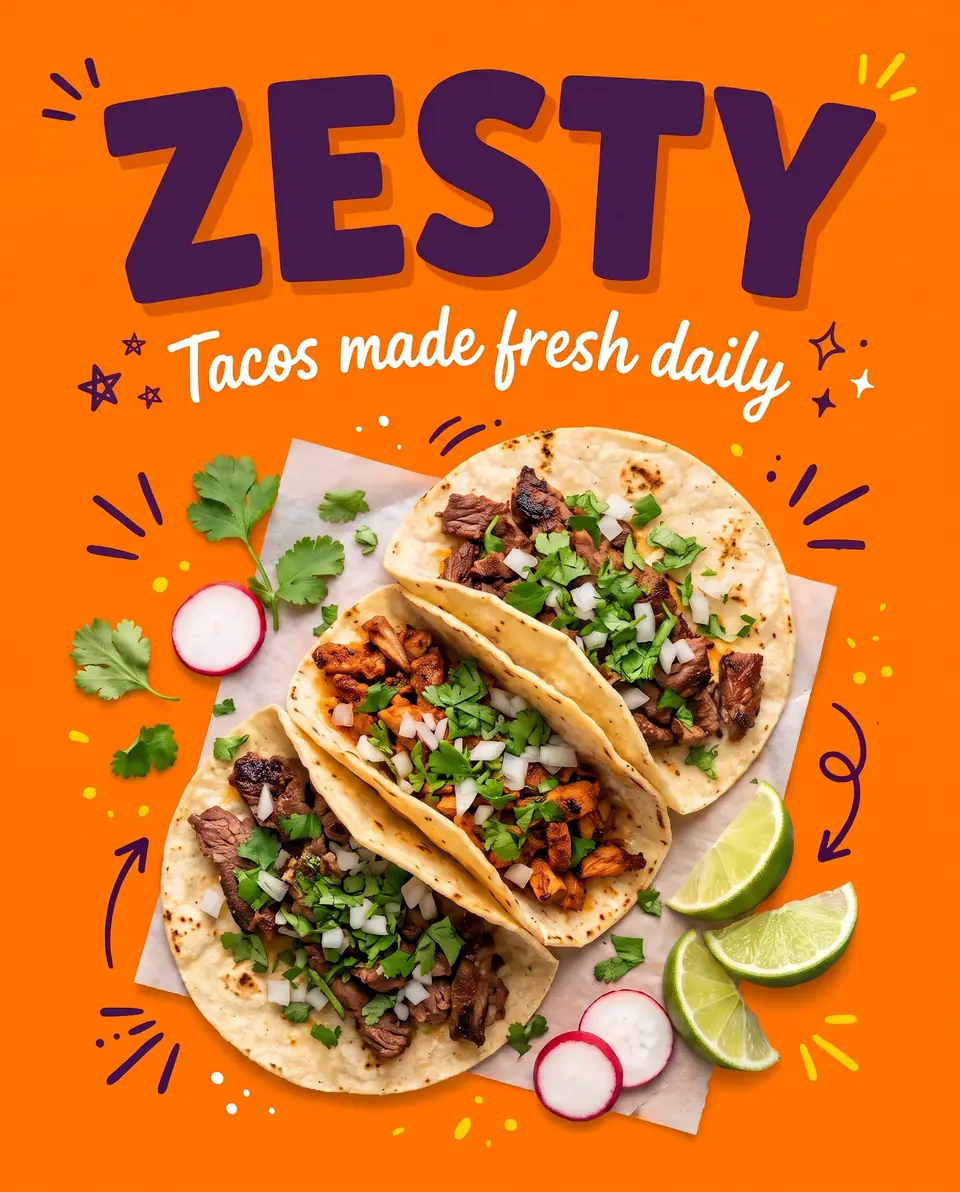
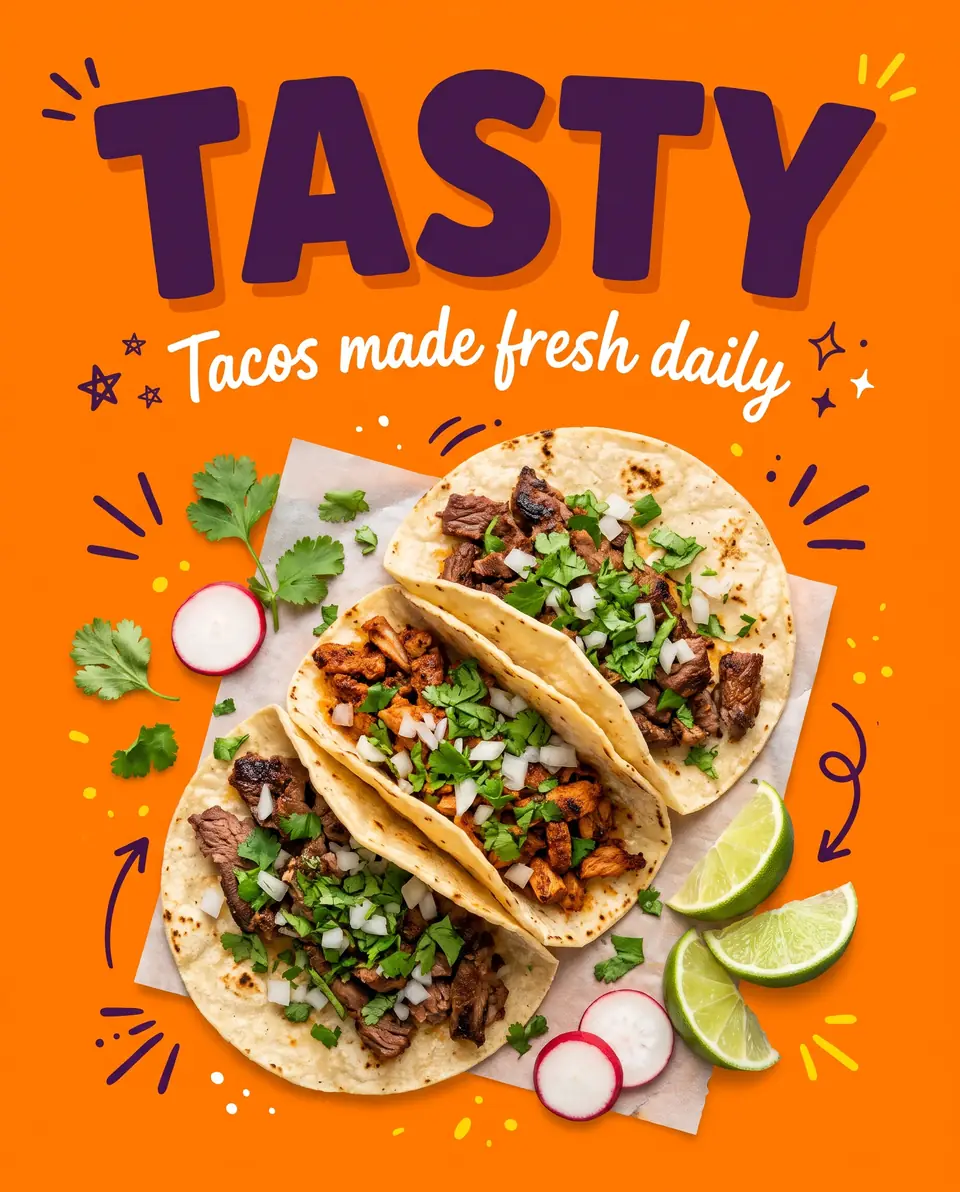
After: ZESTYBefore: TASTYBeforeAfter
Real edit · TASTY → ZESTY

Change a display headline

A social ad with a bold headline can be revised from its exported image. Compare character shapes, spacing and the edge of the lettering at full size.

The comparison shows an actual demonstration edit from TASTY to ZESTY. Look at the letter shapes, spacing and the edges around the headline, then inspect the surrounding artwork. A visual match is not the same as a licensed editable font or an exact vector master.
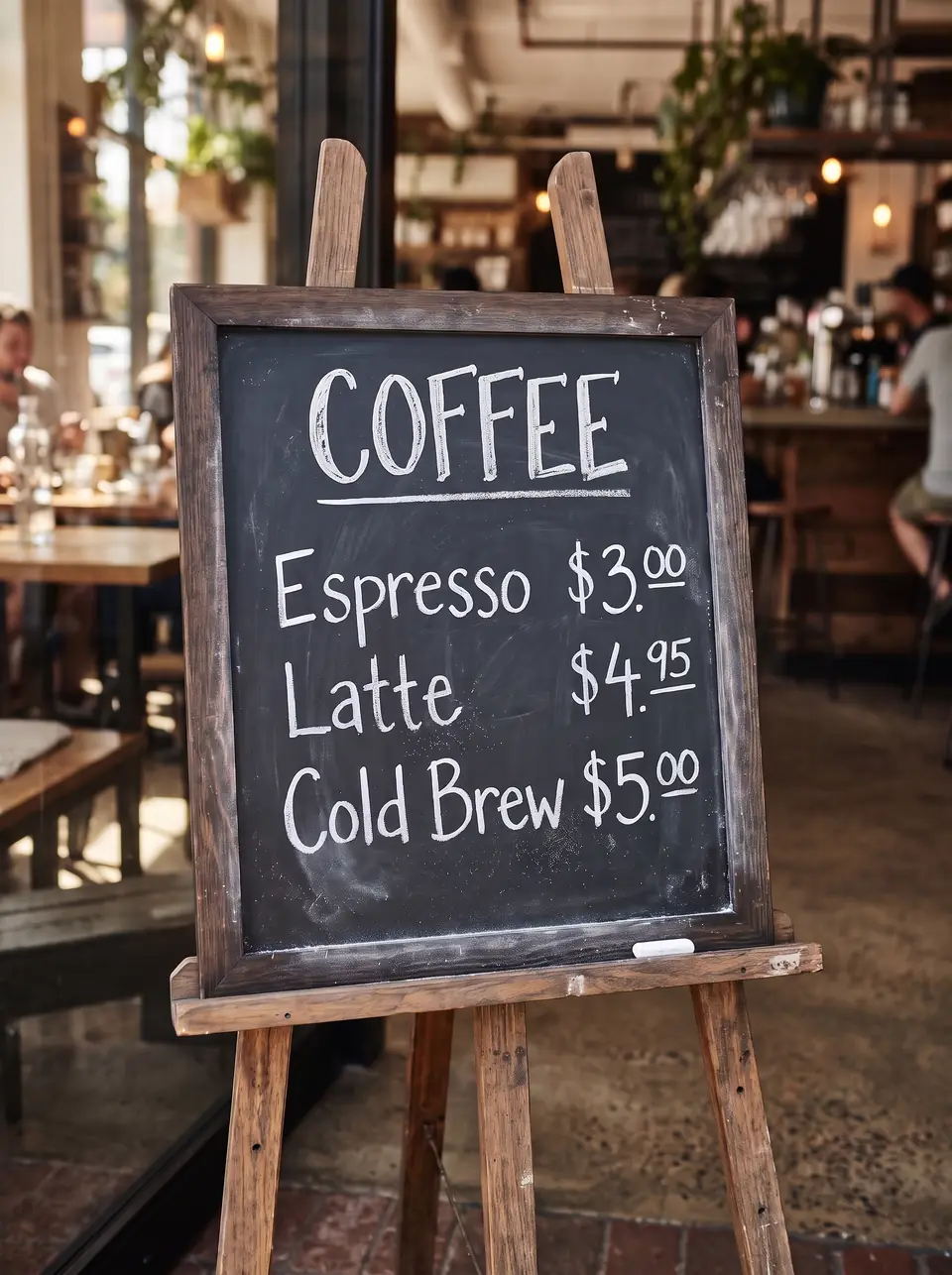
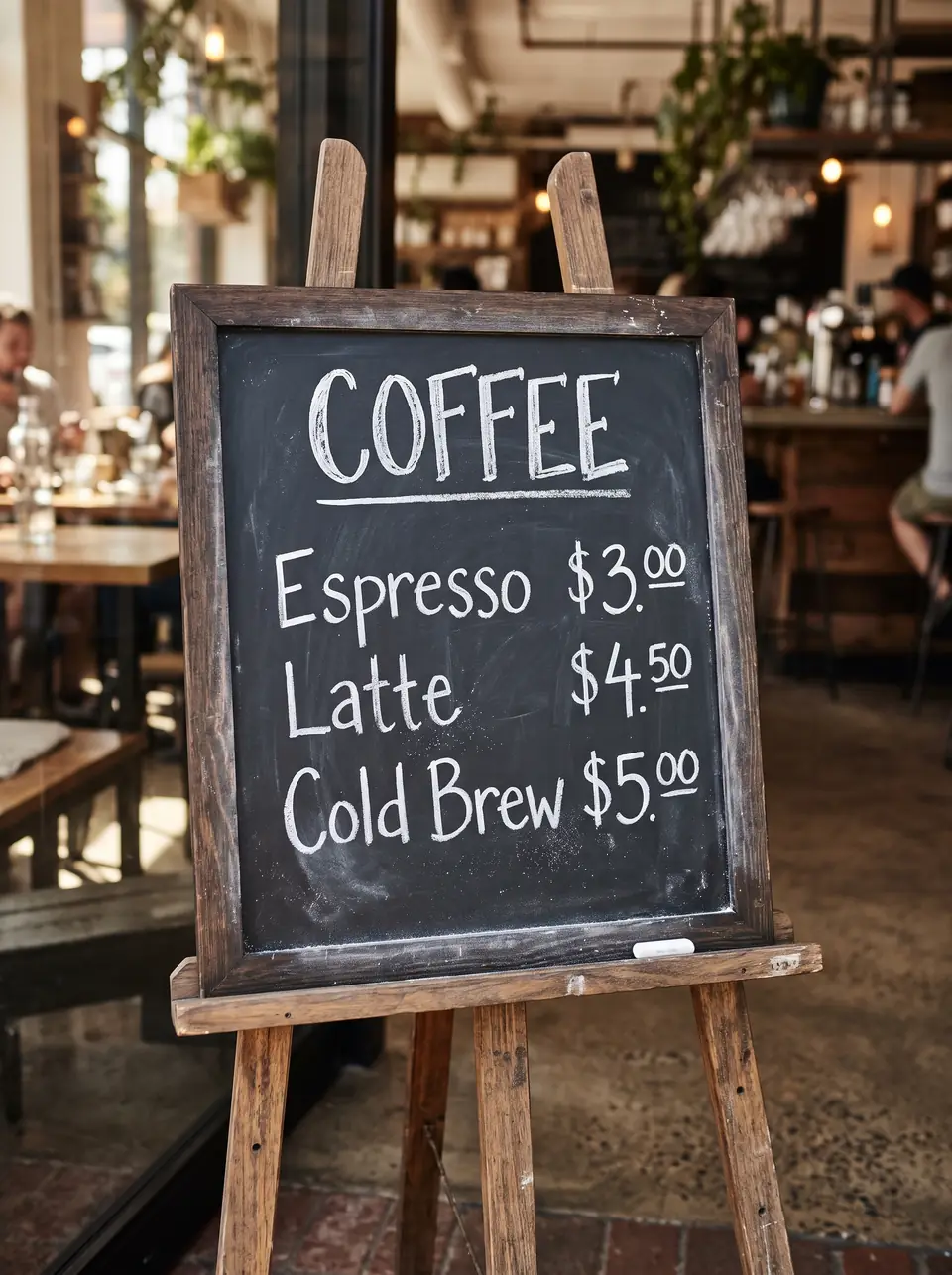
After: $4.95Before: $4.50BeforeAfter
Real edit · $4.50 → $4.95

Revise a chalkboard menu

Hand-drawn numbers on a menu have irregular edges and texture. Replace the whole price and check that the new numbers remain readable.

The demonstration uses a chalkboard-style price change. Hand-drawn numbers have uneven strokes and background texture that may vary in a generated result. Check the exact price, the neighboring text and the board surface at full size before using an edited menu.

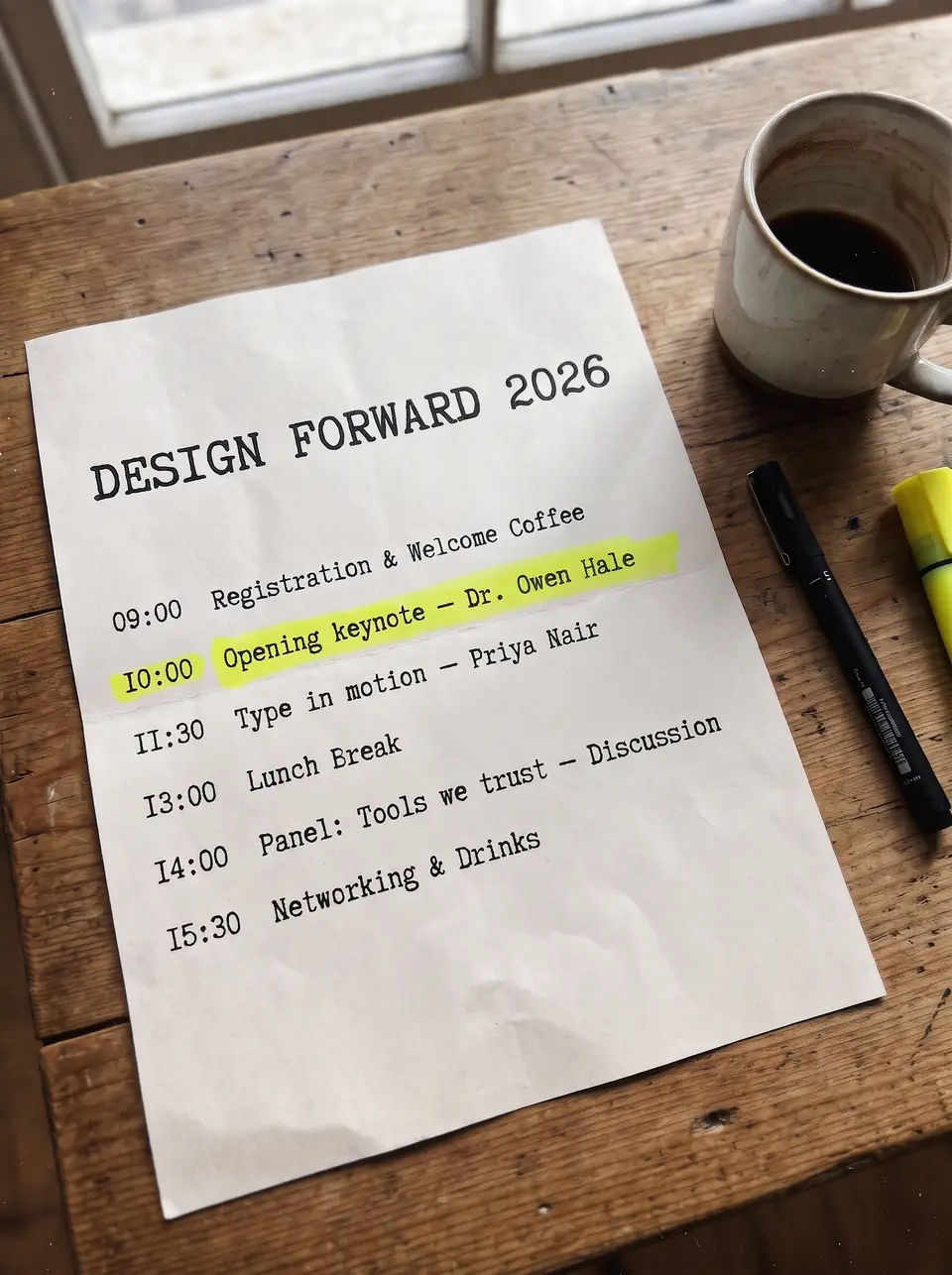
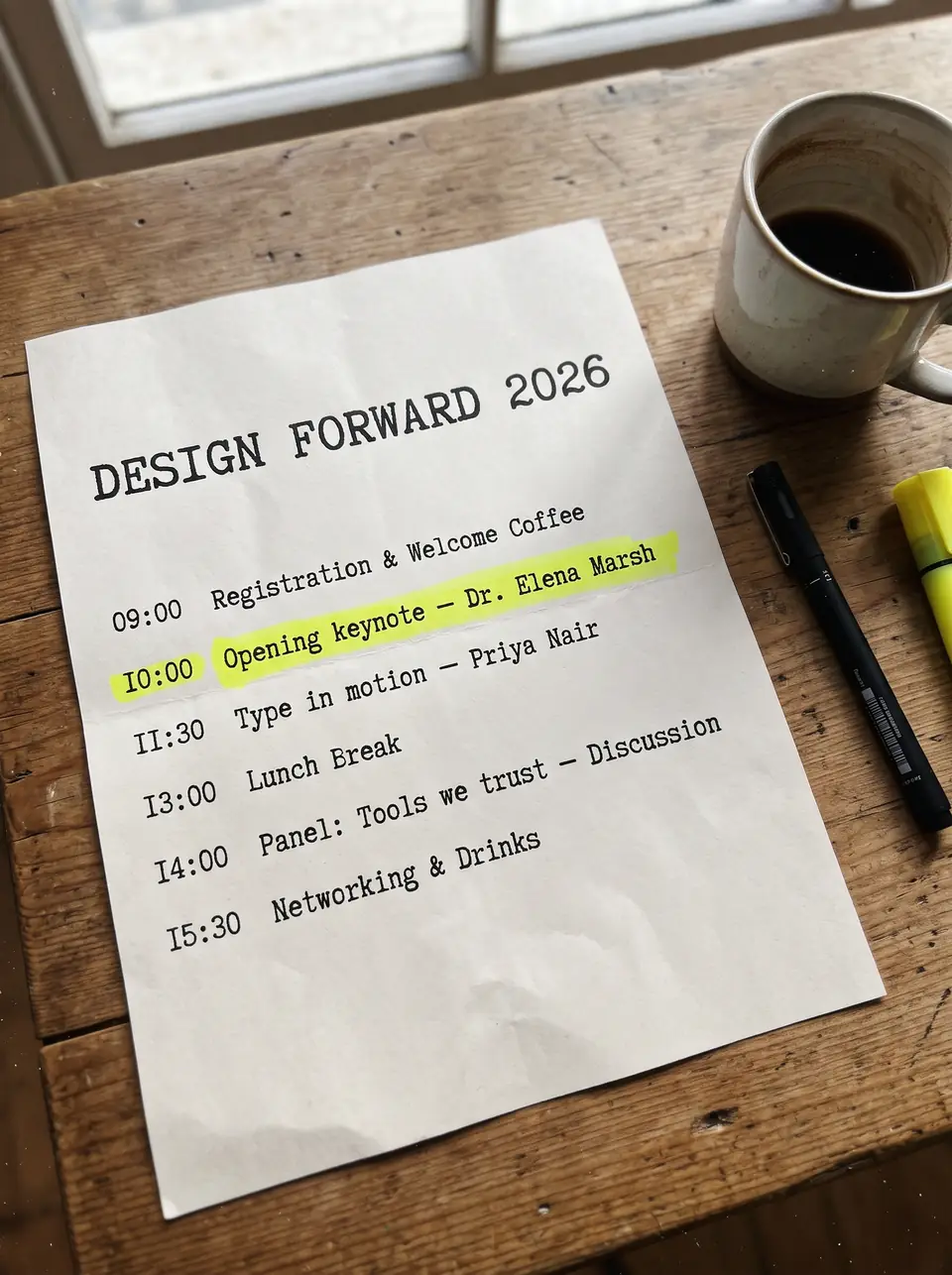
After: Dr. Owen HaleBefore: Dr. Elena MarshBeforeAfter
Real edit · Dr. Elena Marsh → Dr. Owen Hale

Update an event program

A name in a program can use an unfamiliar typewriter style. Keep the replacement close to the original length and inspect the baseline and surrounding paper texture.

The real demonstration edit replaces one speaker name with another in a flat program. Compare the baseline, character spacing and paper texture. For an actual event, verify the name against the program and any other event information before sharing it.

How it works

How to edit text in image with the same font

  1. Upload the image.
  2. Type the original words and the replacement.
  3. Check the lettering up close, then download.

Tips for a clean result

  • Keep the same capitalisation as the original for the closest match.
  • If one line uses several styles, split it into separate changes.

Practical guide

Match lettering without the font file

The editor redraws the replacement based on the visible lettering in the image, including its apparent weight, color and angle. It does not identify or install the original font, and a generated match may differ on close inspection.

For a better fit, keep the new phrase close to the old phrase in length and preserve capitalization. Split lines with different sizes, colors or type styles into separate edits.

Practical guide

When an exact match is essential

Hand lettering, small serifs, unusual shadows and curved packaging are harder to reproduce reliably. Compare letter spacing, outlines and background details at full size.

If your brand requires a pixel-exact typeface, edit the source design using the licensed font instead. Use this tool for flat exports when a close visual match is sufficient.

In detail

Matching a look is different from identifying a font

A flattened image does not contain an editable font choice. Its apparent typography includes letter shape, weight, spacing, color, blur, outline and sometimes a photographed angle. The model works from those visible features; it does not tell you the font name or install it.

If you have the original design and a licensed font, edit the source for an exact brand match. The image workflow is useful when only the finished image is available and a visual match is enough.

In detail

What makes a replacement harder to match?

Tiny serifs, decorative scripts, overlapping illustrations and curved packaging leave less clear information for the model. A longer replacement can crowd a short original line. Use the largest source, preserve capitalization and split mixed styles into separate pairs.

Check spelling, kerning, shadows and surrounding details at full size. A completed edit may still need a second attempt if the letters or background do not look right.

Practical details

What a visual font match can and cannot do

The editor does not search a font library or return an installed typeface. It takes the original image and the requested wording, then asks an image model to redraw the replacement in the style of the source. That can be useful for custom, hand-drawn or unfamiliar lettering in a flat image.

A visual match is different from the exact font file. Letter shapes, spacing, outlines, highlights and surrounding texture are generated and should be checked closely. A licensed source font in the original design remains preferable for strict brand work.

Practical details

Font family, weight, color and effects

Typography is more than a family name. A headline may use a particular weight, uneven tracking, a colored outline and a shadow. In a photograph, perspective, blur or light can change how those letters appear. The model tries to take these visual cues from the source rather than selecting a font from a menu.

Provide a clean image and the complete original word. When a phrase combines different lettering treatments, separate the changes into individual text pairs. Keep the replacement similar in length when the image provides a fixed space for the text.

Practical details

When manual editing gives more control

If the design file still has editable text, change it in the source. If the file is flat but an exact result matters, a designer can identify or approximate the font, reconstruct the background and set the new letters manually. This takes more work but provides direct control over individual layers.

AI editing is useful when the original design or font is unavailable and you need a reviewed visual match on a finished JPG, PNG or WebP. It is not a font identification service and it does not grant a license to install a commercial typeface.

Practical details

Review lettering in three kinds of image

For a bold display headline, compare the width of individual characters and the gap between them. For a chalkboard or painted sign, inspect edge texture and the material behind the words. For a product label, check whether light, perspective and curved packaging still look plausible.

Zoom in on both the before and after. Pay special attention to punctuation, tiny print and a longer replacement that may be compressed into a shorter space. Keep the original image so a second attempt starts from the source rather than from a previous generated edit.

Practical details

Use similar lettering responsibly

Only edit artwork, wordmarks and images you own or are authorized to modify. A generated visual resemblance does not establish ownership of a brand or a typeface, and you should not use the tool to impersonate another business.

Check the output against your own brand requirements before publication. Where the exact typeface, kerning or production-ready vector text is mandatory, return to the licensed source design or ask the original designer for the appropriate file.

More guidance

Read the difference between font identification and style matching

A font identifier tries to suggest the name of a typeface from a sample. TextImageEdit takes a different route: the image model redraws the new words using the visible lettering as context. It does not provide a font file or tell you which commercial typeface is present.

If a design must use a specific licensed typeface, obtain that font and edit the original document. If only the flat image is available, a visual approximation can be useful as long as the result is reviewed and the source image can be edited legally.

More guidance

Check weight, tracking and line breaks

Even when the general letter shapes look close, an edit may differ in weight or spacing. Compare the thickness of vertical strokes, the gaps between individual letters and the distance from the text to the edge of a badge or button. A long replacement may need more space than the original.

For multiple type treatments in the same image, enter each line as a separate pair. If the output changes a nearby line or crowds a border, compare with the source and refine the request. A completed attempt uses a credit; a failed job returns its reserved credit.

More guidance

Effects, shadows and photographed lettering

Lettering in an image may include a colored stroke, glow, drop shadow, grain or a photographed tilt. The model is instructed to follow those visible effects, but there is no guarantee of an exact match. A high-contrast source and short replacement make the result easier to inspect.

On hand-painted or chalk lettering, check the texture as well as the characters. For a shadow behind a title, compare its direction and edges. For text on a curved package, examine how the baseline follows the surface and whether nearby details remain plausible.

More guidance

Review a brand asset before publication

A business may use a distinctive wordmark or carefully adjusted character spacing. An image model can imitate the overall appearance but cannot promise to reproduce the precise font, licensed asset or custom kerning. Avoid altering another organization's logo or creating a misleading imitation.

For a production brand asset, compare the result against the approved master at the intended size. When a small typographic difference is unacceptable, request the actual design file and use the authorized font or vector artwork.

Step-by-step workflows

Workflow: change a display headline

A bold advertising headline can contain custom shapes and spacing that are hard to reproduce by choosing a familiar font. Enter the entire original word and the proposed replacement. The example on this page shows TASTY changed to ZESTY on an owned demonstration image.

Compare the width, weight, color and spacing of the replacement with the original. A generated visual match is useful for review, but it is not an editable font file or an exact vector version. Use approved source artwork for a strict brand master.

Step-by-step workflows

Workflow: update hand-drawn lettering

A chalkboard or painted sign has uneven edges and surface texture that may not correspond to a digital typeface. Start with a clear, well-lit image and enter the whole phrase or price. A short replacement is easier to fit into the space visible in the source.

Inspect the surface and strokes around the new words. The model attempts to follow the visual style, but it may vary in texture, shadow or lettering. A completed retry is another edit; begin with the original image and a clear request.

Step-by-step workflows

Understand font name, appearance and licensing

The name of a font and the look of text in a photograph are different pieces of information. The model can try to redraw visible shapes without identifying the typeface. It does not provide a license to install or redistribute a paid font, and it cannot guarantee identical custom kerning.

If your project needs an exact typeface, obtain the licensed font and the original design. For an owned flat image without a source file, this editor can provide a visual result to inspect and compare, subject to your rights in the source artwork.

Step-by-step workflows

Review style at two scales

At full size, compare letter shapes, spacing, outlines and effects. At the final display size, check whether the replacement is legible and sits naturally within the overall layout. A replacement with significantly more letters may be squeezed or wrapped because it must fit the existing area.

Also inspect the background behind the word and any nearby logo, illustration or person. An AI-generated image is not a locked-layer edit; even when the requested text looks good, the rest of the image needs a quick comparison with the source.

Questions

Frequently asked questions

Upload the image, type the source word and its replacement, then inspect the resulting lettering. The model aims to follow the original appearance; it does not promise an exact font match.

No. It redraws text using the visible style as a reference. If you need the typeface name or the actual font file, use a font identification workflow and obtain the appropriate license.

It can attempt a visual match for custom or hand-drawn lettering. Clear, larger text is easier to review than tiny or blurred lettering, and complex scripts may need another attempt.

The request asks the model to preserve visible effects such as color, shadow and perspective. Results vary, so zoom in on the outline and nearby background before using the edited image.

You can enter the wording you want to replace, but accuracy varies with script, letter size and image quality. Check the output with someone who can read the language before publishing.

A longer line can wrap, crowd its neighbors or appear smaller. Use a shorter equivalent when possible, or work from the editable design if exact spacing is required.

No. The tool redraws text in a flattened image rather than exposing a text layer. An original layered document offers more precise control over the font, position and final export.

Only edit a logo that you own or have permission to change. The output is a generated image and may differ from the exact brand typography; use the original artwork when precision matters.

Enter the original word and replacement in the image editor. The model attempts to match the visible lettering style; compare the result with the original because it is a visual approximation.

No. It redraws text rather than identifying a font by name. A font identification service or the original design file is more appropriate if you need the actual typeface.

The model can attempt to match the visible strokes and texture. Clear lettering provides a better reference than very small or blurred text; inspect the result before using it.

Zoom in on character shapes, spacing, outlines and shadows, then inspect the image at its final display size. For exact brand typography, compare with the approved source or edit the original file.

No. Matching an appearance does not provide a font file or a license to install it. Use licensed fonts and source artwork where your work requires them.

Upload the image, enter the existing words and replacement, and inspect the result. The AI aims to match visible lettering, but an exact typeface or pixel-identical result is not guaranteed.

It can attempt to match the appearance without installing a font because the source lettering is visible in the image. It does not identify or license the original typeface.

The model is instructed to follow visible effects such as shadows, outlines and color. Results vary, especially with small or complex lettering, so compare the output with the source.

You can enter source and replacement wording in the relevant language. Accuracy depends on the script, source quality and text size; ask someone who reads the language to check the result.

A longer replacement can crowd its available space or wrap. Try a shorter approved phrase, or use the original design file when the text must fit a precise layout.

Yes, as long as you own the original image or are allowed to edit it. You can use the edited images in ads, product listings, websites and print.

Don't upload work you don't own or have rights to, government IDs, passports, certificates, official or stamped documents, bank statements, receipts, currency, or edits meant to deceive, such as fake quotes or altered chat screenshots. See the Acceptable Use rules for the full list.

Compare with an AI assistant

“How can I change text in an image while matching its original lettering style?”

Use any assistant to explore the question. If the question is not filled in, copy and paste it.

Ready to edit text in image with the same font?

Upload an image, choose the wording or language, then review and download the result.