 TextImageEdit
Removing text
How to Remove Text from an Image or Picture and Keep the Background
To remove text from an image, pick the method by what sits behind the letters. On a flat color or plain paper, a free heal tool or a color patch is often enough. When the text crosses a gradient, a product, a pattern or a photo, you need a tool that rebuilds the background: a phone eraser, a healing brush with patience, or AI removal that redraws the area.
We tested four methods on the same two images on November 5, 2026: a notepad with handwritten notes on plain paper, and a soda promotion with a large 30% OFF headline running behind the can. Every result below is a real output, not a mockup.
Pick a method by the background behind the text
| Method | Cost | Works well on | Leaves a trace on |
|---|---|---|---|
| Crop the image | Free | Text near an edge | Anything you need to keep in the frame |
| Paint a color patch | Free | Flat, single-color areas | Gradients, texture, shadows |
| Heal or clone tool | Free in Photopea and GIMP | Small marks on even texture | Large areas, objects next to the text |
| Phone eraser (iPhone Clean Up, Google Photos Magic Eraser) | Included with supported phones | Small distractions in photos | Large headlines, graphic designs |
| AI removal by box | Paid per image after a free trial | Text over gradients, products and detailed scenes | Faces, fine repeating patterns; always check |
If the text sits close to the edge and nothing important is beside it, cropping is the fastest clean result. Everything else is a trade between effort and how well the tool can guess what was behind the letters.
Test 1: handwriting on plain paper
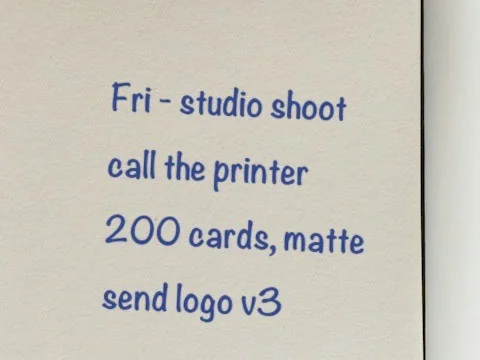
Four lines of blue ink on a spiral notepad. The paper has a light, even grain. This is the easy case.
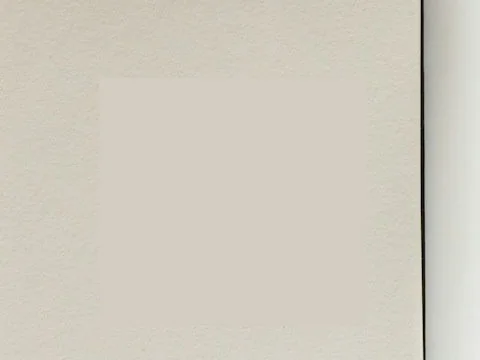
A color patch hides the words but shows as a smooth rectangle: the paper grain stops at its edges. At small sizes it may pass; zoomed in, it does not.
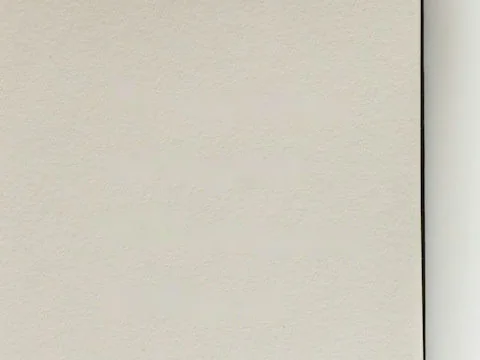
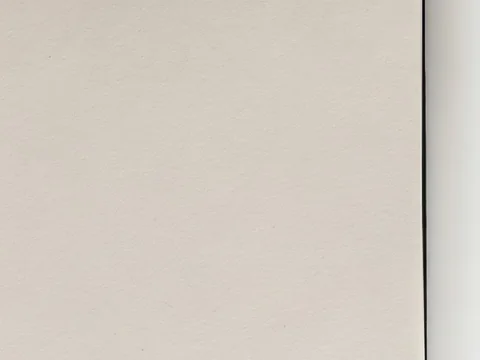
Classic inpainting, here OpenCV's Telea method run on a mask of the ink, filled the strokes from the paper around them. On this plain background it is hard to tell from the AI result. If your text sits on plain paper, a wall or a clear sky, start with a free heal tool. Our AI removal also returned a clean page, with a slightly different paper tone that you would only notice side by side.
Test 2: a headline behind a product
The harder case. 30% OFF runs across a dark blue backdrop with a gradient, water droplets and a can standing in front of the letters.
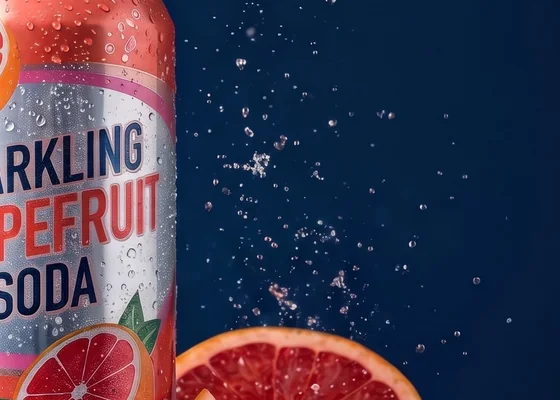
Close-ups of the right half, next to the can:
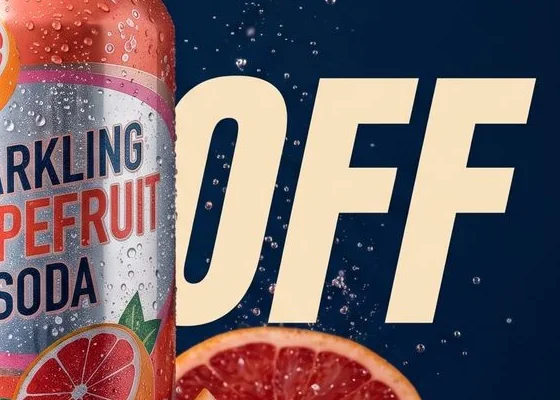
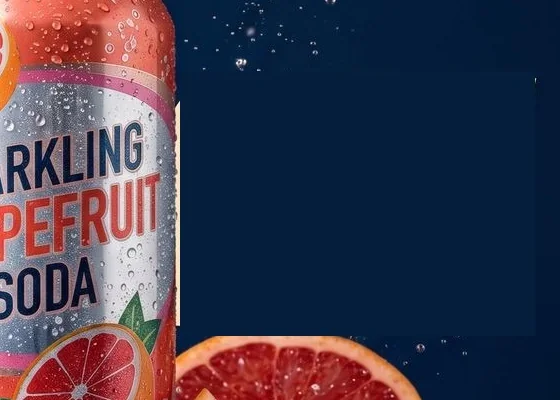
The color patch left a visible rectangle: the backdrop is darker at the top than the bottom, the droplets stop at the patch edges, and a sliver of letter remains where the text meets the can.
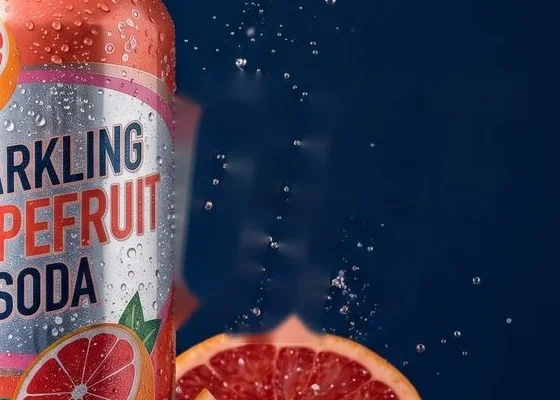
Classic inpainting smeared the area and pulled pink from the can into the blue backdrop, leaving ghost shapes of the letters. These are the traces people mean when they ask how to remove text "without affecting the background".


AI removal redrew the backdrop, the gradient and the scattered droplets, and kept the can's own label, which sat inside the selection box. THIS WEEKEND ONLY was outside the box and stayed. This is the case where an image model earns its cost. We ran the same request in ChatGPT as well; it also removed the headline cleanly, and our ChatGPT test shows its result.
Remove text with free tools
Photopea runs in the browser. Its Smart Tools guide covers the Spot Healing Brush and Patch tool for painting over small areas. Paint over a few letters at a time, sample clean texture close to the text and zoom in to check edges. For a flat background, the Brush and Clone Stamp are quicker.
GIMP has a Heal tool that works like Clone but blends with the target area. It suits small text on even texture; a large headline takes many passes.
Any editor with a brush can paint a color patch. Use the eyedropper on the background right next to the text, and only do this when the area is a true single color.
Remove text on iPhone, Android or in Canva
On a supported iPhone, Apple's Clean Up tool in Photos lets you tap, brush or circle an item to remove it. It needs Apple Intelligence, which is not available on every model, language or region.
On Android, Google Photos' Magic Eraser works the same way: open the photo, tap Edit, find Magic Eraser, then tap, circle or brush the area and tap Erase.
In Canva, Magic Eraser lets you brush over or click an object in a photo. Check your plan before relying on it.
These erasers are built for distractions in photos: a sign, a sticker, a stray word. They are quick to try, and they are free if your phone already supports them. Large graphic headlines like the 30% OFF test are harder for them, so compare the result at full size.
Remove text with AI in a box
On the Remove text from image page, upload a JPG, PNG or WebP, drag a box around the words and select Remove text. You do not type the old words. The selected area is rebuilt from the surrounding picture; compare it with Show original, then download. For text in several places, remove one area, check it, then use Continue editing for the next.
A new verified account gets one free credit for one removal at 1K. After that each removal uses one purchased credit at 2K; see pricing. Use it on images you own or are allowed to edit.
Check the result before you use it
- Zoom to 100% on the old text area. Look for faint outlines, repeated texture, blur or a color step.
- Check what was inside the box. Labels, edges, faces and lines inside the selection may be redrawn too.
- Compare the whole image. AI tools return a new image: colors, droplets or small details elsewhere can shift slightly.
- Check the file. Format and pixel dimensions can change; confirm they suit where you will use it.
- Keep the original. No removal recovers the real pixels that were under the letters; every method estimates them.
Frequently asked questions
How do I remove text from an image without affecting the background?
Match the tool to the background. On a flat color or plain texture, a heal tool or a color patch keeps the background intact. On a gradient, a photo or text behind a product, use a tool that rebuilds the area, such as AI removal in a box, and zoom in on the result to check for traces.
How do I remove words from a picture but keep everything else?
Box only the words you want gone, including their outline or shadow, and leave nearby objects and other text outside the selection. A free heal tool works when the words sit on plain paper or a flat color; when they cross a product, gradient or pattern, use a tool that rebuilds the background, then zoom in on the area to check that nothing else changed.
What is the best free way to remove text from an image?
For text on plain paper, walls or sky, a free heal tool such as Photopea's Spot Healing Brush or GIMP's Heal tool often gives a clean result, as our notepad test shows. On a supported phone, iPhone Clean Up or Google Photos Magic Eraser are free to try. Cropping is free and clean when the text is near the edge.
Can I remove text from an image in Photoshop?
Yes. Photoshop has healing, clone and AI-assisted removal tools for this. If you do not have Photoshop, Photopea offers similar healing and clone tools in a free browser editor, and our [Photoshop comparison](/blog/textimageedit-vs-photoshop) covers when each workflow fits.
How do I remove text from a photo on my iPhone?
Open the photo in Photos, tap Edit, choose Clean Up and brush or circle the text. It needs a model and region that support Apple Intelligence. Without it, Google Photos' Magic Eraser or a browser tool works on the same photo.
Why does a color patch look wrong?
Most backgrounds are not one color. Light falls off across a surface, paper and fabric have grain, and photos have noise. A single flat color stands out against that, as the rectangles in our soda test show.
Can AI remove text perfectly?
Not guaranteed. The model estimates what was behind the letters; it cannot recover the hidden pixels. Smooth backgrounds work best. Faces, hands, fine patterns and text crossing an object need careful checking, and sometimes a second attempt with a tighter box.
Can I remove a watermark this way?
Only from images you own or are allowed to edit, such as your own drafts or proof marks. Do not remove another creator's watermark, signature or credit: it can infringe their rights, and our acceptable use policy does not allow it.
Should I remove the text or blur it?
Blur or cover it when you only need to hide information, such as a name in a screenshot, and nobody expects the area to look untouched. Remove it when the image must look clean, for example before adding new copy. [Blur Text in Image](/blur-text-in-image) does that free in your browser, and our [screenshot blurring guide](/blog/how-to-blur-text-in-a-screenshot) compares blur, pixelation and black bars on a real chat.
Sources and method
Tests run November 5, 2026 on our own fictional product graphic and an Unsplash notepad photo by Aliona Zahrai, with handwriting we added. The color patch used the median color around each text block. Classic inpainting used OpenCV 4.11's Telea method with a mask built from the text color, the equivalent of brushing exactly over the letters. The AI removals are the saved results from the Remove text from image page, made with a box around the text. Each method ran once.
Tool steps come from Apple, Google, Canva, Photopea and GIMP documentation linked above, reviewed November 5, 2026. TextImageEdit is independent of these companies.
Try the workflow
Choose a clear image you can edit, prepare the new wording and compare the downloaded result.
Open the text remover →