 TextImageEdit
Tool comparisons
Best Tools to Edit Text in an Image (2026): Six Workflows Compared
Most "edit text in image" tools show the same demo: type the old words, type the new ones, get a picture back. The real difference is what the tool returns and what control you have over it. A dedicated editor returns a flat image it redrew. A design suite returns layers you can still move. A manual editor lets you repair pixels by hand, one area at a time.
Below are six workflows that cover those jobs, with the limits we could verify on each public page. They are not ranked by a benchmark: these tools were not run head-to-head on the same files for this article, and pricing changes. Use the workflow labels to pick the right category first.
| Tool | Workflow | Best for | Main limit |
|---|---|---|---|
| TextImageEdit | Dedicated editor, original + replacement fields | Replacing existing wording in a flat export, screenshot or photo | Returns a redrawn image, no text layers |
| EditTextImage | Dedicated editor with task pages | Replacing words, keeping a similar font; separate screenshot and date pages | Same output limit; check current pricing and credits |
| PhoText | Dedicated editor plus OCR, font finder and translation modules | Choosing a dedicated tool while keeping adjacent tools in one place | Each module is a different job; review output per module |
| PicText | Dedicated editor plus OCR and font finder | Editing words plus extracting text in one tool family | Pages and languages vary; verify the specific task |
| Canva Grab Text | Design suite with text detection | Editing text and layout together, or designing afresh | Results live in Canva's editor and export flow |
| Photopea | Manual image editor in the browser | Healing, cloning and rebuilding areas by hand | No automatic "old words → new words" step |
When a dedicated editor is the right category
If the output you need is a finished image, and the words already exist in it, a dedicated editor is usually the shortest path. You describe the change instead of clicking a text layer that no longer exists. Our image text editor takes the complete original phrase and its replacement, redraws the letters using the source as a reference, and returns an image to compare and download. EditTextImage documents a similar original/replacement workflow on its site.
The trade-off is control. There is no style panel and no per-letter adjustment, so a brand-exact typeface or a re-flowed layout still belongs in the source design. That limit is shared by the whole category, not unique to one product.
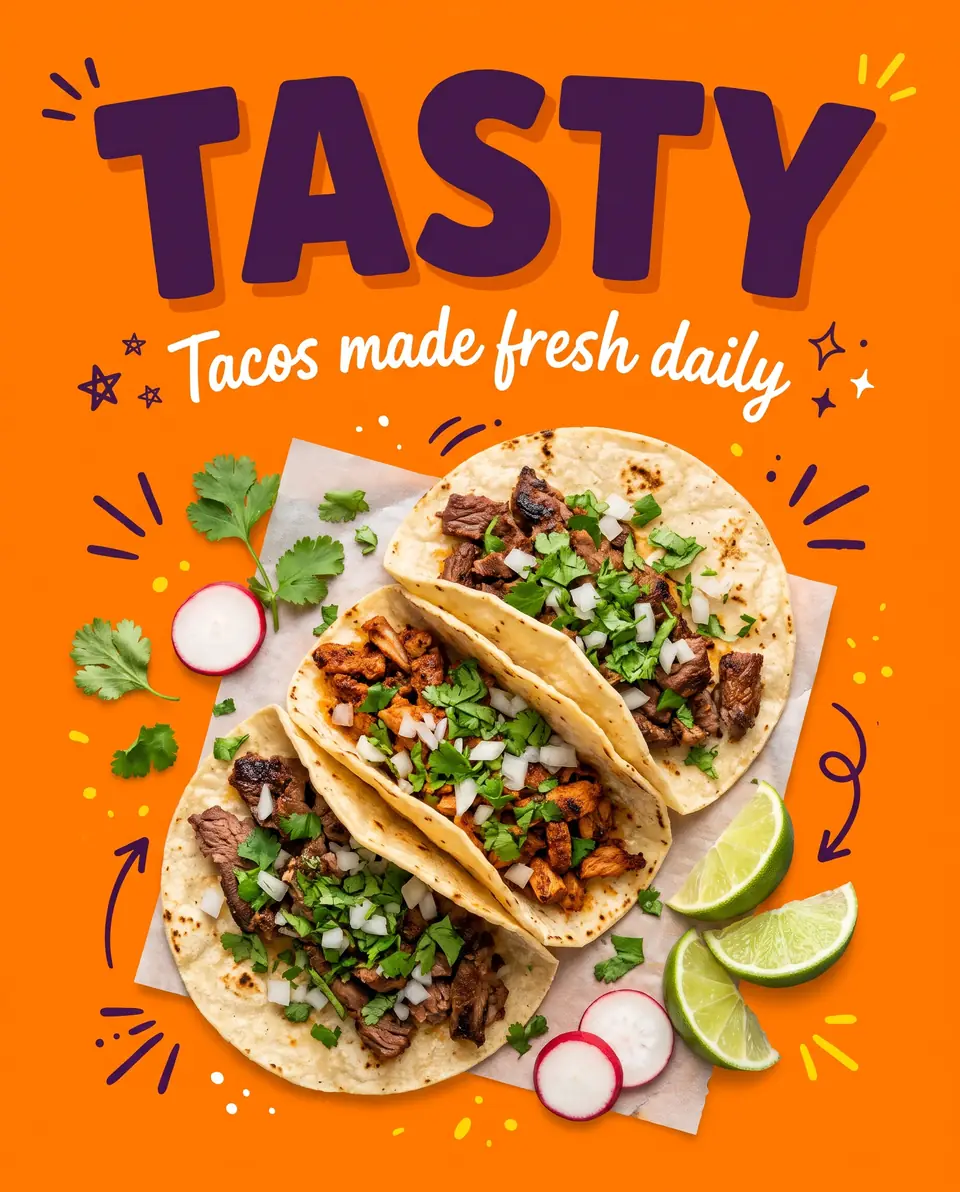
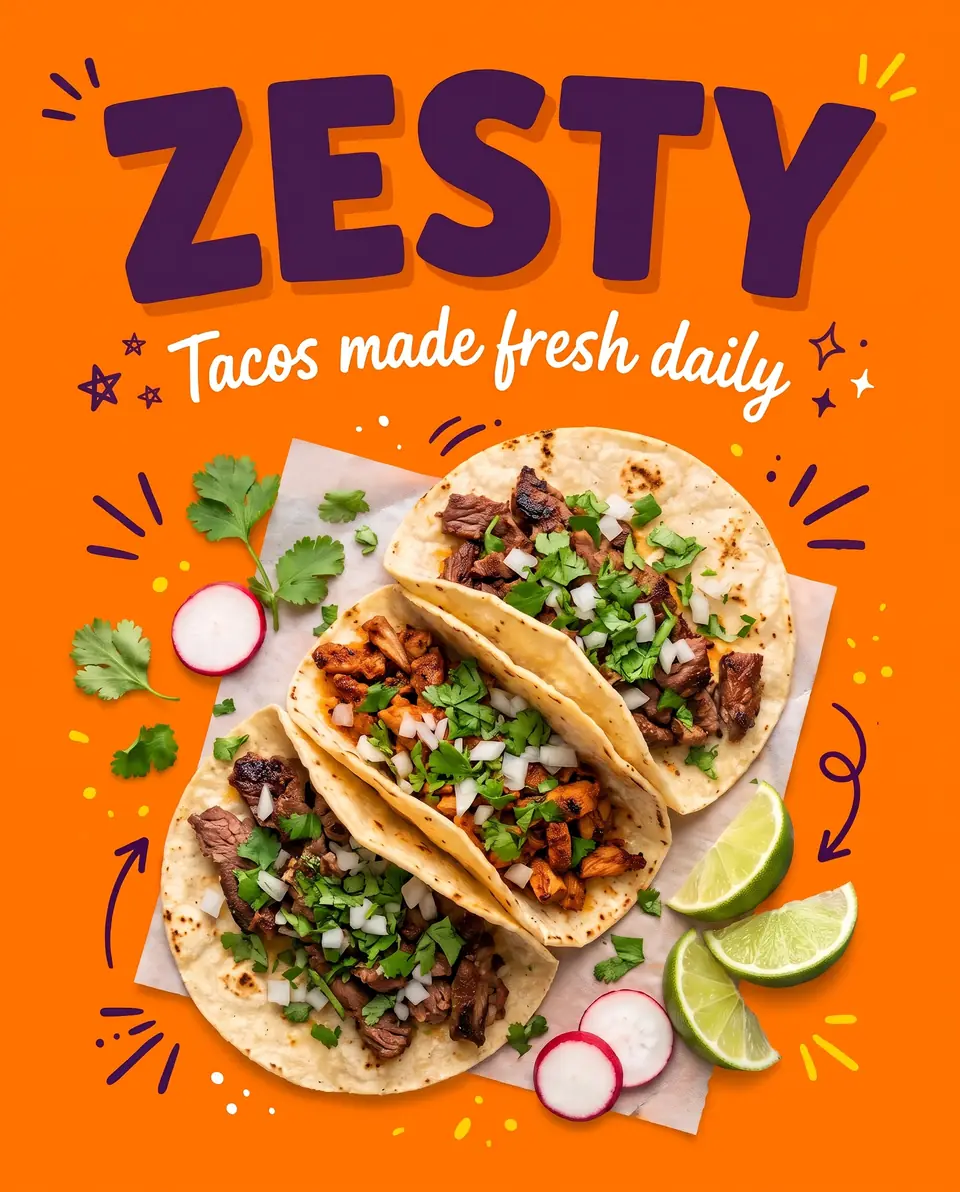
Our saved display-lettering test above shows what this category is good at, and what to check: the new word is drawn in the existing style, but the outline and edge detail are estimates rather than the original font file.
When a design suite is the better fit
Canva documents Grab Text as a way to select text inside a photo or image, then edit, move or delete it inside the design. That is a different output: you keep working in a design document with layers, fonts and export options, and the text is no longer only pixels.
Use a design suite when the same artwork will change repeatedly, when the client needs an editable file, or when the replacement must use one exact brand font. Expect more steps and a learning curve, and check the plan requirements for the specific feature.
When you should stay manual
Photopea runs in the browser and documents healing, patch and clone tools together with normal text layers. GIMP documents a comparable heal tool. A manual editor is the right choice when only part of an area needs repair, or when you need to paint out a small mark and keep every other pixel as it was.
The cost is effort: large headings, textured backgrounds and text crossing an object take repeated passes. Manual repair is still the only route when you must be certain about what happens next to a face, a product edge or a repeating pattern.
When the real job is OCR or translation
If you want to read the words, copy them into another document or convert a picture into text, the job is OCR, not text editing. If you want the printed words in another language, that is translation, and there are two very different outputs: translated text you can read, or a redrawn image where the wording is swapped while the layout stays.
Do not judge an image text editor by an OCR demo, or an OCR tool by how clean its redrawn image looks. Our image translation workflow and the separate translate and keep the layout guide cover the second job.
Five checks before you commit to a tool
- Match the output to the destination. A flat image is fine for a post or a mockup. An editable file is required when someone else must revise the design.
- Test the lettering case you actually have. Small UI labels, outlined display type and photographed chalk each stress the tool differently.
- Read the free-allowance conditions. Credentials, watermarks, resolution and download limits differ; one free trial edit is not a daily allowance.
- Inspect the result at final size. Zoom on the changed words, then look at the surrounding picture and at the file dimensions.
- Check the data-handling terms. These are cloud services; do not send documents you are not permitted to upload, such as IDs, tickets or receipts.
Frequently asked questions
What is the best free tool to edit text in an image?
There is no single best free tool, because the free allowance and the output differ. A dedicated editor such as TextImageEdit gives a verified account one free 1K edit, and Photopea is free for manual repair in the browser. Canva's free plan has its own limits for Grab Text. Check each service's current conditions for the specific task before uploading a file that matters.
Which tool keeps the same font when the words change?
A dedicated editor that uses the image as a reference is usually the closest match without the original font file, because it redraws the letters from what is visible. EditTextImage and PhoText document similar behavior, and our [same-font editing page](/edit-text-in-image-with-same-font) explains the checks. No tool of this kind can guarantee the exact original typeface; for that, use the source design.
Can Canva replace text inside a photo?
Canva documents Grab Text for selecting and editing text inside an image within its design editor, and its plans and export options apply. It is a design workflow rather than a single original/replacement field. If you only need the finished image and do not want a design project, a dedicated editor is shorter.
What should I use for a screenshot with a wrong button label?
A screenshot text editor, not a general design suite: the capture is a flat image, and you only need to change one label. Our [screenshot text editor](/edit-text-in-screenshot) covers the workflow, and the [screenshot editing guide](/blog/edit-text-in-a-screenshot) covers review steps for interface details such as spacing and status bars.
Can ChatGPT do the same job?
In our [ChatGPT image editing test](/blog/can-chatgpt-edit-text-in-images), ChatGPT changed a poster date and removed a product headline cleanly. It is a reasonable option for an occasional edit if you already have an account, but it returns a redrawn image too, so check characters, surrounding details and output size. For repeated work, separate original/replacement fields and a removal box are easier to control.
Which tool should I trust with a sensitive image?
Treat all of these as online services unless the page explicitly says the work happens on your device. Photopea is a browser editor that processes the file locally in the tab, but the service still has terms to review. Do not edit IDs, tickets, receipts, bank statements or other records. For a confidential file, use a local editor you control.
Sources and method
Workflow descriptions come from the public pages linked above, reviewed on November 7, 2026: EditTextImage, PhoText, PicText, Canva Grab Text, Canva's image text editor feature page and Photopea's Smart Tools guide. The two example images are our own saved results from an earlier model test, not outputs from the other tools. No head-to-head test, price ranking or measured accuracy comparison was run for this article.
TextImageEdit is independent of Canva, Photopea, EditTextImage, PhoText and PicText. Product names and features may change; check each service's current page before relying on a detail.
Try the workflow
Choose a clear image you can edit, prepare the new wording and compare the downloaded result.
Try a dedicated image text editor →