 TextImageEdit
Translation
Translate Text in an Image Without Losing the Layout
"Translate this image" can mean two very different things, and the tools for them are not interchangeable:
- Read the words. You want to understand a menu, a sign or a label. An OCR translation tool detects the text and gives you a translation; the photo is input, not output.
- Redraw the image. You own the artwork and need a version whose printed words are in another language while the picture, colors and layout stay put. The deliverable is an edited image file.
This article is about the second job. Our translate text in image workflow belongs to it, and the review steps below are the ones that actually catch bad output.
Which job do you have?
| What you need | Output | Typical route |
|---|---|---|
| Understand a foreign menu, sign or label | Translated text you read or copy | OCR translation, such as Google Translate's image translation |
| Post the same product image in another market | A redrawn image in the target language | Layout-preserving image translation |
| Hand a designer a localizable file | Editable layers and text | Source design file, or a design suite |
| Fix one wrong translated word in a finished image | The same image with that phrase changed | Text replacement, not whole-image translation |
If you only need to read the words, use a reading tool and skip this workflow. Redrawing is only worth it when the image itself has to be published.
How layout-preserving translation works
Upload one JPG, PNG or WebP up to 10 MB, choose Translate, and select the target language. Every visible line of text is translated and redrawn in the image, keeping the surrounding layout as the reference. Each selected language is a separate result and uses one credit; a verified account starts with one free 1K credit, and purchased credits render at 2K.

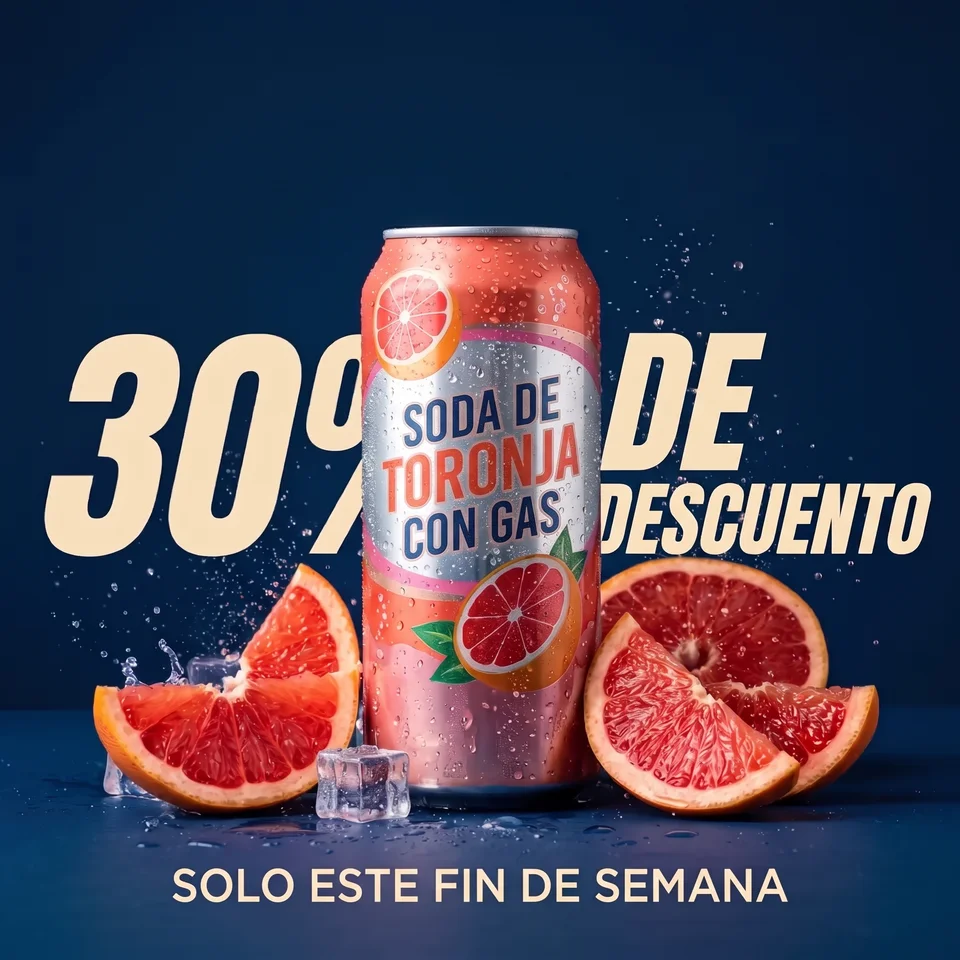
The saved result above is a model test on our own artwork, not a customer file. Note what the output keeps: the can, the background and the layout. Note what needs review: the exact wording, the length of the new line and small details around the letters.
What can break the layout
Translation changes text length. A short English line can become a longer Spanish or Portuguese one, and a long German compound can overflow a button. A layout-preserving tool keeps the design as its reference, but it still has to fit the new string somewhere. Check these first:
- Longer lines and wrapping. Look at buttons, badges and headlines, where space is tightest. Have a shorter approved translation ready if the line crowds the design.
- Prices, dates and numbers. Confirm decimals, currency symbols and date formats in the target market. A redrawn image does not update the store, the booking system or the price list.
- Names and product terms. Brand names may stay in English, and some markets use an official local name. Give the tool approved wording when it must be exact.
- Scripts and reading direction. Arabic, Hebrew, Japanese and Thai need different space and sometimes different alignment. A short test result is easier to judge than a full campaign.
- Small print. Ingredients, safety lines and legal text should come from approved translated copy, not from a redraw. Use the source design file for anything regulated.
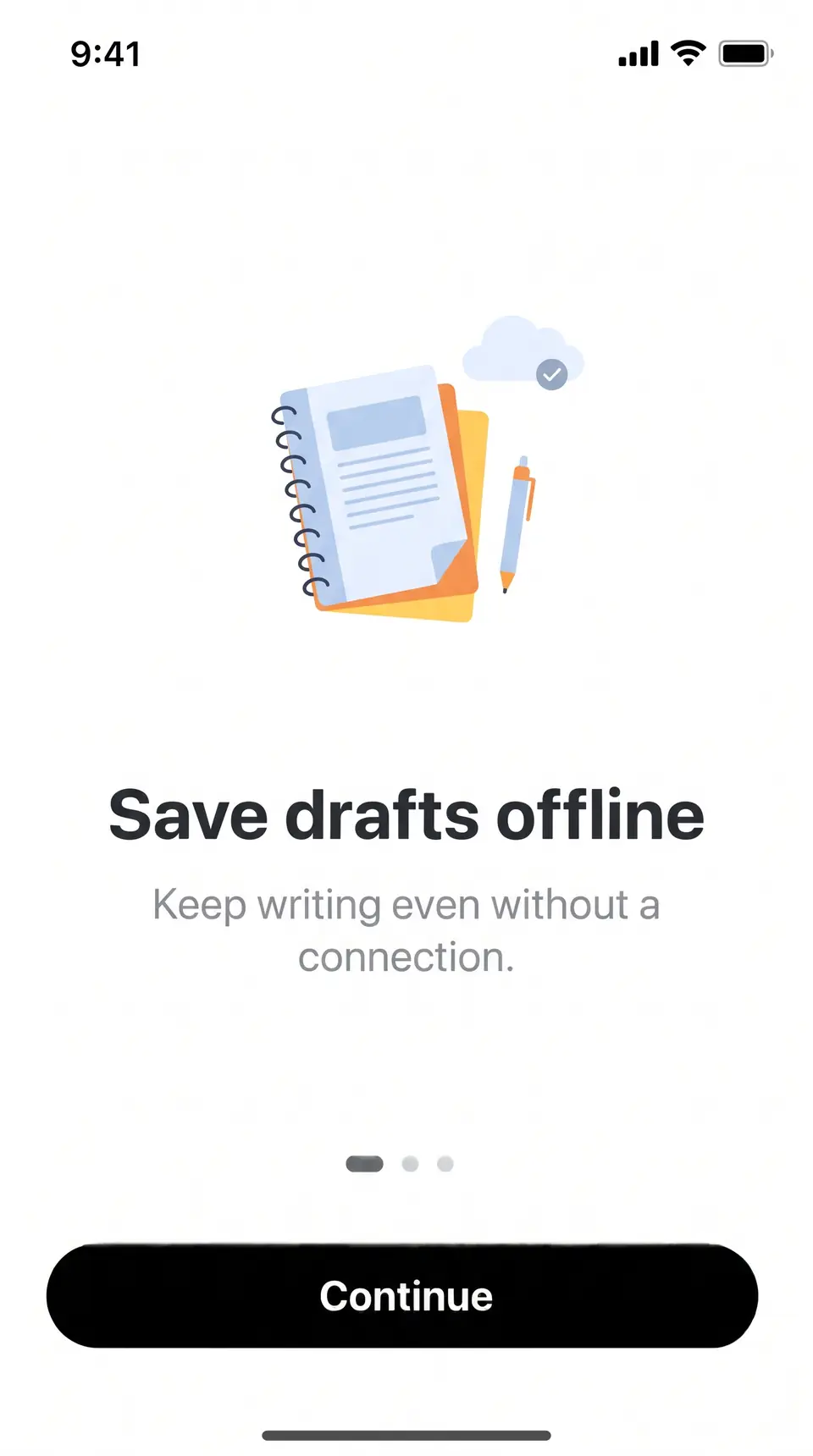
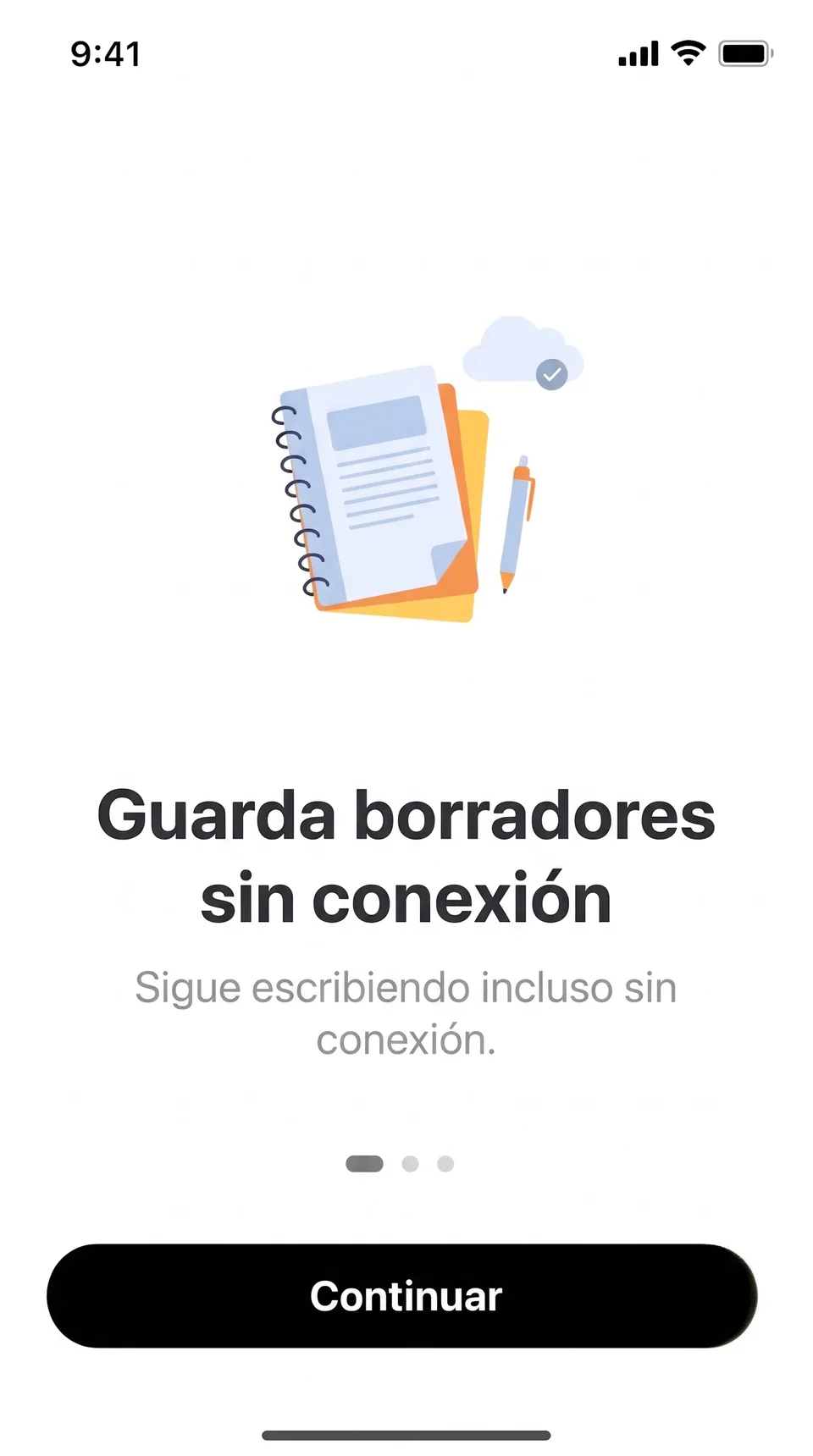
The app-screen example shows why a fluent reviewer is required: a translated interface must also match the real localized product if it is used as documentation.
A five-minute review before publishing
- Read the target text aloud. A fluent speaker catches tone, grammar and mistranslations faster than any checklist.
- Compare against the source line by line. Make sure nothing was skipped, merged or translated twice.
- Zoom on the changed area. Check letter edges, shadows and the background immediately around the new words.
- Check the numbers. Prices, percentages, phone numbers and dates are where a clean-looking edit can still be wrong.
- Open the downloaded file. Confirm dimensions, format and that the text is sharp at the size you will publish.
Other translation routes, honestly compared
- Google Translate's image translation is built for reading text in a photo. Use it when you need to understand the words; it is not a way to produce a localized artwork file. See Google's help for translating text in images.
- Canva's image translator lives inside a design suite, so translated text remains editable in a design document. That is more control and more steps, and it fits when the artwork will be revised repeatedly. See Canva's image translator feature page.
- PhoText's ImageTranslator documents a separate image-translation tool in a family that also includes OCR and font finding. Compare it on the same file if you are choosing between dedicated tools.
- Your source design file is still the best route when you have it: a designer can set the approved translation in the real font and fix spacing properly.
Frequently asked questions
Does translating an image change the layout?
It can. The workflow reuses the original image as a visual reference, but translated text has a different length, and lines can wrap or crowd a button. Review the changed areas at full size and keep a shorter approved translation for tight spaces. If the layout must be exact, work from the original design file.
Can I translate an image without extracting the text first?
Yes. In a layout-preserving workflow you upload the image and choose the target language; the visible text is detected and redrawn in place. You do not copy the text into a separate document first. If you need the text itself, use OCR instead.
Can I get several languages from one upload?
Yes. Each selected target language produces its own result and uses one credit, so choose one language first and check the output before buying more. Keep the variants in separate files with clear names.
What if the translated line is longer than the original?
Expect that with almost any language pair. The redraw has to fit the new string into the existing area, so text can shrink, wrap or crowd nearby elements. Prefer a shorter approved translation when one exists, and review the line at its final display size.
Is Google Translate's image translation the same thing?
No. Google Translate's image translation is designed for reading text in an image and gives you the translation of the detected words. A layout-preserving image translation returns an edited image file with the printed words redrawn in the target language. Choose the route by the output you need; the [Google Translate help page](https://support.google.com/translate/answer/6142483?co=GENIE.Platform%3DDesktop&hl=en) explains its image workflow.
What about prices, names and legal text?
Do not rely on an automatic redraw for regulated or commercial facts. Check prices, percentages, dates, ingredients, safety lines and legal wording against approved translated copy, and update the store or booking system separately. For anything compliance-critical, use the source design file and a human review.
Sources and method
Workflow descriptions come from the public pages linked above and our own product page, reviewed on November 7, 2026. The two example images are our own saved model tests from earlier runs, not customer results and not outputs from the other tools. No measured accuracy or speed comparison was run for this article.
TextImageEdit is independent of Google, Canva and PhoText. Product names and features may change; check each service's current page before relying on a detail.
Try the workflow
Choose a clear image you can edit, prepare the new wording and compare the downloaded result.
Open the image translator →