 TextImageEdit
Screenshots
How to Blur Text in a Screenshot Before You Share It
To blur text in a screenshot, open it in a redaction tool, draw a box over each name, number or message you want to hide, and save a new copy. For anything that must stay private, such as card digits, addresses, codes or passwords, use a solid black bar instead of blur. A bar replaces the pixels, so nothing is left to recover. Blur and pixelation only soften them.
We tested all three styles on November 13, 2026, on the same fictional chat screenshot. We hid the contact name and phone number, a street address, the last four card digits and a gate code with TextImageEdit's free Blur Text in Image tool. Every image below is the tool's real output.
The screenshot we redacted
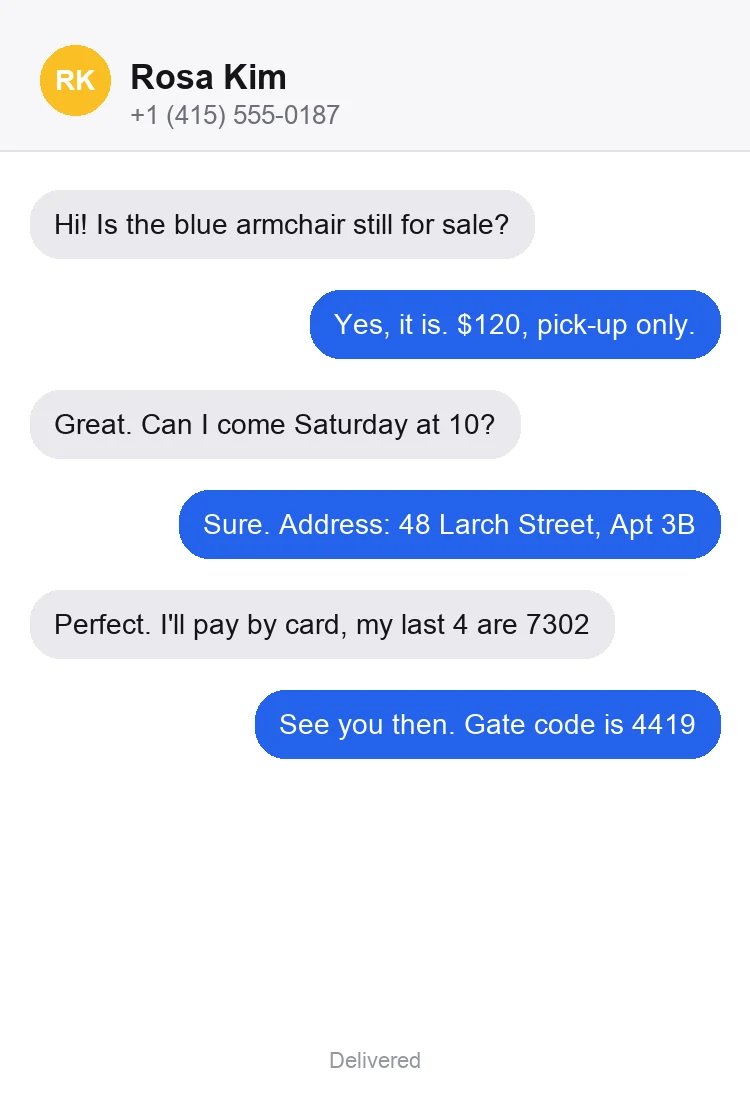
A typical marketplace chat: the other person's name and phone number at the top, plus an address, the last four digits of a card and a gate code in the messages. None of it should travel with the screenshot when you post it in a support ticket or a group chat.
Three styles on the same four boxes
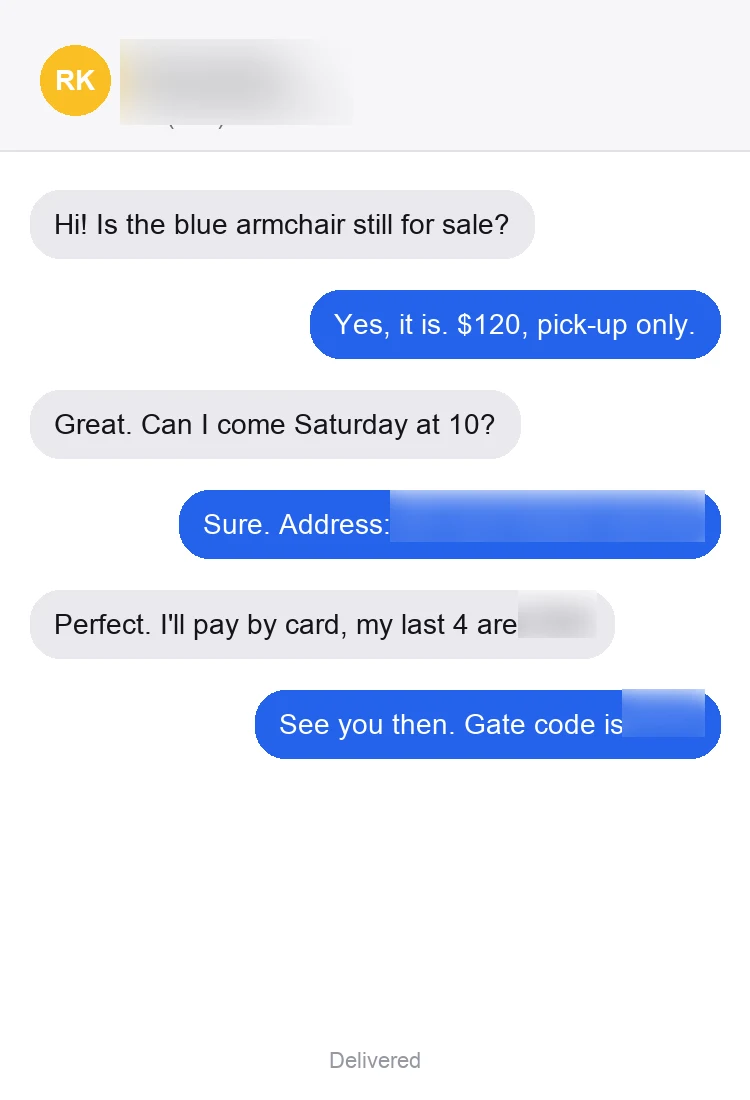
Blur looks the most natural, which is why people like it for social posts. At the strength we used, none of the hidden words can be read. But blur keeps the overall shape and color of the text, and light blur on large text can sometimes be guessed, especially short numbers.
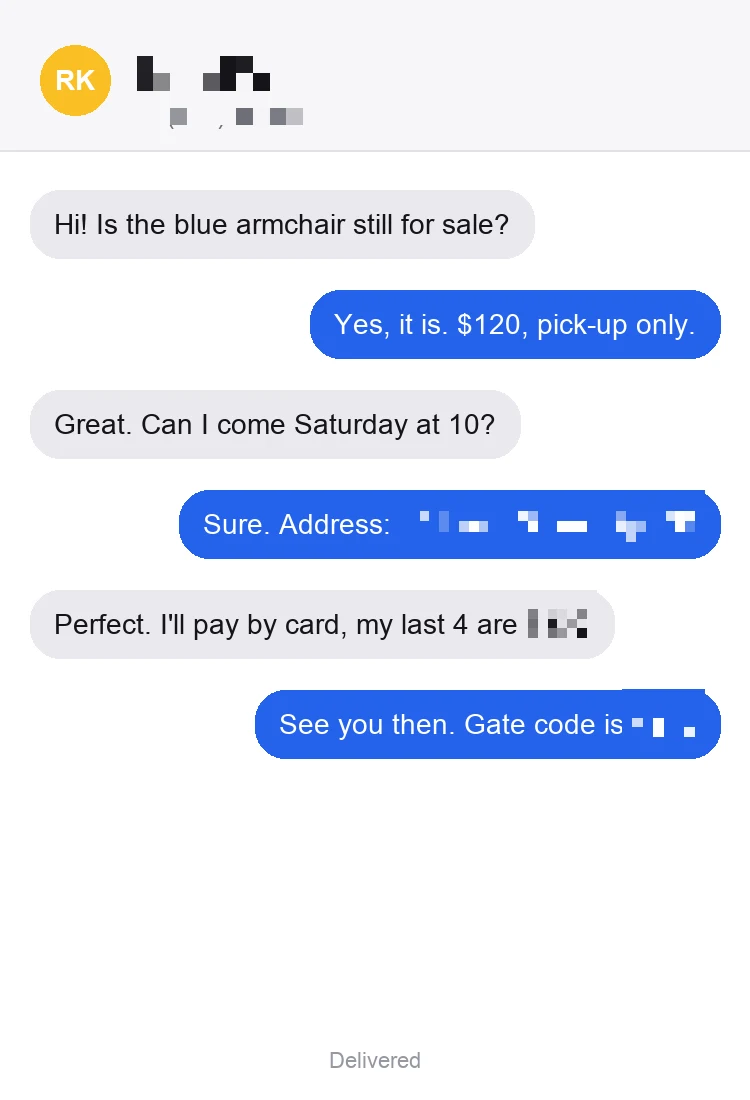
Pixelation swaps the text for coarse blocks. On white bubbles most blocks come out as background color, so very little of the original shape survives. Research has shown that fine pixelation of text can be partly reversed. Keep the blocks large, as here, or use a bar.
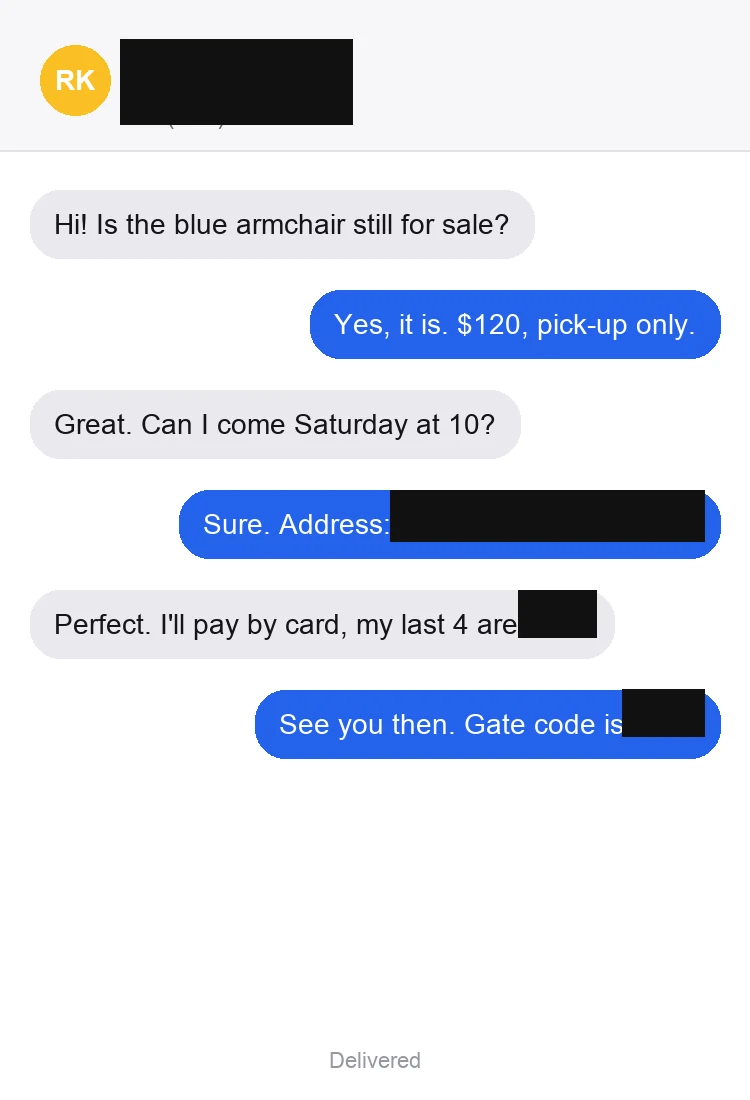
A black bar is the only style that removes the information outright. It is the clear choice for card numbers, codes, account IDs and anything legal or financial.
One thing the test caught: on the first box, the bottom edge of the phone number still peeks out under the name, because we drew the box a few pixels too short. Always draw past the lowest letters (g, p, y, commas and parentheses) and check the downloaded file at full size before you share it.
Which style to choose
| What you are hiding | Use |
|---|---|
| Passwords, card digits, codes, account numbers | Black bar |
| Home or delivery addresses, phone numbers, emails | Black bar, or strong pixelation |
| Names and faces in a casual social post | Blur or pixelation |
| Whole messages you want to show were removed | Black bar |
If you want the words gone entirely with a clean background, as if they were never there, that is a different job: use Remove text from image. It rebuilds the area behind the words. Blur and bars deliberately show that something was hidden, which is what you want for evidence and support tickets.
How to blur text in a screenshot online
- Open Blur Text in Image and upload the screenshot (PNG, JPG or WebP).
- Drag a box over each piece of text. Add as many boxes as you need, and use Undo last box if one lands wrong.
- Choose Blur, Pixelate or Black bar, and pick PNG or JPG.
- Download the redacted image and check it at full size.
The tool runs in your browser, so the screenshot is never uploaded, and it is free with no account.
Blur or hide text on your phone or computer
- iPhone: open the screenshot, tap Markup (the pen icon), and draw over the text with a thick, fully opaque marker or a filled shape. iOS Markup has no blur brush.
- Android: Google Photos and most screenshot editors have Markup with a pen or highlighter; set the color to black and full opacity.
- Windows 11: the Snipping Tool's Text actions include Quick redact, which hides detected email addresses and phone numbers automatically. For anything else, draw a filled rectangle in Paint.
- Mac: open the image in Preview, choose Markup, add a rectangle and set its fill to black.
Whichever tool you use, make sure the cover is fully opaque. A semi-transparent highlighter can leave the text readable underneath.
Mistakes that leak what you hid
- Hiding the text but not the context. A blurred address next to an unblurred map pin or package label still gives it away. Scan the whole screenshot.
- Sharing the original by accident. Your redaction creates a new file; send that one, not the photo in your camera roll.
- Cropping instead of hiding. Some apps keep the full original inside an edited file, and people have recovered cropped-out parts of screenshots before. Redact with a tool that writes new pixels, then crop if you like.
- Light blur on big text. If you can almost read it at full size, so can someone else. Turn up the strength or use the bar.
Frequently asked questions
Can blurred text be unblurred?
A solid bar cannot be undone, because the original pixels are replaced. Light blur or fine pixelation can sometimes be guessed or partly reconstructed, especially for short numbers. For sensitive data, use the bar.
Is it safe to blur a screenshot online?
It depends on the tool. TextImageEdit's blur tool processes the image in your browser and never uploads it. Check whether any other tool uploads your file before you use it for private information.
How do I blur several things at once?
Draw one box per item. The same style applies to every box when you download.
Should I blur or remove the text?
Blur or a bar when you want readers to see that something was hidden. Remove when the image should look as if the text was never there, for example a product photo or a poster.
How do I redact a screenshot for a support ticket?
Hide names, emails, phone numbers, addresses, order numbers and any tokens or codes with black bars, keep the error message and the parts support needs, and send the downloaded copy.
Sources and method
The screenshot is a fictional chat we drew on November 13, 2026, with invented names and numbers. All three redactions were made with TextImageEdit's Blur Text in Image tool on the same four boxes, at blur and pixelation strength 7 of 10, and saved as PNG. Device steps describe iOS 18, Android with Google Photos, Windows 11 and macOS Sequoia; menus can differ on other versions.
Try the workflow
Choose a clear image you can edit, prepare the new wording and compare the downloaded result.
Open Blur Text in Image →