 TextImageEdit
Tool comparisons
Photopea vs TextImageEdit: Replace Words in a Finished Image
TextImageEdit lets you upload a finished picture, enter its existing words and request a replacement without rebuilding text layers or choosing a font. Photopea gives you free, detailed control over the edit and a PSD working file to keep revising. It also has AI features. Choose the workflow that fits the correction you need.
This guide uses our fictional inputs and saved AI demonstrations. We have not produced matching Photopea outputs or run a controlled speed comparison. The examples show what to inspect, including a banner result that missed a requested space.
Correct a name in an event program
Our program example changes Dr. Elena Marsh → Dr. Owen Hale. The printed name sits on a highlighted keynote line. Start by checking whether your document contains an editable Type layer or only the appearance of the letters.
In Photopea, open the file and inspect the Layers panel. If the name is editable, enter its Type layer, replace it and confirm the change. If it is flattened, work on a duplicate and follow Photopea's text-replacement tutorial: remove the old name, repair the background and add new type. Its healing tools offer different ways to choose the repair area and source.
Match the baseline, text size and highlight placement. Keep the repaired background and new name editable when further changes are likely. Save the working document as PSD before exporting the delivery image.
In TextImageEdit, upload the permitted image, enter the old and new names, generate and compare. Check initials, punctuation and nearby schedule entries. Try this input in the Photopea alternative editor; the saved name change is an earlier model demonstration, not a current application test.
Change decorative lettering in a food advertisement
A food-ad headline carries more than its wording. The letter shape, shadow and spacing contribute to its appearance. Here the request changes TASTY → ZESTY above tacos on an orange background.
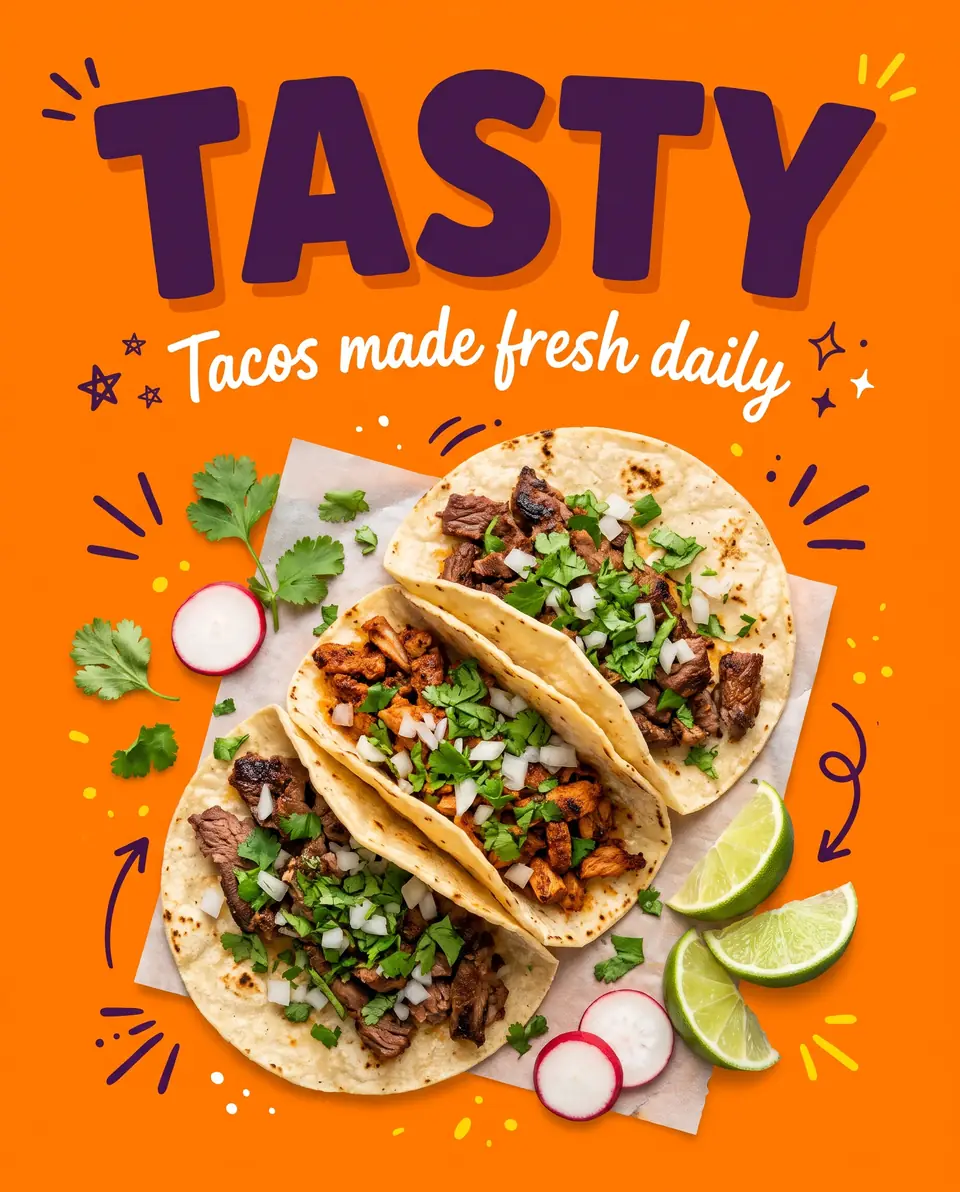

These are earlier saved AI demonstrations on our fictional advertisement, not Photopea outputs. Both previews are 960 × 1192. Open the full before preview and full after preview to compare.
For the manual Photopea route, clear the old headline and add a Type layer. Choose a suitable font, then adjust size, color and effects. The text-style documentation explains character and paragraph controls. If you have an authorized TTF or OTF file, use File > Open or drag it into Photopea; a separate desktop-font installation is not required.
For TextImageEdit, enter the two words and review the returned image. Inspect the new characters and shadow, then the script line, tacos, garnish and background marks. A pleasing headline alone does not establish that everything else stayed unchanged. See the font-review guide for a fuller checklist.
Check a banner phrase character by character
Our photographed banner request was THIS FRIDAY → NEXT FRIDAY. The saved provider result reads NEXTFRIDAY. The missing space makes it an imperfect result even though the red banner still looks plausible.
The Photopea comparison page displays the original and actual output. The available before preview is 960 × 717; the after preview is 1200 × 896. Compare at a consistent display size, then inspect each file at full size. Do not assume identical dimensions.
Photopea's manual route combines background repair with new lettering. Its transformation controls help adjust perspective or warp an element. Check folds, shadows and texture continuity as well as the words.
In a generated result, proof the phrase independently of the visual impression. If you submit another completed edit, it is another generation request. Retain the original and correct the wording before publishing; the missing space is not a successful spelling change.
Photopea has AI as well as manual controls
Photopea's AI tutorial names Magic Replace, and its current API documentation describes integrations for AI features. The older tutorial establishes the feature's existence; it is not a current quota or pricing reference.
The practical comparison here is Photopea's documented repair-and-retype method versus our focused wording request. If you use Photopea's AI instead, record that separately, including its settings and actual output. It is a different comparison.
Photopea also provides editable layers and text-layout controls. These matter when you expect several revisions or need to move text independently. An AI-generated image placed into a PSD does not automatically regain the original text layers.
Compare free editing, credits and processing
Photopea's basic editor is genuinely free. Its account documentation says Premium removes advertising and directs users to the Account window for prices. A paid image-text service should not be presented as cheaper than free basic editing.
TextImageEdit's one-time packs pay for generation. A verified account gets one free 1K credit; purchased credits use 2K. Replacement uses one credit, and translation uses one per selected language. Failed generations return credits. A completed edit submitted again uses another credit.
Our product estimate is 30–60 seconds, while seven saved server jobs took 46–122 seconds. Neither figure guarantees your duration, and server task time is different from a complete edit-and-review workflow.
Photopea's introduction and privacy policy describe standard editing on your device. Optional AI integrations can involve third parties. Read the applicable feature terms before treating a workflow as local. TextImageEdit uses online generation; check our privacy policy before uploading sensitive material.
Judge the same edit, not the product label
Use the same permitted input and replacement words. Record attempts, manual corrections, credits and saved files. A fair review includes the work needed to reach an acceptable result.
| Check | What to compare |
|---|---|
| Wording | Names, punctuation, spaces and every character |
| Lettering | Shape, weight, shadow, spacing and baseline |
| Surroundings | Other text, objects, texture and repair edges |
| Delivery | Actual dimensions, format and intended display size |
| Revision | Editable layers retained or only an image result |
Save a Photopea PSD master before exporting through File > Export As. Its saving guide distinguishes working documents from PNG/JPG delivery images. Keep the original and downloaded result for TextImageEdit, and inspect both before sharing.
Other documented routes
Our Canva comparison covers Grab Text and reusable designs. Our Photoshop comparison covers layers and image repair. Both help when the next task extends beyond one phrase.
Adobe's sign-text tutorial uses Select All, Generative Fill and FLUX.1 Kontext Pro with quoted old/new wording. It is a vendor demonstration, not our benchmark.
Pixlr's Remove Object guide describes selecting unwanted content and exporting the repaired image. GIMP offers free desktop image editing. InPlaceText illustrates another old-text/new-text workflow; its privacy policy describes cloud processing when generating. Their allowances and policies are separate from ours.
Frequently asked questions
Can I correct a name without the original program file?
Yes. A flattened image can be repaired and given new type in Photopea, or submitted for an image-text replacement. Check the complete name, punctuation and surrounding program details. Neither route restores the original editable source automatically.
Can Photopea load the font used in my advertisement?
It can load TTF and OTF files through File > Open or drag-and-drop. Use a font you have permission to use. Without the original file or font identity, choosing a similar typeface still requires visual review.
Why did the banner lose its space?
The saved output did not reproduce the full requested phrase accurately. We cannot determine the model's internal cause from that file. The visible result is NEXTFRIDAY rather than NEXT FRIDAY, so it needs correction regardless of the background's appearance.
Does Photopea offer automatic AI editing?
Yes. Magic Replace and other AI features are documented. Compare the specific feature you use and its current account conditions. Do not assume that Photopea only supports manual editing or that every AI feature processes files locally.
Is a paid generator cheaper than Photopea?
Photopea's basic editing is free. Compare the work and deliverable you need, not an invented savings figure. For TextImageEdit, count submitted generation requests and any revisions, then check the current one-time packs.
Which workflow keeps editable text for another revision?
Photopea can retain Type layers and other document structure in a PSD master. TextImageEdit returns an image. A flat export or generated result does not retain independent typography controls merely because it is reopened in a layered editor.
What if my replacement phrase is much longer?
Review wrapping, spacing and letter size. Photopea provides direct text-layout controls; a generated edit may rearrange or omit details. Check the exact phrase and its surroundings rather than assuming the original layout remains suitable.
What should I check before downloading and publishing?
Proof the words, inspect nearby detail and confirm actual dimensions and format. Review at full size and the intended viewing size. Keep originals and any editable master, and verify the event or offer information against its real source.
Sources and further reading
The linked Photopea references cover manual replacement, fonts, layers, AI, accounts and file handling. Continue with general editing methods, JPG preparation or saved test results.
Sources reviewed November 1, 2026. TextImageEdit is independent of Photopea and the other named services. These are documented workflows and our saved examples, not a controlled benchmark.
Try the workflow
Choose a clear image you can edit, prepare the new wording and compare the downloaded result.
Try the Photopea alternative →