 TextImageEdit
Tool comparisons
Photoshop vs TextImageEdit: Choose an Image Text Workflow
Start by checking whether the words are editable text or pixels in a finished image. That distinction determines the work. Photoshop can handle both, and it includes AI tools as well as manual controls. TextImageEdit offers a focused original-wording-to-replacement request that returns an edited image.
This guide is written by the TextImageEdit team. Adobe's documented workflows inform the comparison. Our pictured result is an earlier saved AI demonstration on a fictional input, not a Photoshop result or a controlled test of the two applications.
First, identify the file you are editing
Open the working document and inspect its layers. An editable Type layer lets you change characters. A JPG or PNG export contains the appearance of those letters, without their original text settings. A PSD can also contain flattened or rasterized lettering, so its extension alone does not establish editability.
Adobe explains that rasterizing type converts it to pixels. Duplicating a flattened image into a new document does not reverse that conversion.
| Starting point | Practical route | Keep afterward |
|---|---|---|
| Editable Type layer | Revise the wording and inspect the layout | A layer-preserving master |
| Flat graphic with a simple background | Repair the old letters and add new type | The repaired image and editable replacement |
| Finished image needing a bounded wording change | Try an image-text generation request | Original, result and exact requested wording |
| Photograph with texture or overlapping objects | Compare repair and reconstruction carefully | Source plus the reviewed working file or image |
Workflow 1: correct a poster date in Photoshop
For a poster with editable text, select the relevant Type layer and change the date. Check line length, alignment and nearby details. If the same date appears more than once, Adobe's Find and Replace command searches visible editable Type layers; set the search scope and inspect each affected location.
For a flattened poster, work on a copy. Select the old lettering and repair its background before adding new type. Adobe's Content-Aware Fill workflow lets you adjust the sampling area used for the repair. Inspect the fill before placing the new date.
Add replacement lettering on an editable layer. Match placement and appearance deliberately. A date that fits the original line can still contain a wrong digit or weekday. Save the working document separately from the delivery image.
Our Photoshop alternative page includes an earlier saved AUG 14 → AUG 21 poster demonstration. It shows a reviewable image-text change, not an identical-image Photoshop comparison.
Workflow 2: update a flattened thumbnail in TextImageEdit
Upload a permitted JPG, PNG or WebP up to 10 MB. Enter the original phrase and replacement exactly. In this fictional example, the request changes MY $500 SETUP → MY $900 SETUP. Generate the edit, compare with Show original, then download the result.
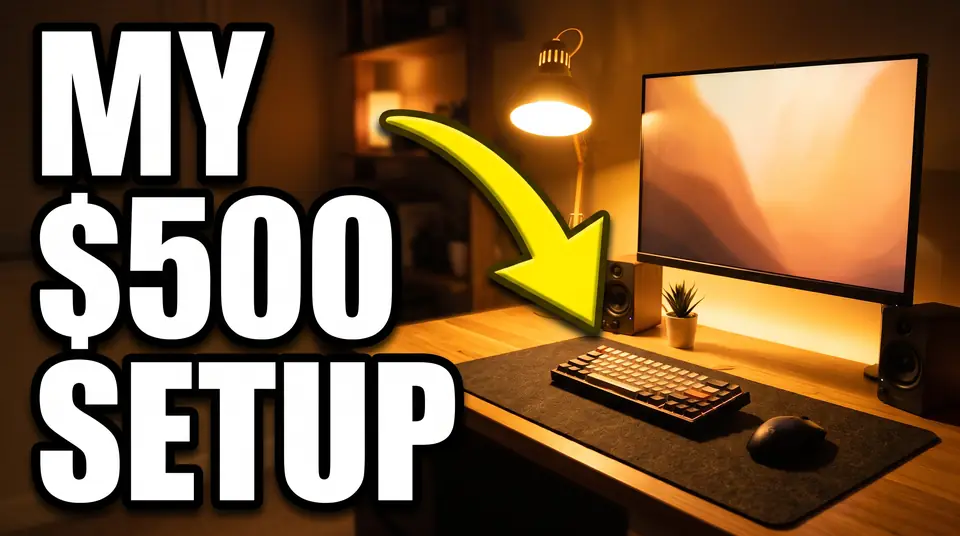
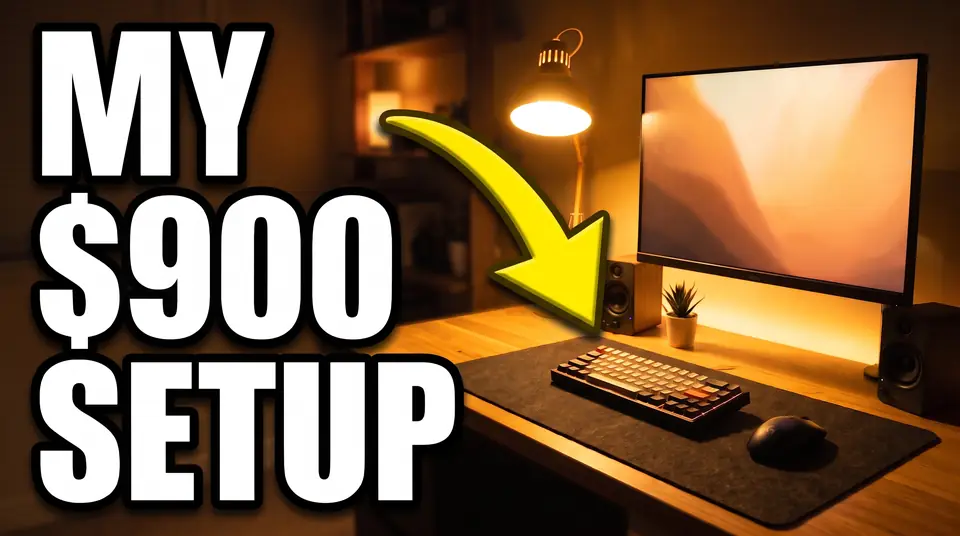
These 960 × 536 web previews are an earlier saved AI demonstration, not a new application test or Photoshop output. Open the full before preview and full after preview to inspect the available files.
Start with the amount: dollar sign, numeral, spacing and any nearby copy. Then inspect the rest of the thumbnail. Finally, shrink the image to its intended display size to judge readability. If you compare headline performance, check for other visual changes before attributing a difference only to the words.
Use the comparison-page editor for the same workflow. TextImageEdit produces an image rather than an editable Photoshop text layer.
Workflow 3: repair photographed lettering
A chalkboard price needs more than a matching font. Its strokes sit on a surface with texture, light and possible perspective. Our landing-page example changes $4.50 → $4.95 on a fictional chalkboard using an earlier saved AI edit.
In Photoshop, separate background repair from replacement lettering so each can be checked. Layer masks control which areas of a layer remain visible. Use the working file to adjust the lettering and repaired area independently.
In an image-text generation workflow, inspect the returned image for plausible strokes and continuous texture. Neither method recovers a hidden background with certainty. If a physical menu must be documented accurately, photograph its real current state.
For a multi-line poster request, our poster editor offers area selection. That rectangle guides the request; it is not a Photoshop layer mask or a guarantee that everything outside it stays identical.
Compare the same image before choosing
Use one permitted source file and the same replacement phrase in each workflow. Record the source dimensions, account settings, attempts and manual corrections. If you measure time, include review and export as well as processing.
| Check | What to examine |
|---|---|
| Text accuracy | Every character, currency symbol, decimal and line break |
| Typography | Letter shape, baseline, spacing, weight and effects |
| Background | Repeated texture, repair edges, shadows and reflections |
| Unrequested changes | Other text, objects and details across the image |
| Delivery | Actual dimensions, format and intended display or print requirements |
| Further revisions | Whether you retain editable type or only an image |
Review at full size and at the final viewing size. Adobe's Match Font provides similar-font suggestions from a selected region. A suggestion or a generated resemblance does not establish exact font identity or permission to use it.
For an editable Photoshop master, use a suitable layer-preserving format. Adobe's format overview explains which features survive saving. Keep that master when exporting a flat delivery copy.
The product interface estimates 30–60 seconds for generation. Our seven saved application-job records show 46–122 seconds from server job creation to persisted completion, including queuing and result storage. These observations are not pure model-processing times or a controlled speed comparison with Photoshop.
Browser access, costs and other workflows
Photoshop has a web editor. Adobe's web FAQ distinguishes editing in non-mobile browsers from viewing and commenting on mobile browsers. Native mobile apps are separate. Check the tools, device requirements and current plan terms relevant to your account.
TextImageEdit uses one-time credit packs. A verified account receives one free 1K credit; purchased credits use 2K. A replacement request uses one credit, and translation uses one per selected language. Failed generations return credits; another edit after a completed result is another request. Inspect actual dimensions rather than treating a quality setting as a print specification.
Other documented routes can also fit:
- Photopea's tutorial demonstrates background cleanup followed by new type in a browser editor.
- GIMP's Healing documentation explains selecting a source and blending a repair with its surroundings, and distinguishes healing from cloning.
- Pixlr's Heal/Repair guide describes Spot and Object options, including larger removals such as text.
- Canva's Magic Eraser instructions describe brush, click and text-selection removal. Check access conditions and the subsequent design workflow.
- ReWords.AI illustrates another dedicated editor with detected original wording and replacement fields. Its interface warns that recognized text needs checking. Its quotas, prices and product claims are separate from ours.
Compare the workflow you need, including any tools you already pay for. These references establish documented operations, not equivalent results or a ranked benchmark.
Frequently asked questions
Can Photoshop edit a poster without its original PSD?
Yes. It can repair the lettering in a flattened image and add new type. The missing source changes the workflow; it does not make editing impossible. Recover the source if retaining its editable design is important.
Why does Find and Replace miss the words in my image?
The command works on visible editable Type layers. Rasterized or flattened lettering consists of image pixels. Check the layer type and visibility before expecting a text search to find those words.
Which workflow should I use for an exact branded thumbnail?
Start with the editable source and authorized font when available. Direct type and layout controls help you inspect precise choices. Review any generated replacement for character shape, spacing and changes outside the headline.
Does Match Font recover the exact font?
It suggests similar fonts from the selected lettering. That is a starting point for comparison, not proof of the original font's identity or license. Confirm the brand's actual font when exact typography matters.
Are AI editors and Photoshop masks interchangeable?
No. A layer mask controls the visibility of a layer in an editable document. A generated replacement returns an image. A region used to guide generation does not provide the same persistent editing controls or pixel boundary.
Can I use Photoshop entirely in a mobile browser?
Adobe documents Photoshop web editing in non-mobile browsers, with mobile browser viewing and commenting. Check a native mobile app separately if that is your intended device; do not assume web and app features match.
Is the first TextImageEdit result free?
A verified account receives one free credit for a 1K edit, including a downloadable result without an added watermark. It is a one-time allowance. Purchased credits use 2K, and completed edits submitted again use another credit.
What should I keep after the correction?
Keep the original, the reviewed delivery file and any editable master. Record the intended wording and inspect exported dimensions. Check the real event date, offer or menu price separately from how convincingly the image presents it.
Sources and further reading
Adobe references above cover editable type, rasterization, masks, image repair, font matching, web access and saving. See our font review guide, saved model tests, privacy policy and acceptable use for related checks.
Sources reviewed October 31, 2026. TextImageEdit is independent of Adobe Photoshop and the other named products. Saved demonstrations and documented workflows do not establish comparative speed, exact-font matching or pixel-identical output.
Try the workflow
Choose a clear image you can edit, prepare the new wording and compare the downloaded result.
Try the Photoshop alternative →