 TextImageEdit
Tool comparisons
Canva Grab Text vs TextImageEdit: Which Workflow Fits?
Choose Canva when you need an editable design to keep revising. Choose an image-text replacement workflow when a finished picture needs a bounded wording change and a reviewed image is the deliverable. If the original design already contains editable text, start there before reconstructing its exported pixels.
This comparison is written by the TextImageEdit team. Canva's capabilities below come from its official documentation; our examples are saved edits of fictional inputs. We have not run a controlled, identical-image benchmark against Canva, so this is a workflow comparison rather than a speed or accuracy ranking.
Check what you actually have
A Canva project and a PNG exported from that project are different starting points. The project can retain editable objects. A flat export contains their visible appearance. Losing access to the project does not mean Canva cannot edit the image: Grab Text provides a way to turn recognized image lettering into editable design elements.
| Your starting point | First route to consider | Why it matters |
|---|---|---|
| Editable design with the correct text | Revise that text in the original project | Avoid reconstructing typography and background |
| Flattened graphic needing many design revisions | Extract or rebuild editable text | Further changes benefit from layout controls |
| Finished image needing one new phrase | Try a bounded image-text replacement | You can inspect one requested change and its surroundings |
| Photograph with angled or textured lettering | Compare reconstruction carefully | The replacement must fit a surface, not only a text box |
Canva's Grab Text help describes recognition, similar-font matching and cleanup limitations. Straight, clear lettering is a better starting reference than distorted or unreadable text. With either workflow, inspect the result instead of equating feature availability with a correct output.
Task 1: revise an exported social graphic
A promotional image for a fictional tumbler changes 20% OFF → 30% OFF. This is a useful bounded request: one offer changes, while the product image and smaller campaign copy still need checking.
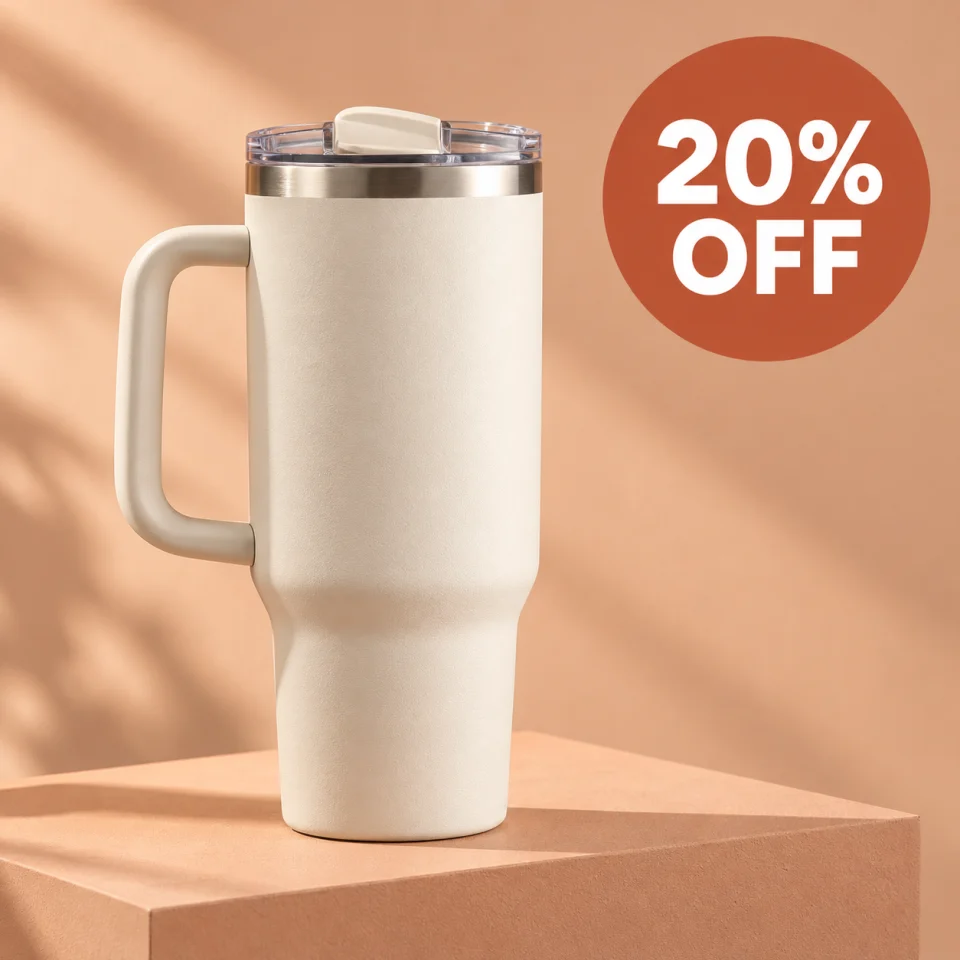
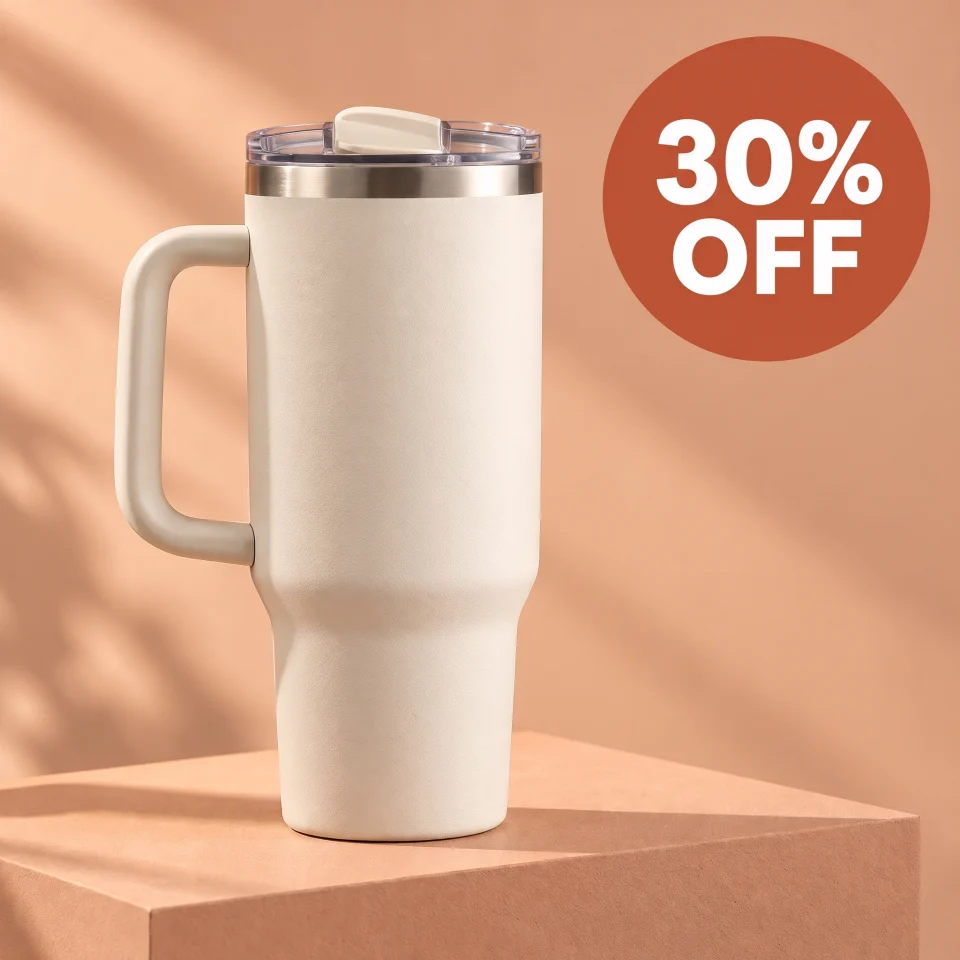
These are our saved application results, not Canva outputs. Inspect the full source and downloaded result. The displayed web previews are 960 × 960; the original result is available through the link.
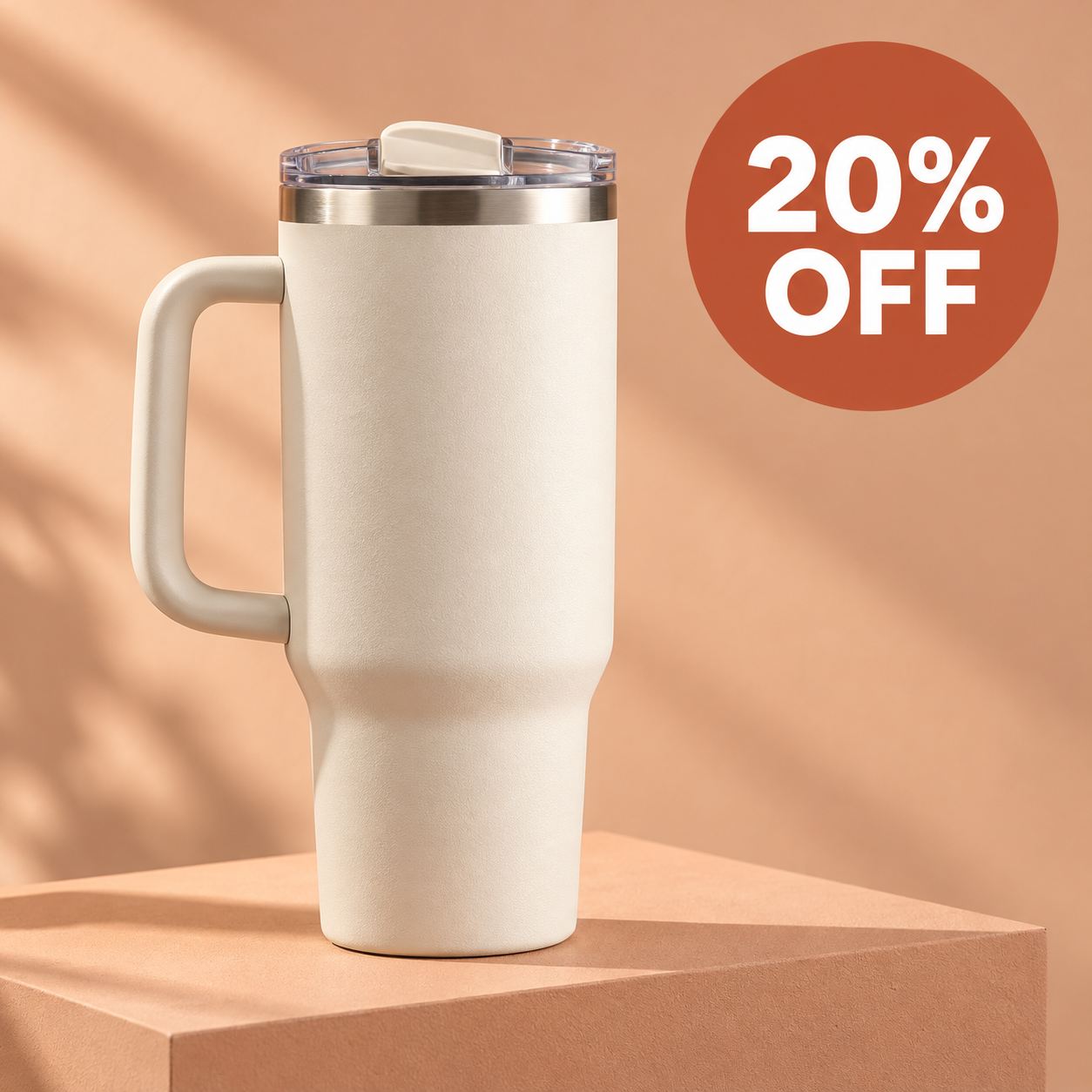
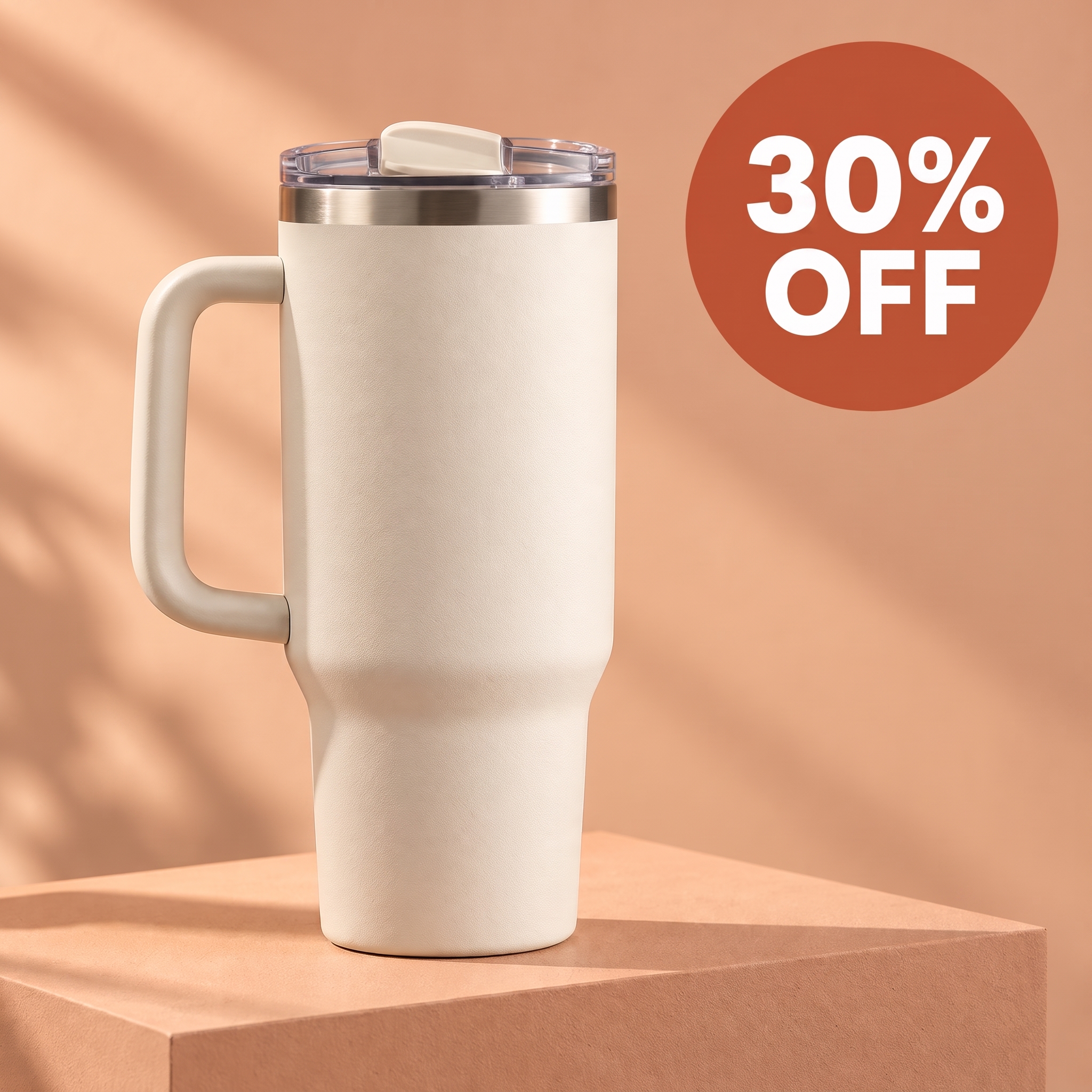
In a design workflow, use the editable offer text if available. For a flat export, extract or rebuild the text and check its placement. Keep the project if the next request may also change the badge shape, product placement or overall layout.
In TextImageEdit, upload the image, enter the old and new offer, generate, and use Show original to compare. Open the downloaded file to inspect the digits, background and small print. Check the real offer in your store as well: changing the graphic does not change the product's checkout price.
Use the Canva alternative editor to try a permitted image, or inspect the broader real test record before choosing.
Task 2: change a poster headline or date
First look for the original poster project. A date correction is often easier to control in an existing text layer, especially if the designer supplied the font and spacing. If the new date is longer, inspect its width and line break in the intended layout.
With only a finished image, both extracted-text and generated-image workflows need review. Inspect every numeral, separator and nearby line. A convincing headline can still have incorrect small text elsewhere. For a multi-line block, the poster editor offers area selection; its rectangle guides the request rather than guaranteeing a fixed pixel boundary.
Our alternative page includes a saved BOTANICAL PRINTS → WILD GARDENS poster edit. It illustrates a headline revision, not a tested Canva result or a date-change benchmark. Compare the available before and after images, then inspect the actual file before print. A 2K output setting does not by itself certify a print size or color workflow.
Task 3: update lettering in a photograph
A shop sign has reflections, paint texture and a viewing angle. Merely choosing a similar font does not settle how its letters should sit on that surface. Review perspective, spacing and the reconstruction around the old word separately.
Our saved OPEN → CLOSED sign example is an earlier AI demonstration on a fictional photograph. It is useful for judging the inspection task, not for claiming that one product always handles texture better. If the physical sign must be documented accurately, take a real current photograph instead.
Canva publishes limitations for Grab Text recognition. A generated replacement also needs inspection and can change more than the requested words. Use the font-matching checklist when the new letters look detached from their surroundings.
Compare cost, output and review effort
| Decision | Canva workflow | TextImageEdit workflow |
|---|---|---|
| Paid option, before applicable taxes | Pro is listed at US$144/year per person on the US annual pricing page; monthly and regional offers differ | Starter: $14.90 once for 40 credits, about $0.37 per one-credit 2K edit |
| Generation time | Text extraction and any manual adjustments depend on the task | Product estimate: 30–60 seconds. Seven saved server jobs took 46–122 seconds; see the timing record below |
| Continued editing | Retain the design and editable elements | Retain the source and result; another submitted edit is another request |
| Account and allowance | Check feature eligibility and AI allowance on your current plan | Sign in with Google or email; one verified-account credit is free |
| Our generation settings | Not a statement about Canva's output limits | Free credit uses 1K; purchased credits use 2K |
| Final delivery | Export the format needed by the destination | Download the generated image and inspect its actual format and dimensions |
| Human review | Check recognition, cleanup, typography and layout | Check the requested wording plus surrounding visual changes |
Canva's plans and AI usage documentation are the current sources for its access conditions. We do not turn a regional subscription price into a universal cost-per-edit figure. If you already use a paid design plan for other work, consider that when comparing the incremental cost of this task.
Our recorded server-task times separate the product estimate from seven saved job observations. Those times include queueing and result storage, and are not a controlled comparison with Canva.
TextImageEdit's credit packs are one-time purchases, with no subscription. Starter includes 40 credits for $14.90 USD, or about $0.37 for each one-credit edit before tax. One replacement request uses one credit; translation uses one per selected language. Failed generations return their credits. Retrying a completed but visually unsuitable edit is a new request, so count review and revision attempts when assessing your own cost.
Other workflows worth checking
Photopea's tutorial shows manual background cleanup followed by new type; its saving guide distinguishes a layered working file from an exported image. This is useful when direct editing control matters.
Fotor's image text editor describes detected text regions that users can click and replace. InPlaceText offers an original-and-replacement text workflow. EditText.ai describes detected lines and replacement text before generating a new image. These are separate services with their own controls and terms; they are not our product or evidence of identical output quality.
Choose a workflow by its output and controls, then test an image representative of your actual work. A screenshot, a printed poster and a photographed sign do not present the same editing problem.
Frequently asked questions
Do I need the original Canva project?
Not necessarily. A permitted image export can be used in an image-editing workflow. Keep or recover the original project when exact typography, reusable objects or multiple layout revisions matter; a flat image does not contain all those editing settings.
Does TextImageEdit return editable Canva text boxes?
No. It returns an edited image. If you need movable text objects and continued layout work, use an editable design workflow. You can use the downloaded image in a later design, but that does not turn its letters into independent text layers.
Will either workflow reproduce the exact original font?
Do not assume an exact match. Check letter shapes, spacing, baseline and effects. Use the original text layer and authorized font when precise typography is required. A visible resemblance does not identify or license a font.
How should I compare the two tools fairly?
Use the same permitted input and replacement phrase. Record attempts, manual corrections, account allowances and actual outputs. Compare spelling and surrounding detail at full size and intended display size. Do not report a speed or accuracy score without conducting that comparison.
Is a generated social graphic ready to publish immediately?
Review it first. Check the offer or event details against their real source, then inspect the full image and downloaded dimensions. Generation success is separate from editorial approval or a platform's publishing requirements.
What should I check before uploading a private image?
Confirm that you may share the file with the service and read its current privacy terms. Remove personal or confidential information first when possible. Different providers have different processing and retention arrangements; do not infer a deletion promise from another tool's policy.
Can I try TextImageEdit before buying credits?
Yes. One verified-account credit covers a first 1K edit with a downloadable result and no added watermark. Purchased credits use 2K. Review the output before deciding whether the workflow suits your image.
Sources and further reading
- Canva image text editing and Grab Text help.
- Canva plans and AI usage.
- Photopea workflow, Fotor, InPlaceText and EditText.ai.
- Our privacy policy and acceptable use.
Sources reviewed October 31, 2026. TextImageEdit is not affiliated with Canva. These are documented workflows and saved first-party examples, not a controlled benchmark of all listed products.
Try the workflow
Choose a clear image you can edit, prepare the new wording and compare the downloaded result.
Try the Canva alternative →